Product Documentation
Product Documentation
Product Documentation
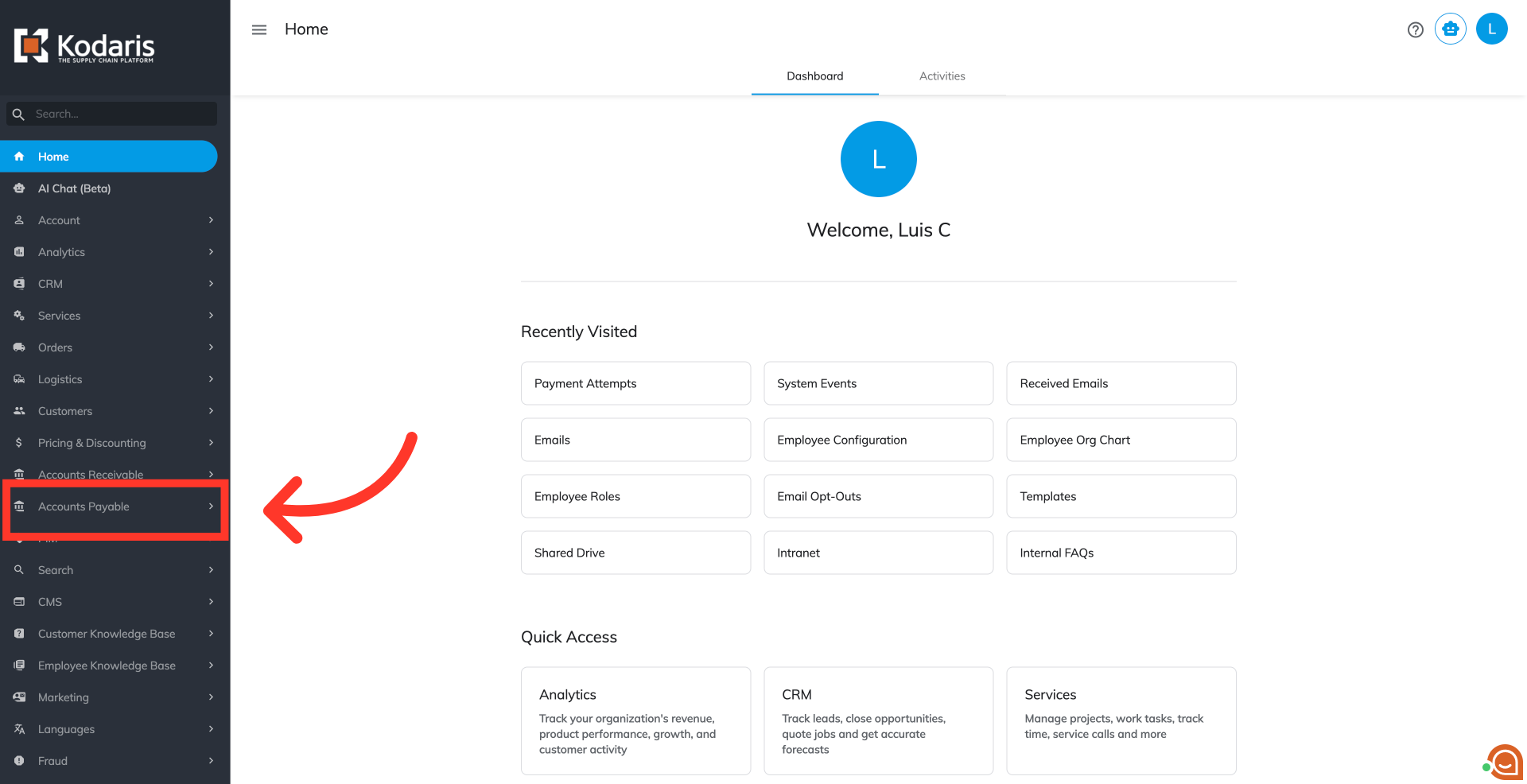
To manage vendor purchase orders additional charges, navigate to the "Accounts Payable" section in the Operations Portal.
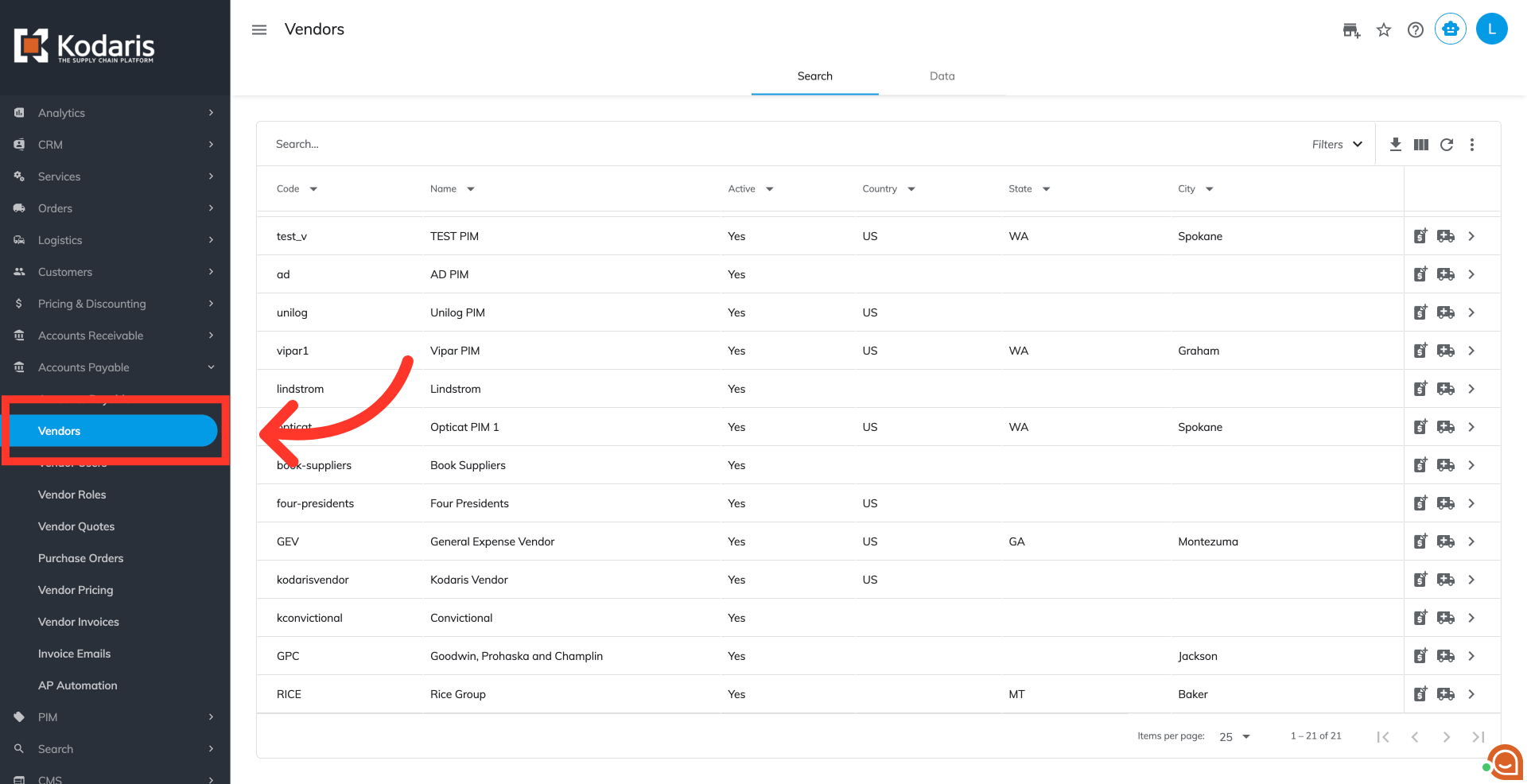
Then, click "Vendors". In order to access "Vendors" the account will need to be set up either as an "administrator" or a "superuser", or have the appropriate roles: "vendorView", "vendorEdit", "purchaseOrderView" and "purchaseOrderEdit."
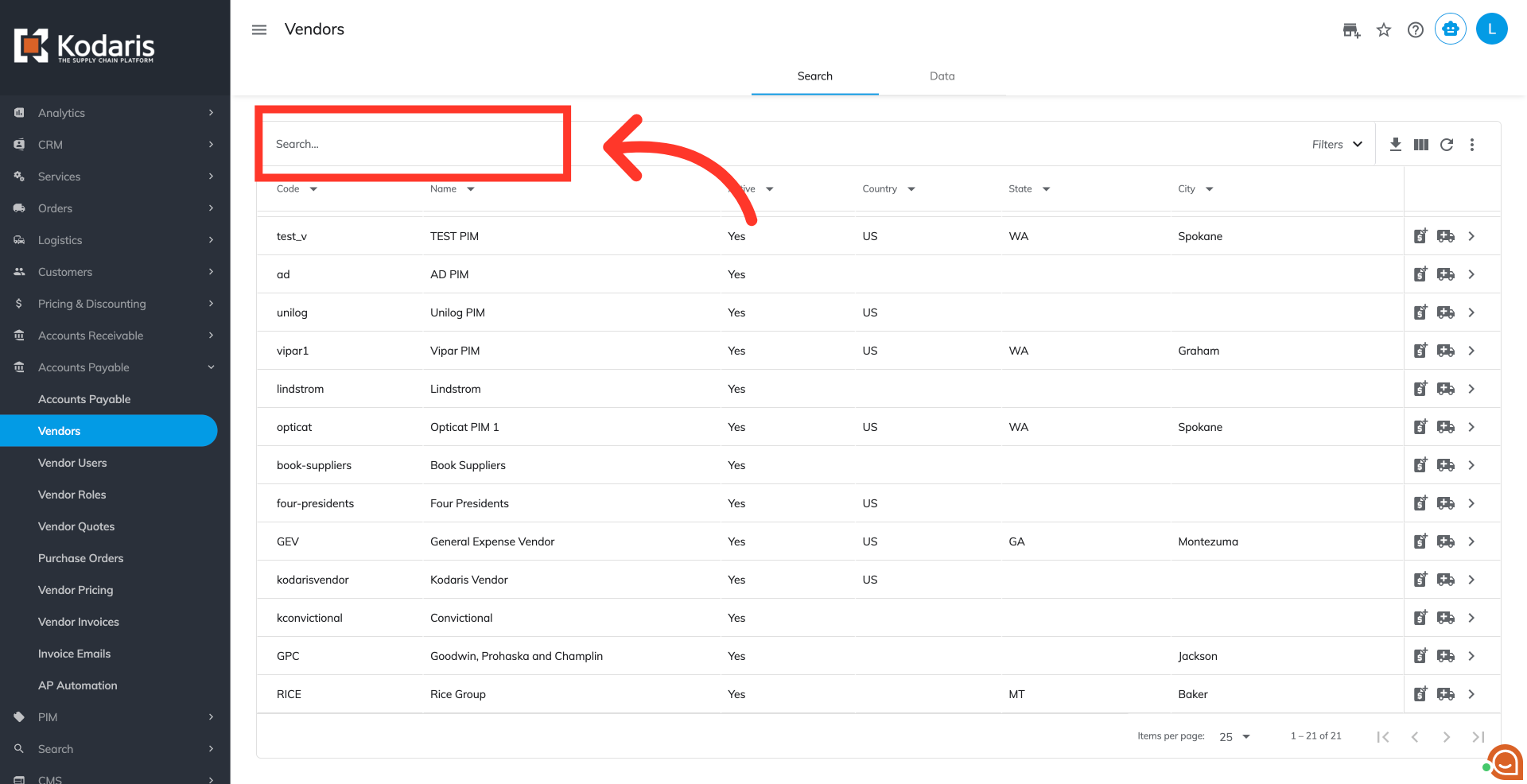
Locate the vendor by entering a keyword into the "Search..." field.
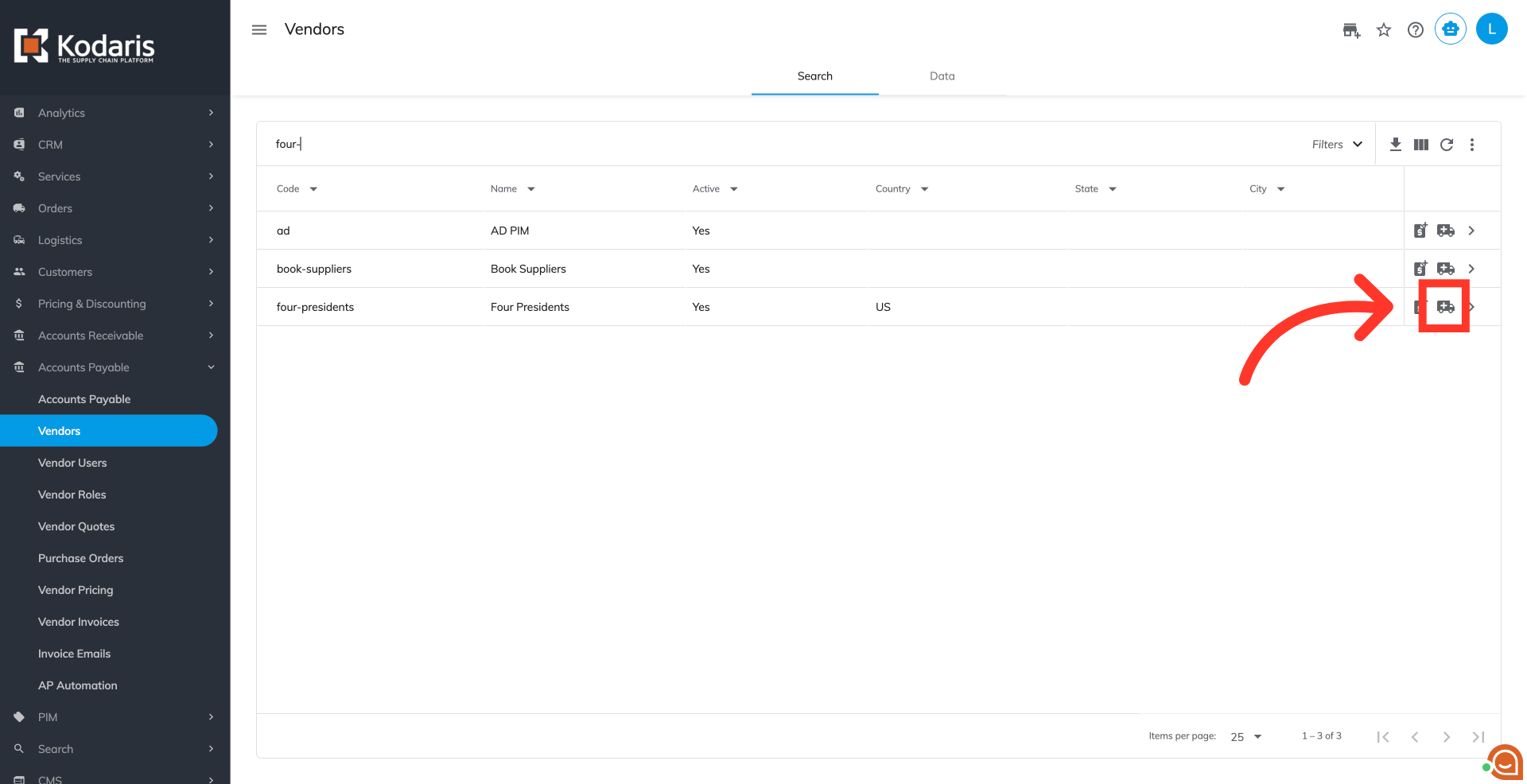
You can view and update "Additional Charges" on an existing or new Vendor Purchase Order. To view or update an existing one, navigate to "Purchase Orders" and view the additional charges on an order. To view and update on a new one, click the "Start Purchase Order" icon in the grid.
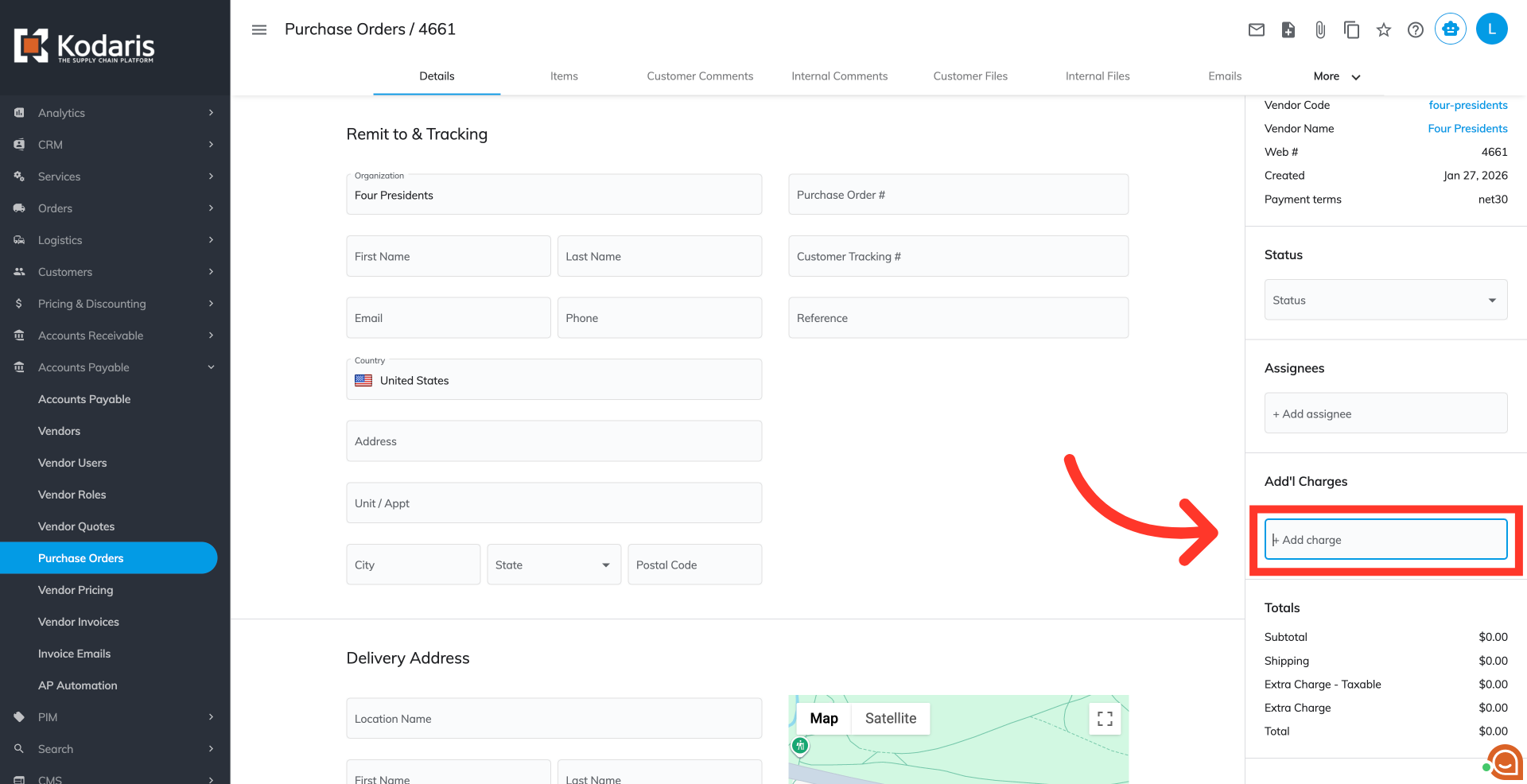
On the right side of the details, you will see the "Add'l Charges" section. It displays all additional charges of the purchase order. Click the "+Additional charge" field to view the available options.
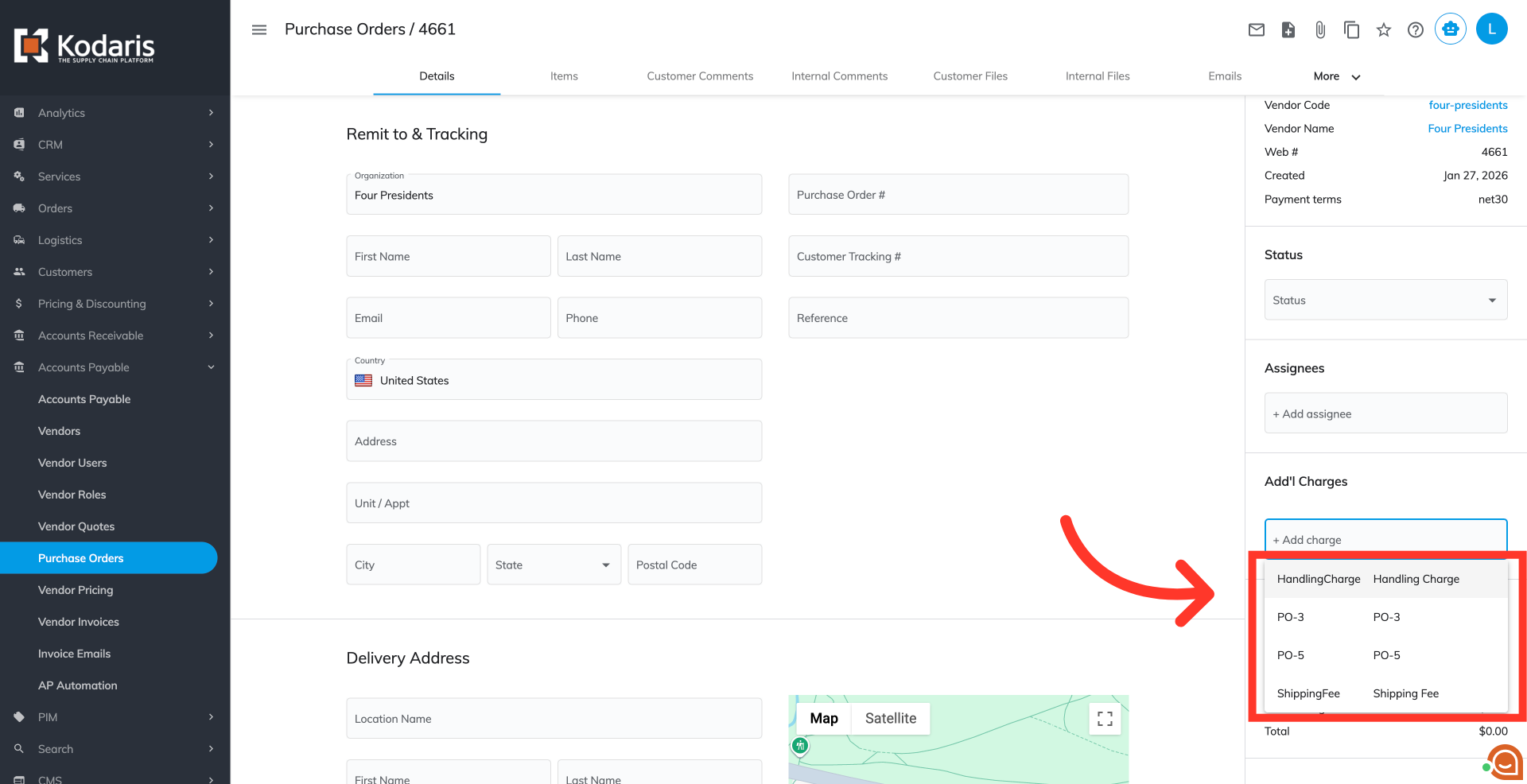
Select from the predefined options to add them to the additional charges list. You can add more than one additional charge to the purchase order.
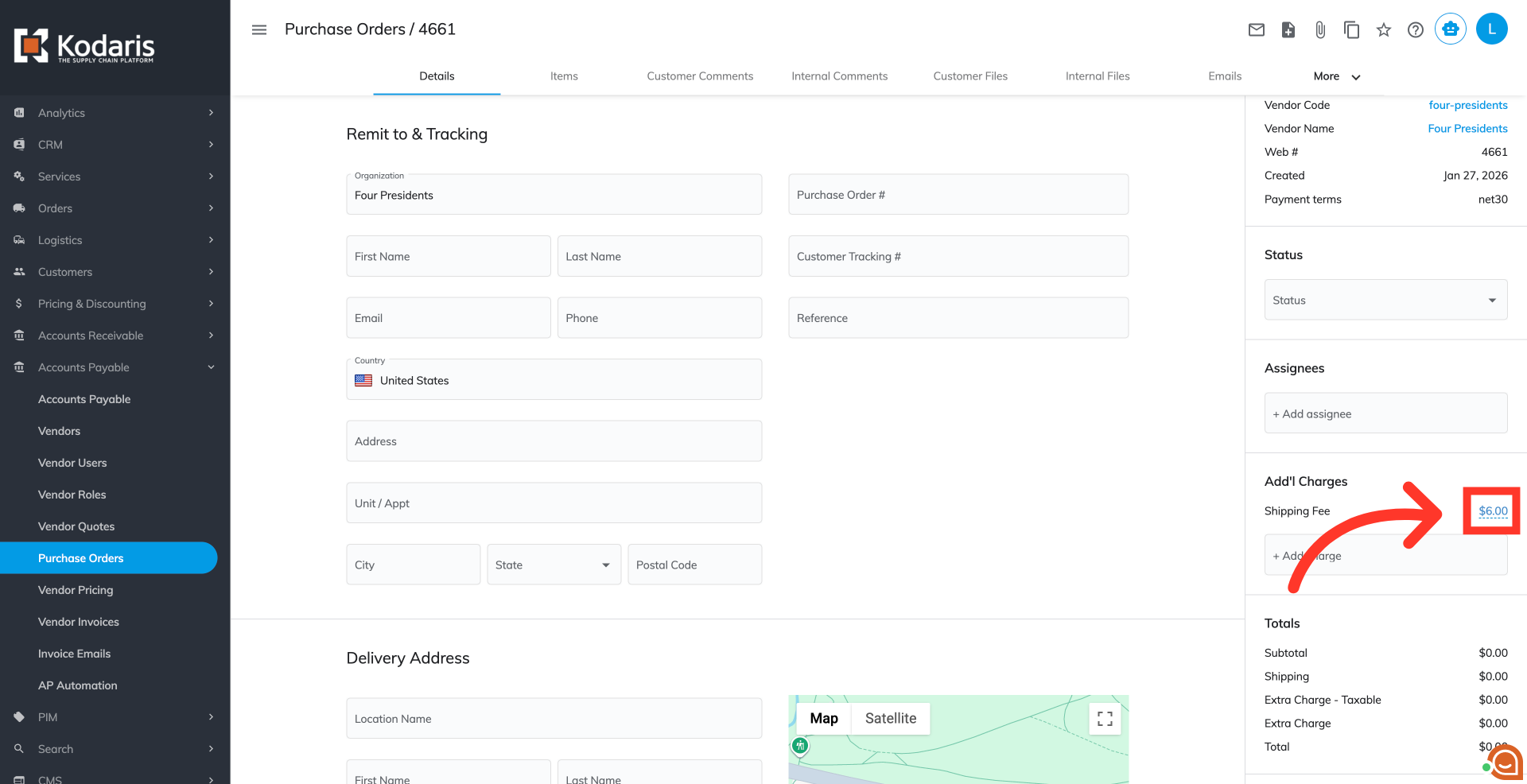
Click the amount field in the additional charges list if you would like to change the amount.
Make the desired update.
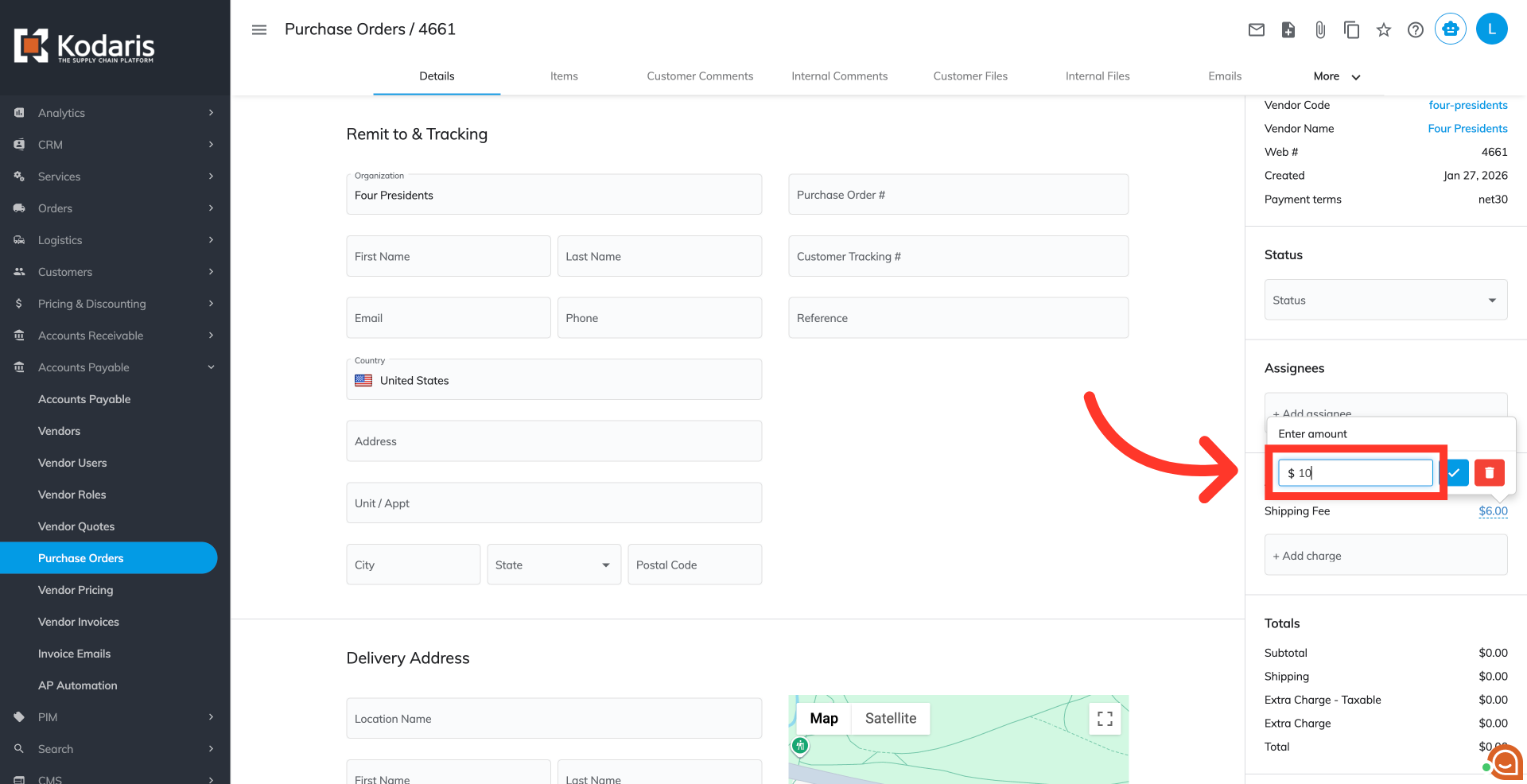
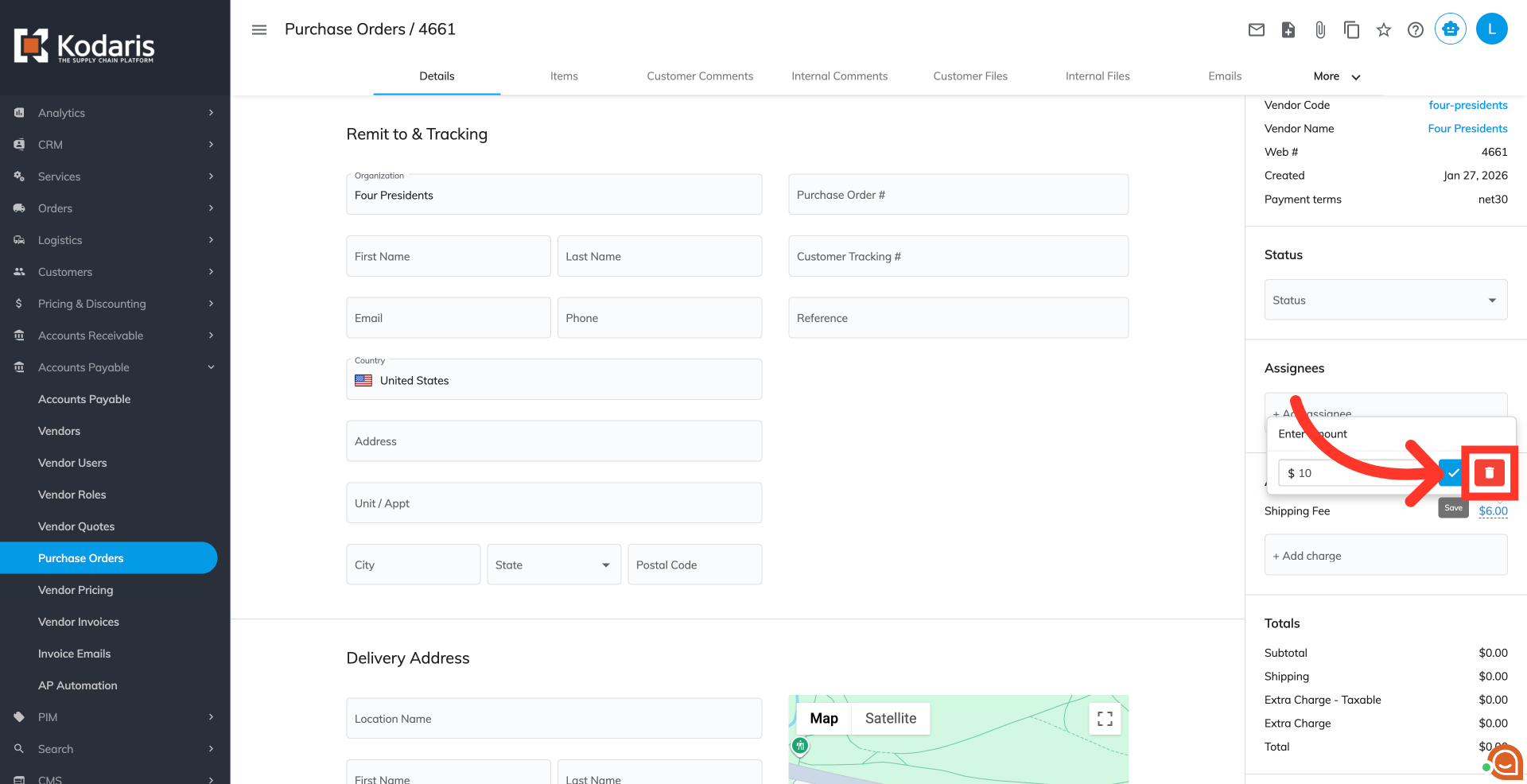
Click the "Save" button to update the amount.
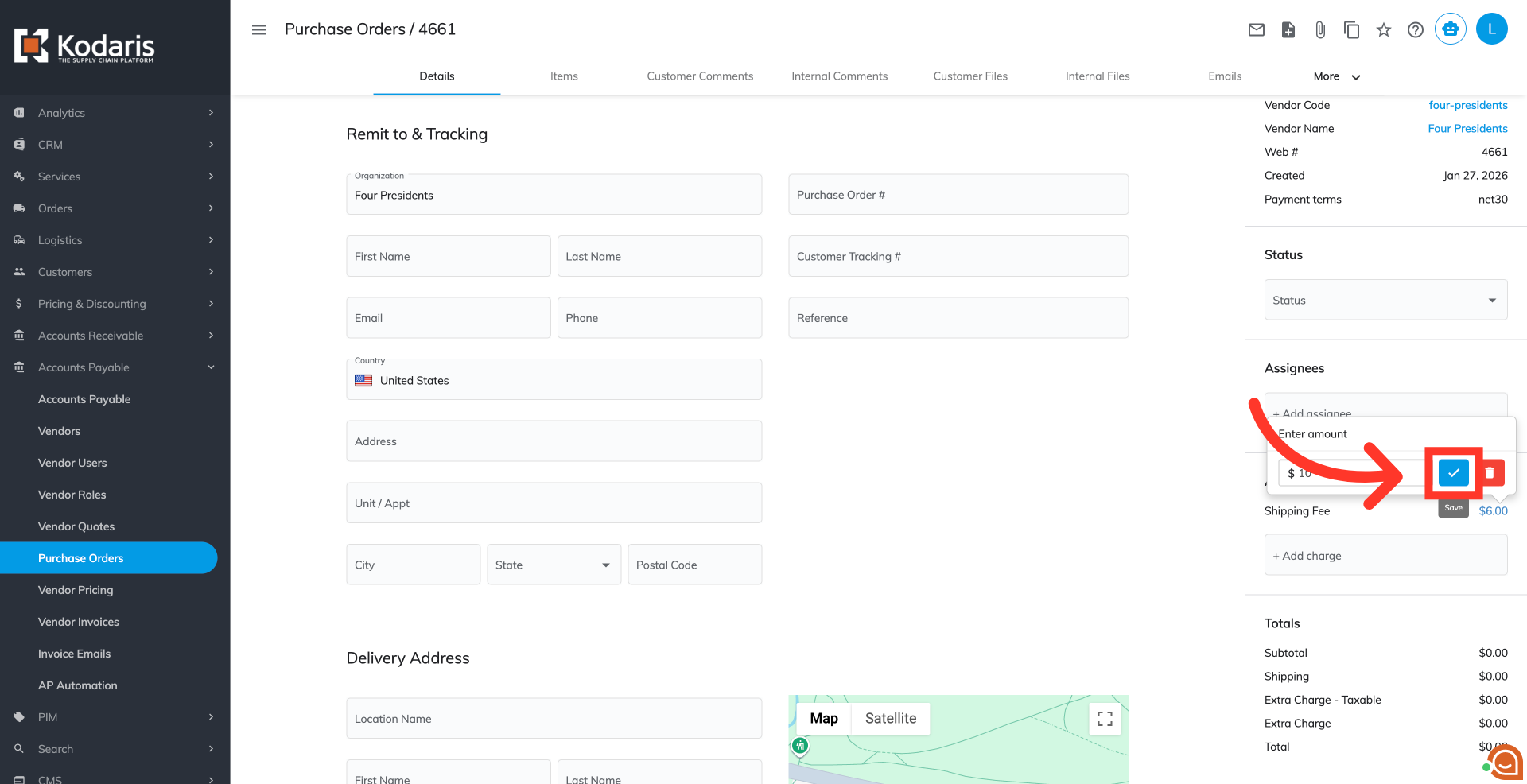
Click the "Delete" button if you wish to remove the charge from the list.