Product Documentation
Product Documentation
Product Documentation
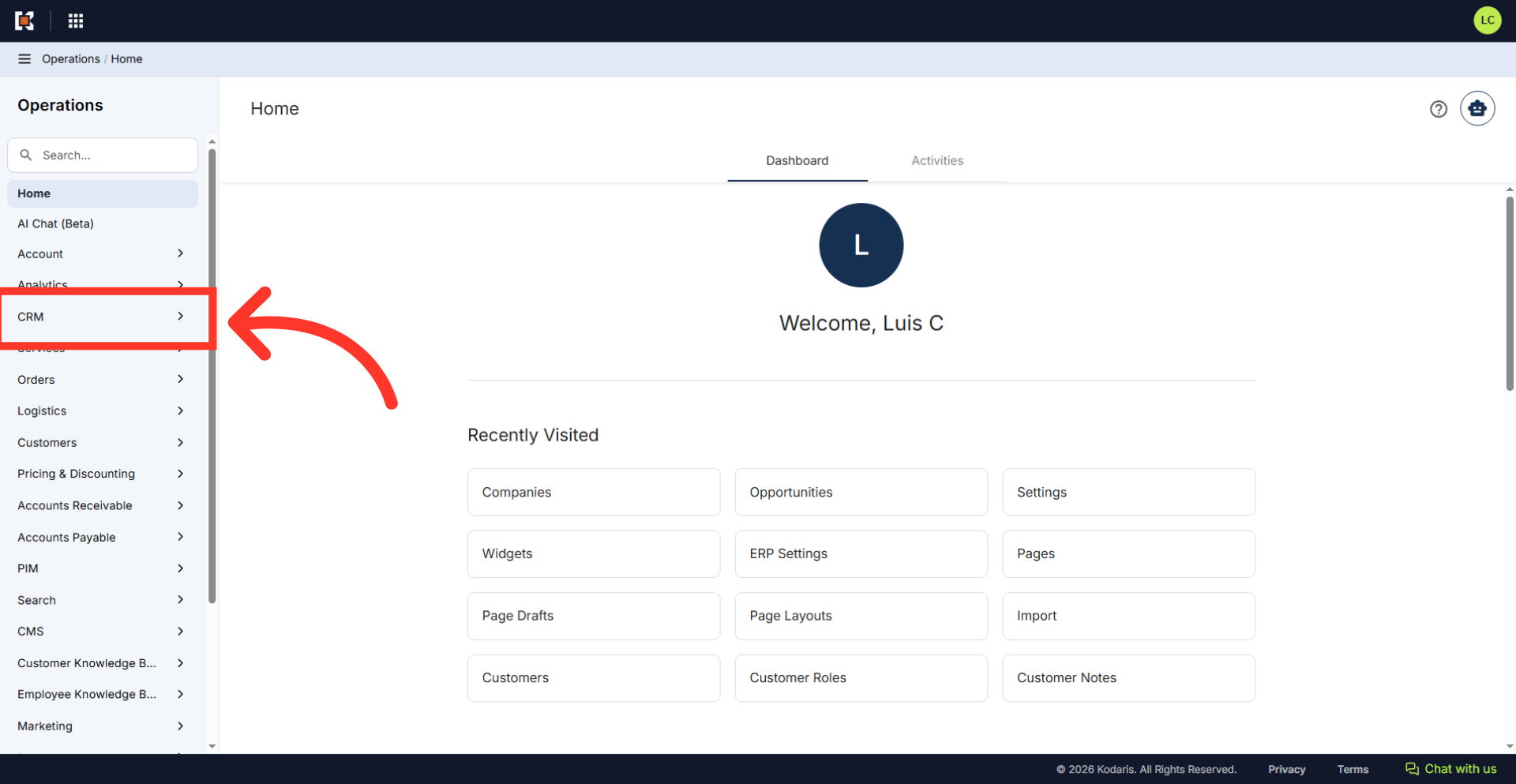
To add products to an existing Company Product List by import, navigate to the "CRM" section in the Operations Portal.
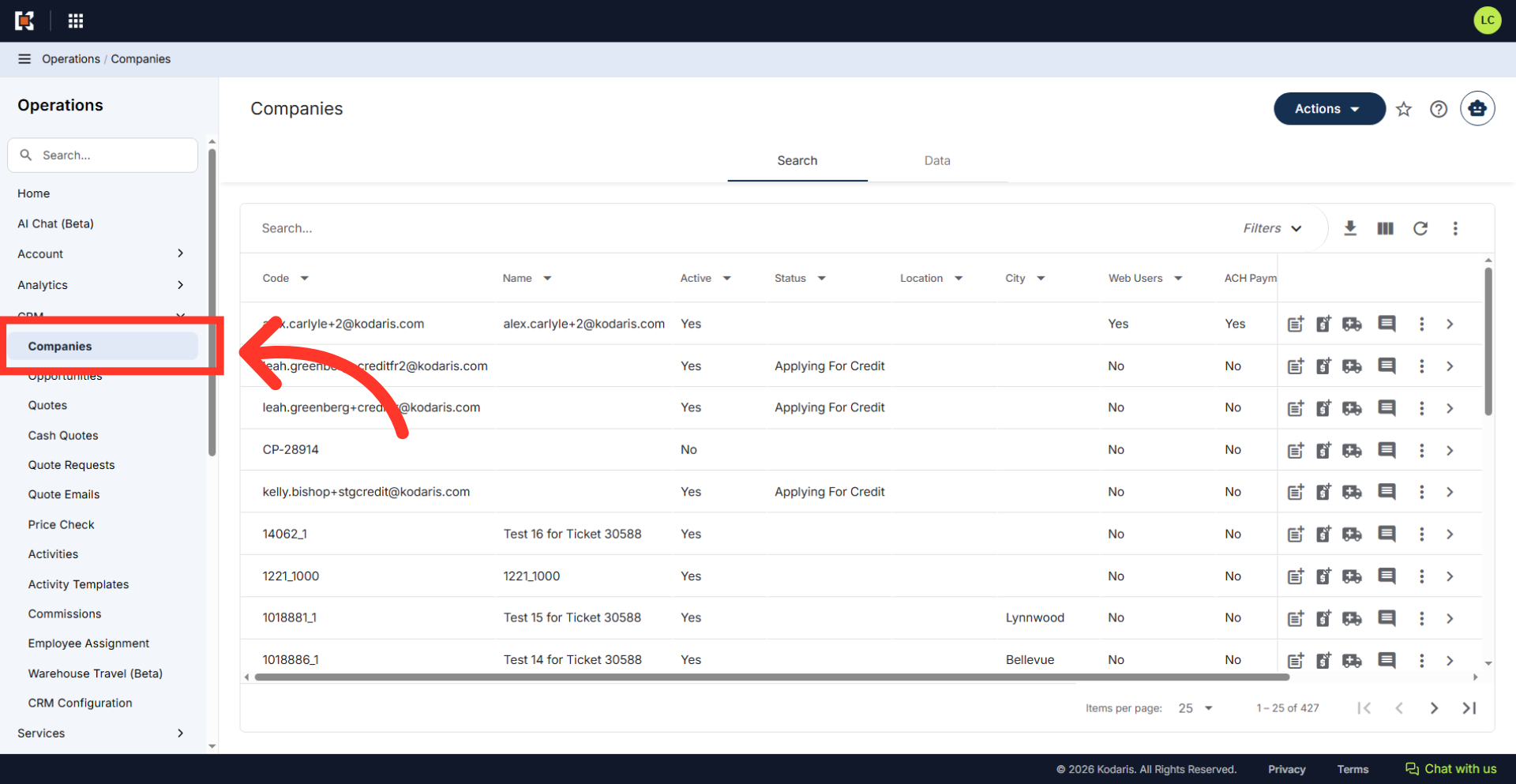
Click "Companies". In order to access "Companies" you will need to be set up either as an "administrator" or a "superuser", or have the appropriate roles: "companyEdit", or "crmCompanyEdit". Just a reminder, "crmCompanyEdit" access only allows employees to access companies that are assigned to them. You will also need "companyWishListView", "companyWishListEdit", along with "importEdit" and "importView". These last two roles are needed for importing.
Type in a keyword in the "Search" bar to locate a company.
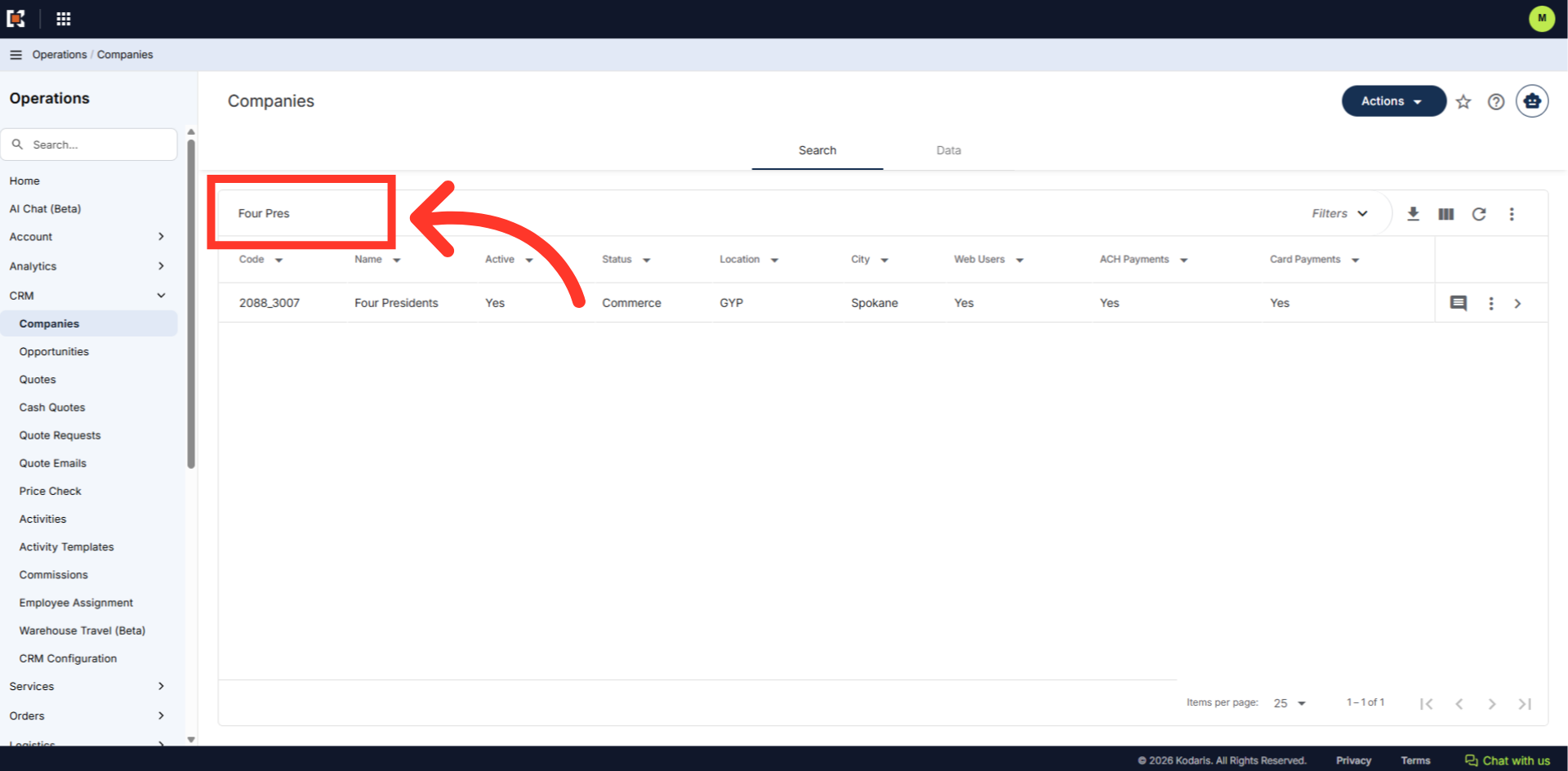
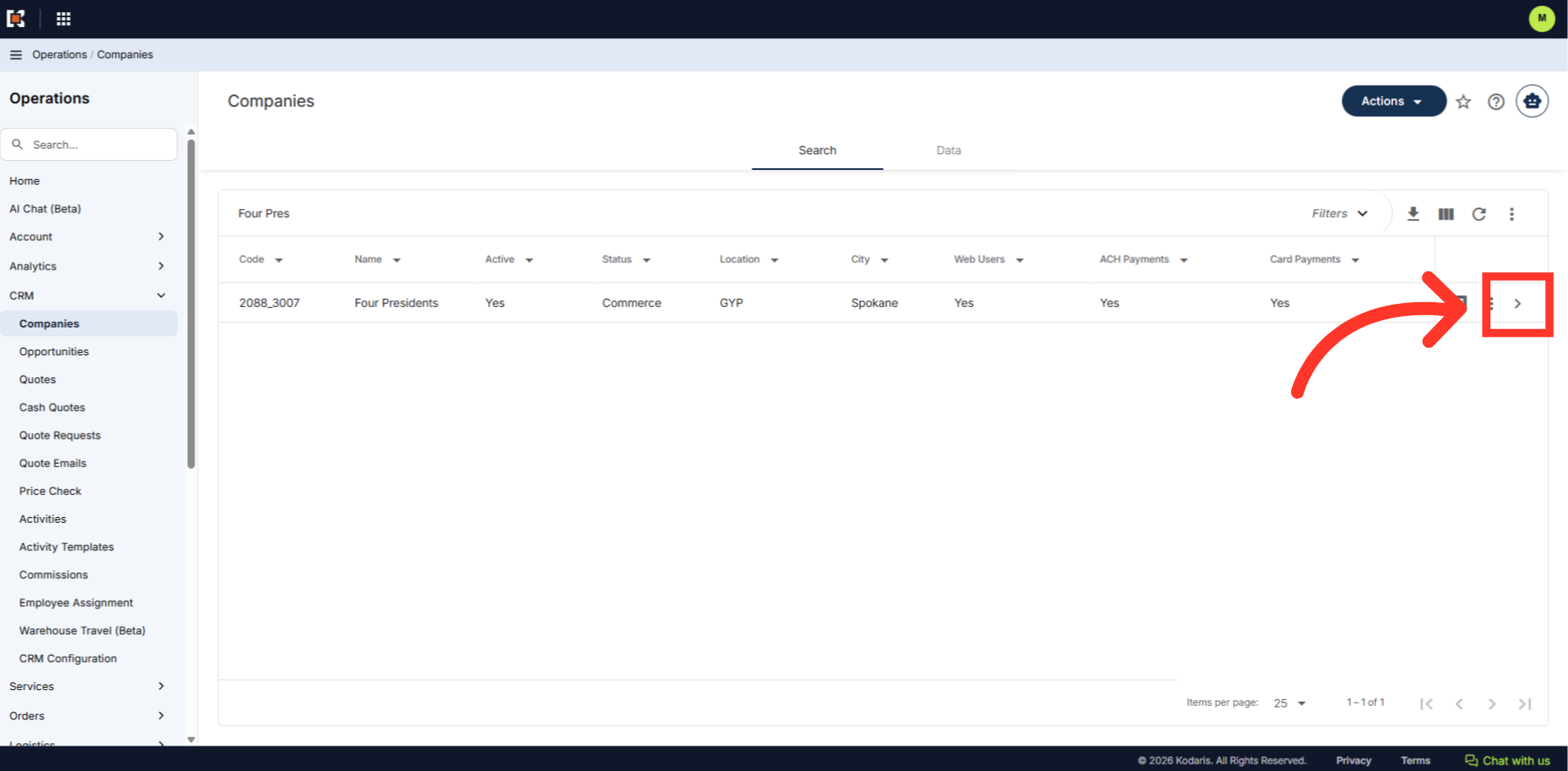
Click on the more details icon to access the company details.
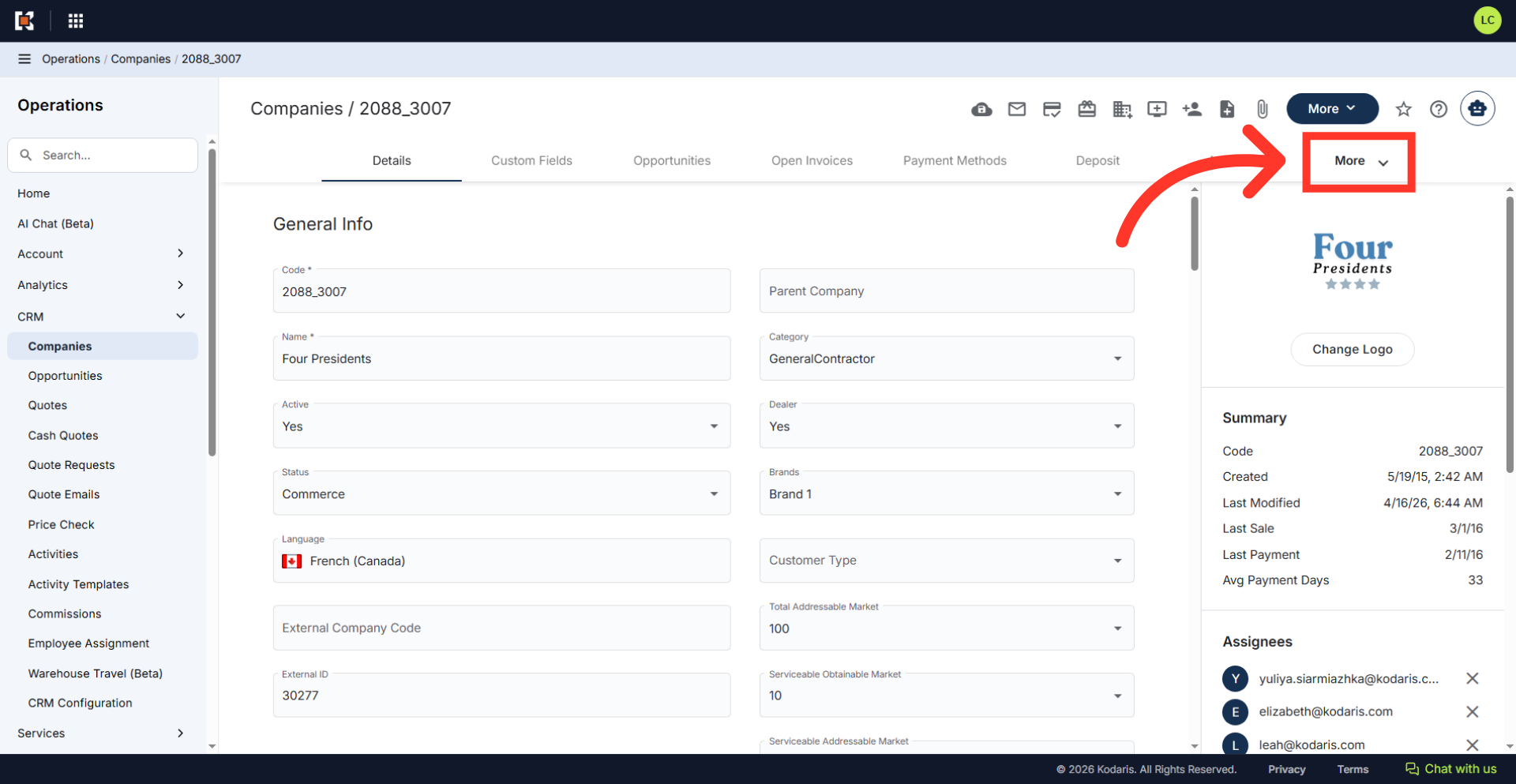
Click on the "More" dropdown to view other options.
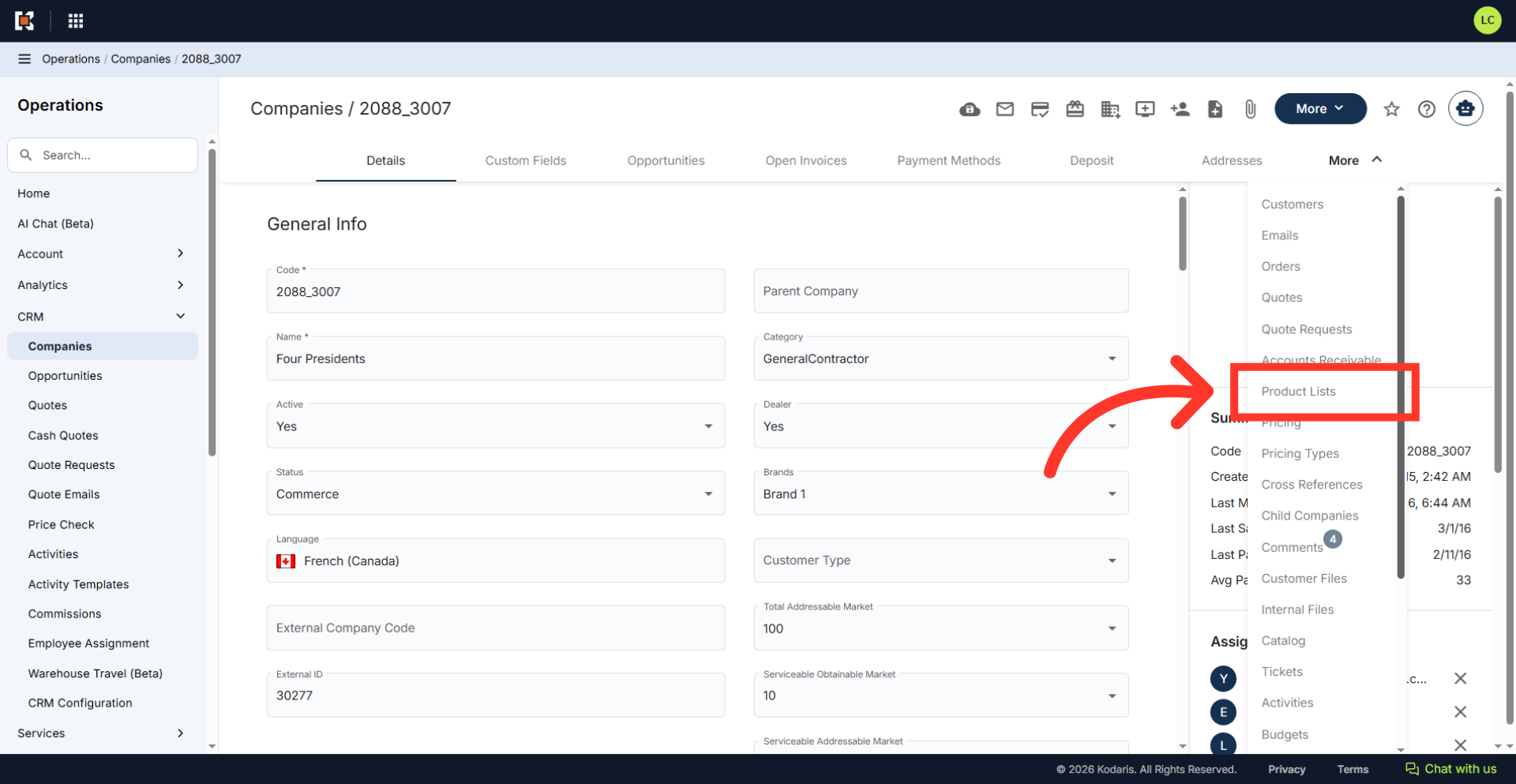
Select "Product List" to view.
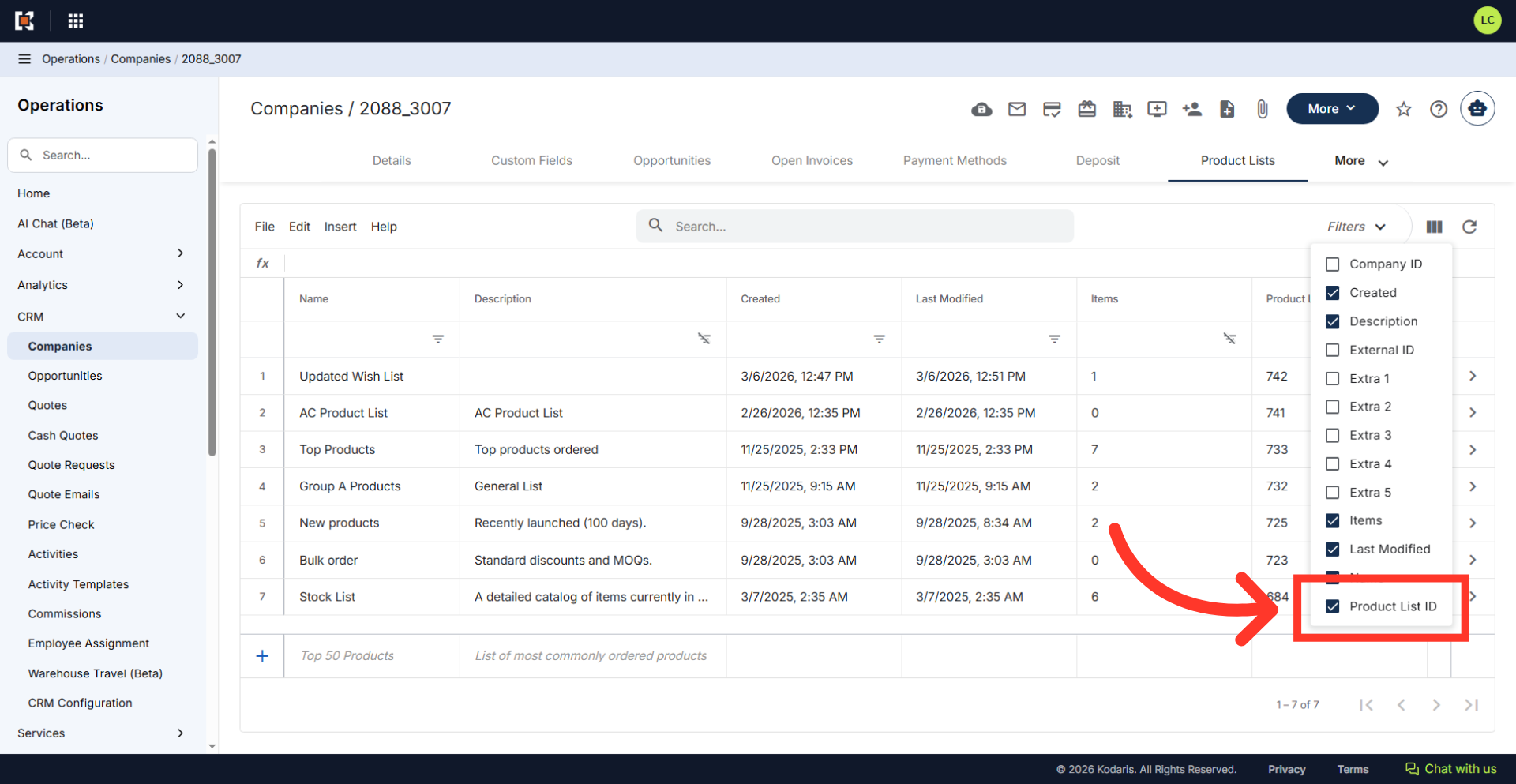
Now you can see all the company’s product lists. Click on the "Show/Hide Columns" icon.
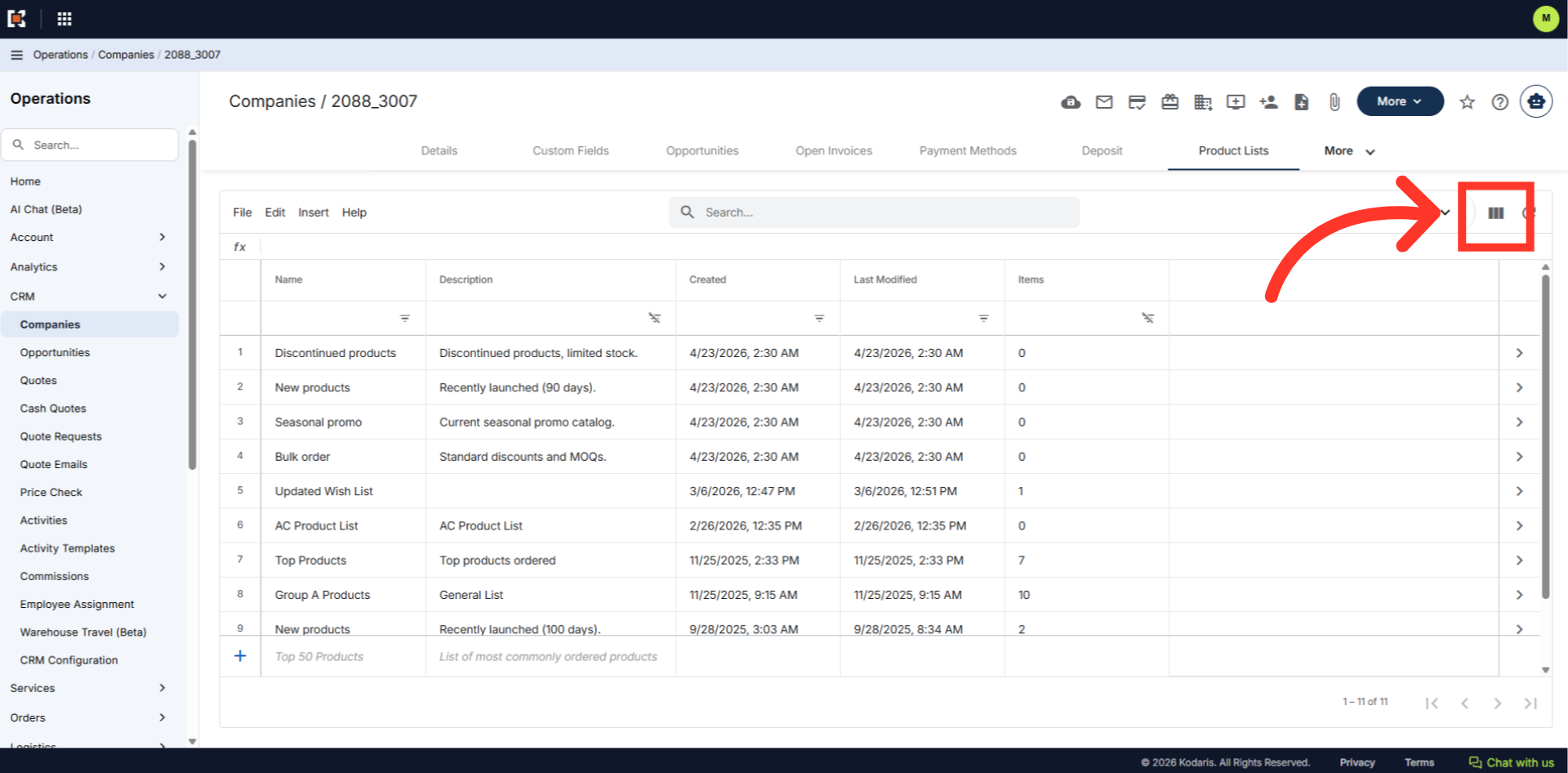
Select the "Product List ID" column.
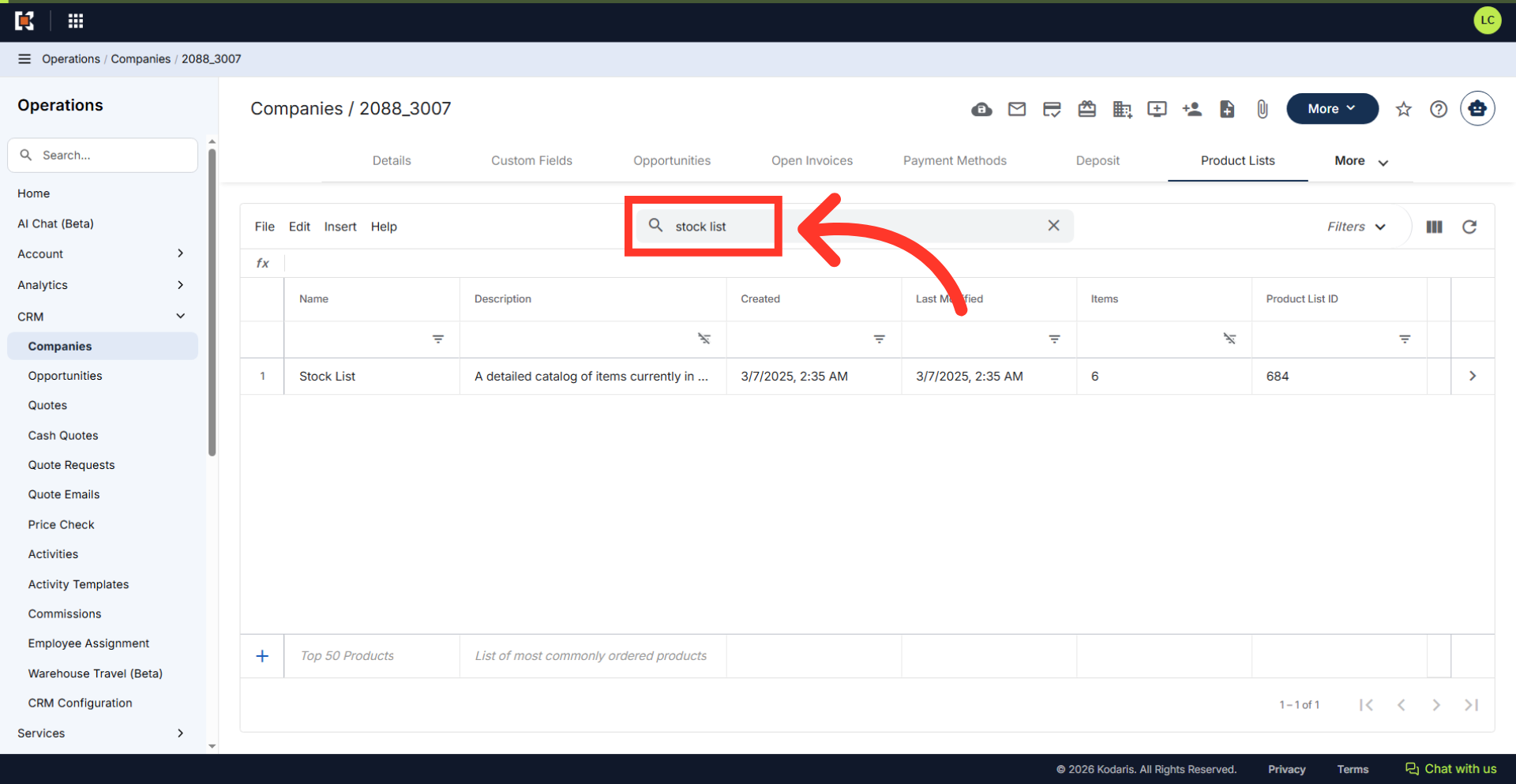
Enter a keyword into the search bar to locate the product list.
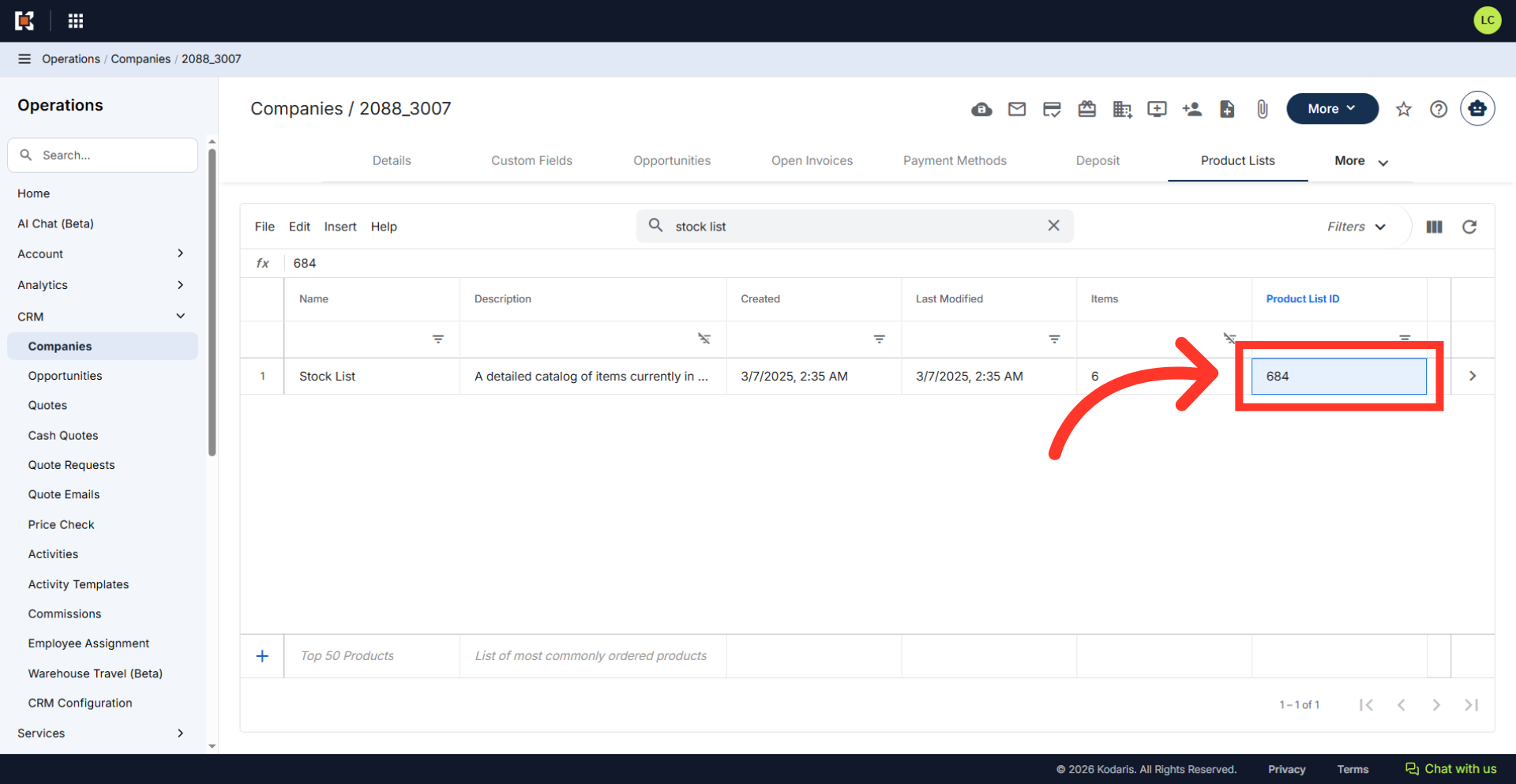
Copy the "Product List ID". This will serve as the identifying factor for importing.
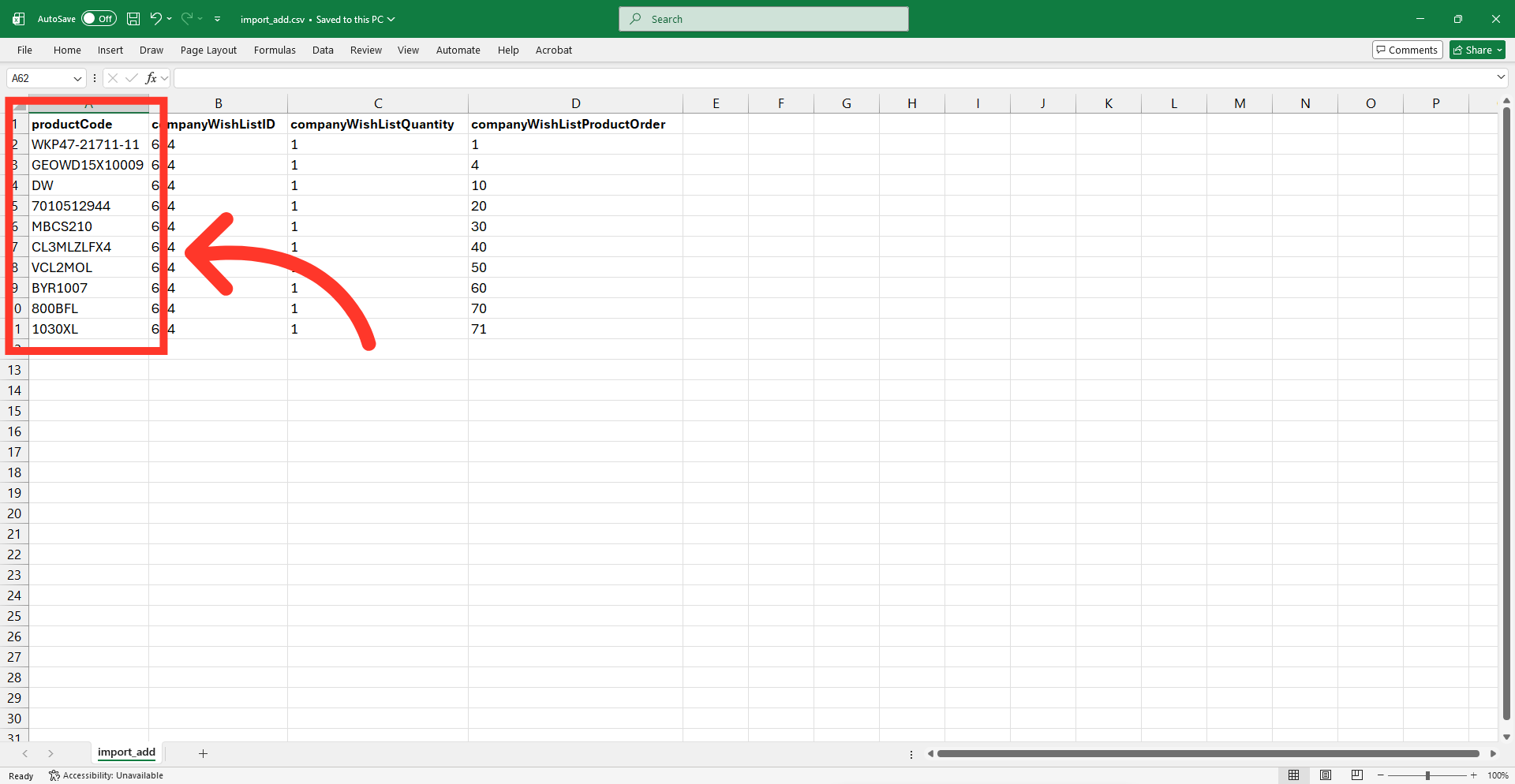
To prepare the CSV file, ensure the header row includes the "productCode" and "companyWishListID" columns, as these are required. Optional columns include "companyWishListQuantity" and "companyWishListProductOrder."
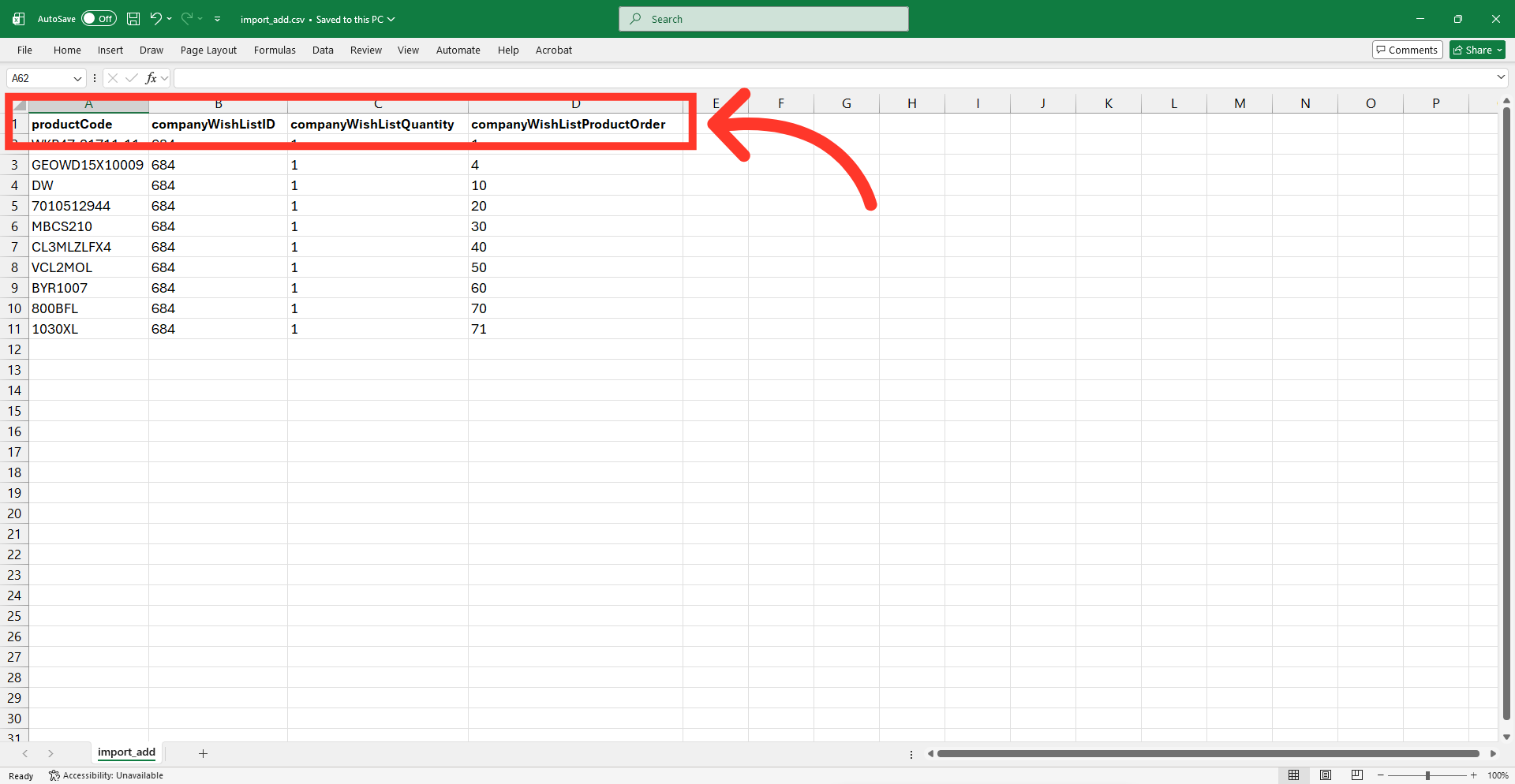
The "productCode" column contains the product codes you would like to add to the company product lis.
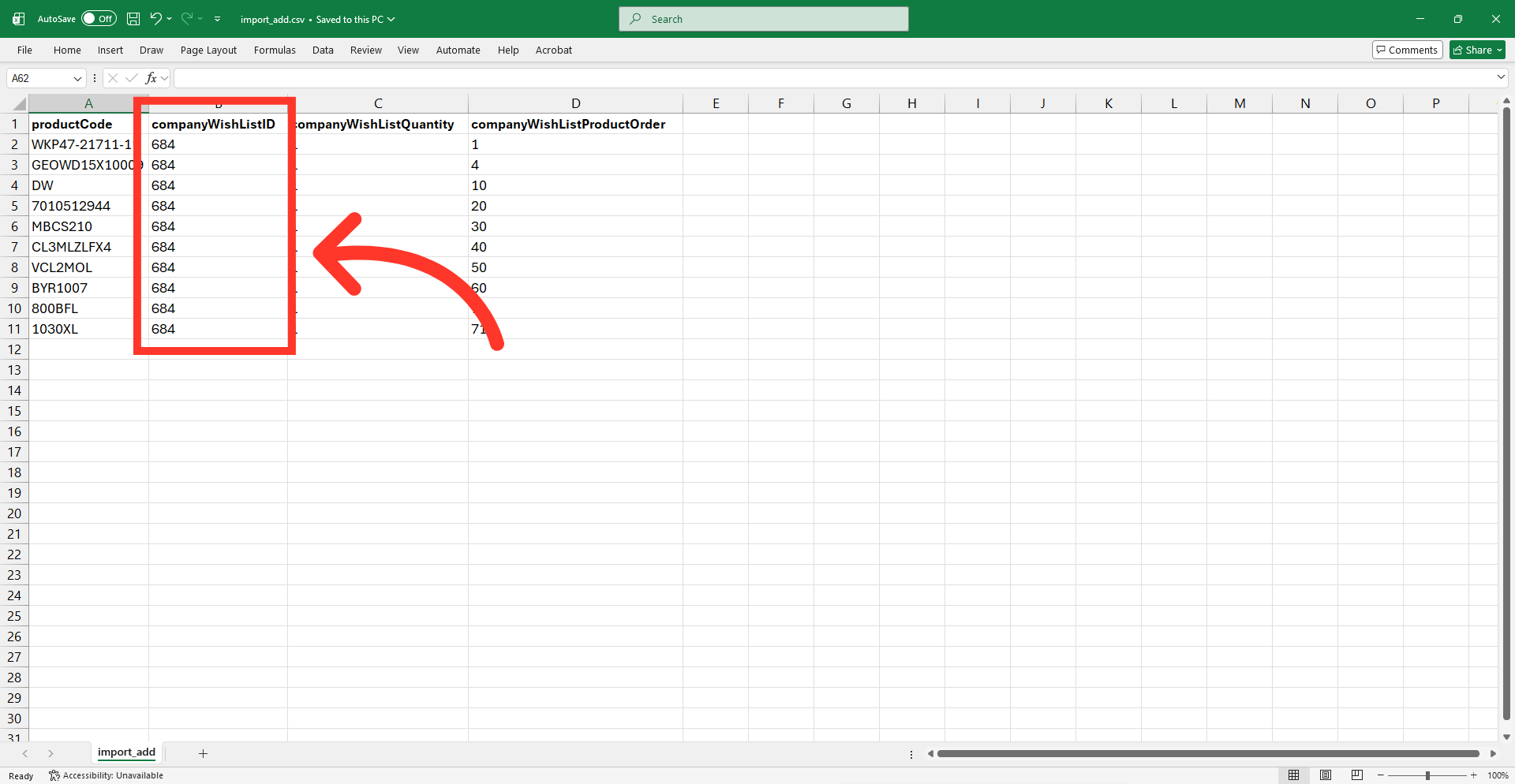
The "companyWishListID" refers to the product list code that was copied previously. This ID identifies a specific company product list in the system. Paste the product list code in this column.
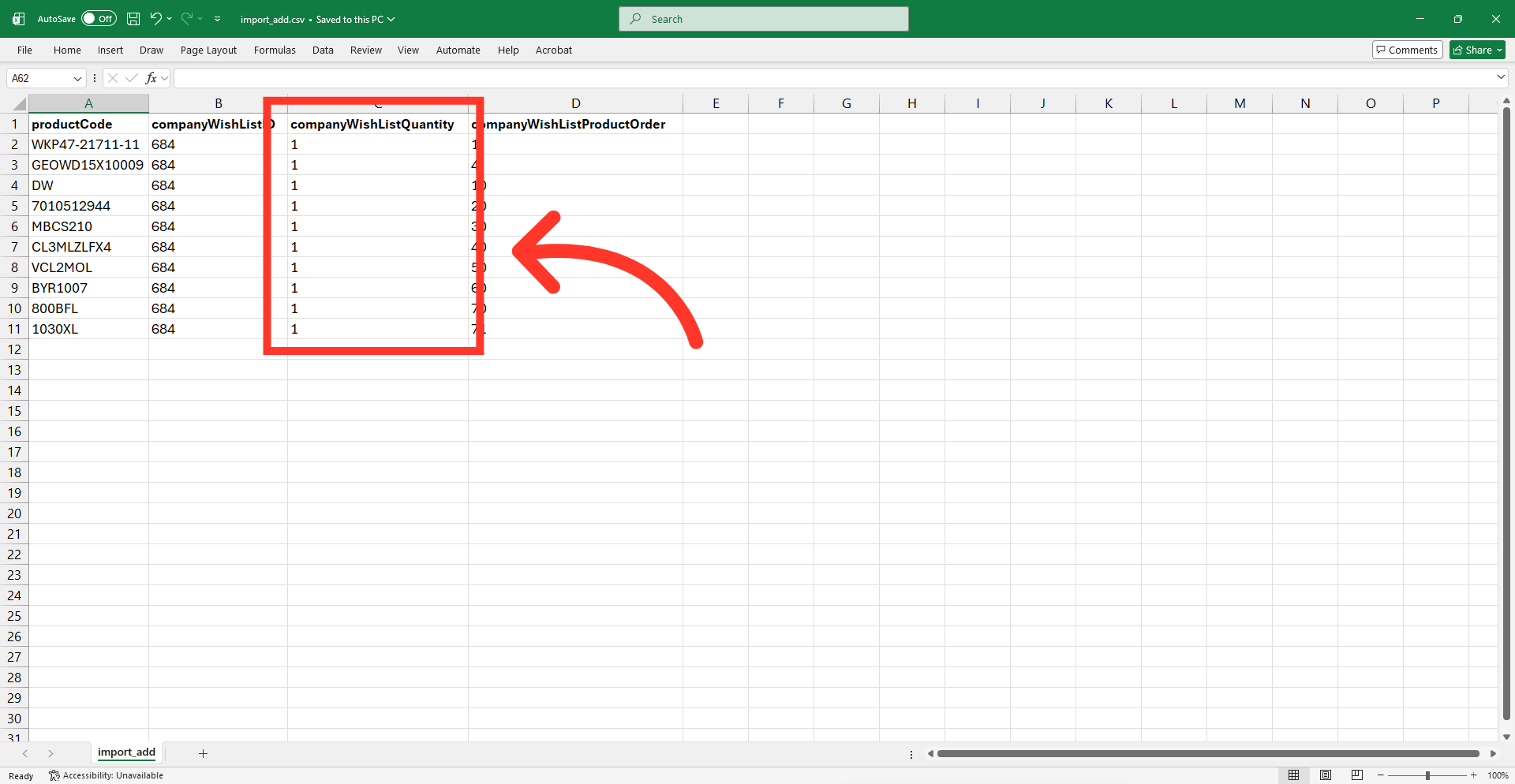
The "companyWishListQuantity" is the quantity of a specific product that should be associated with a company product list. This column is not required for importing.
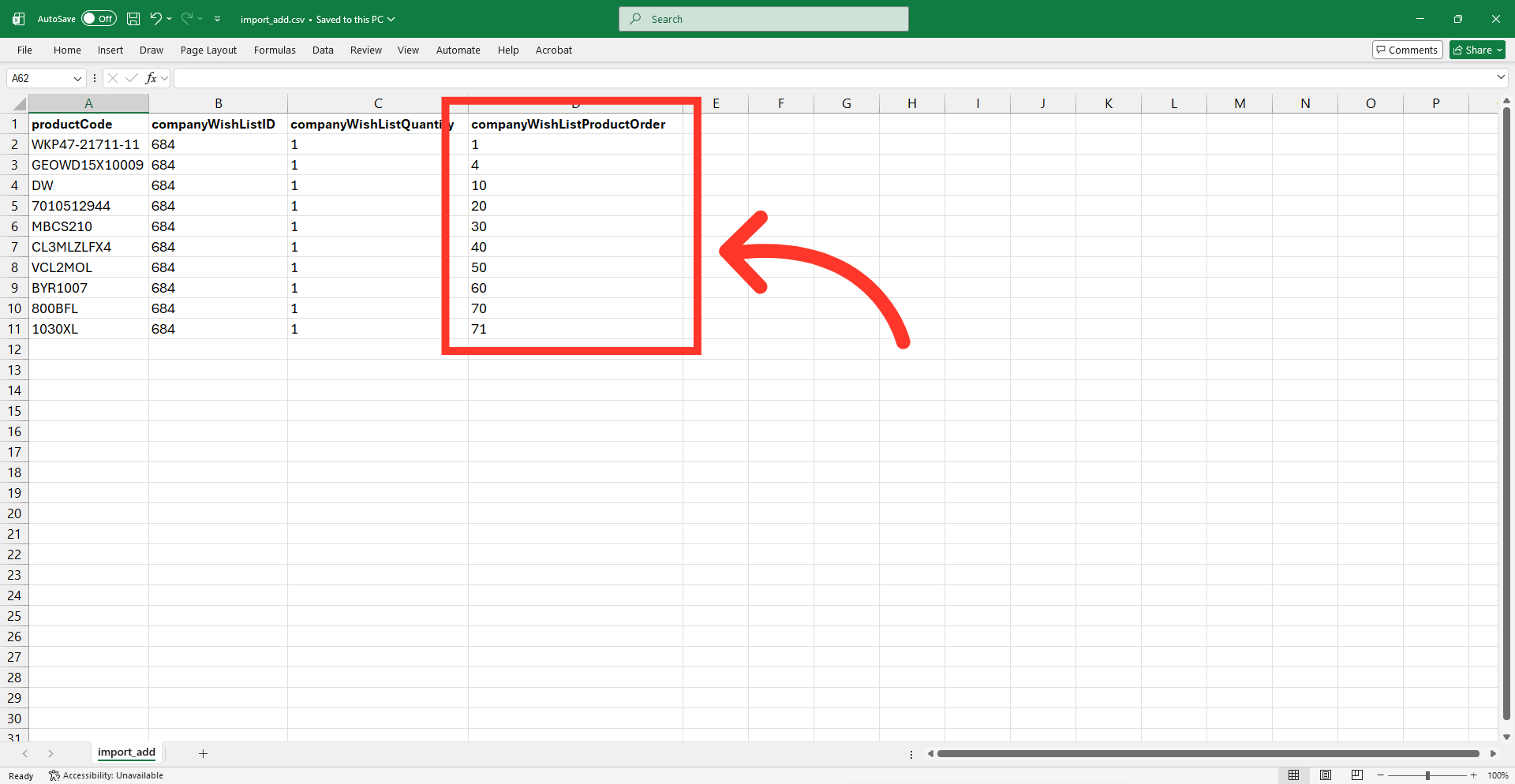
The "companyWishListProductOrder" specifies the order in which products are displayed. The lower the number, the higher the product will be displayed. This column is not required for importing.
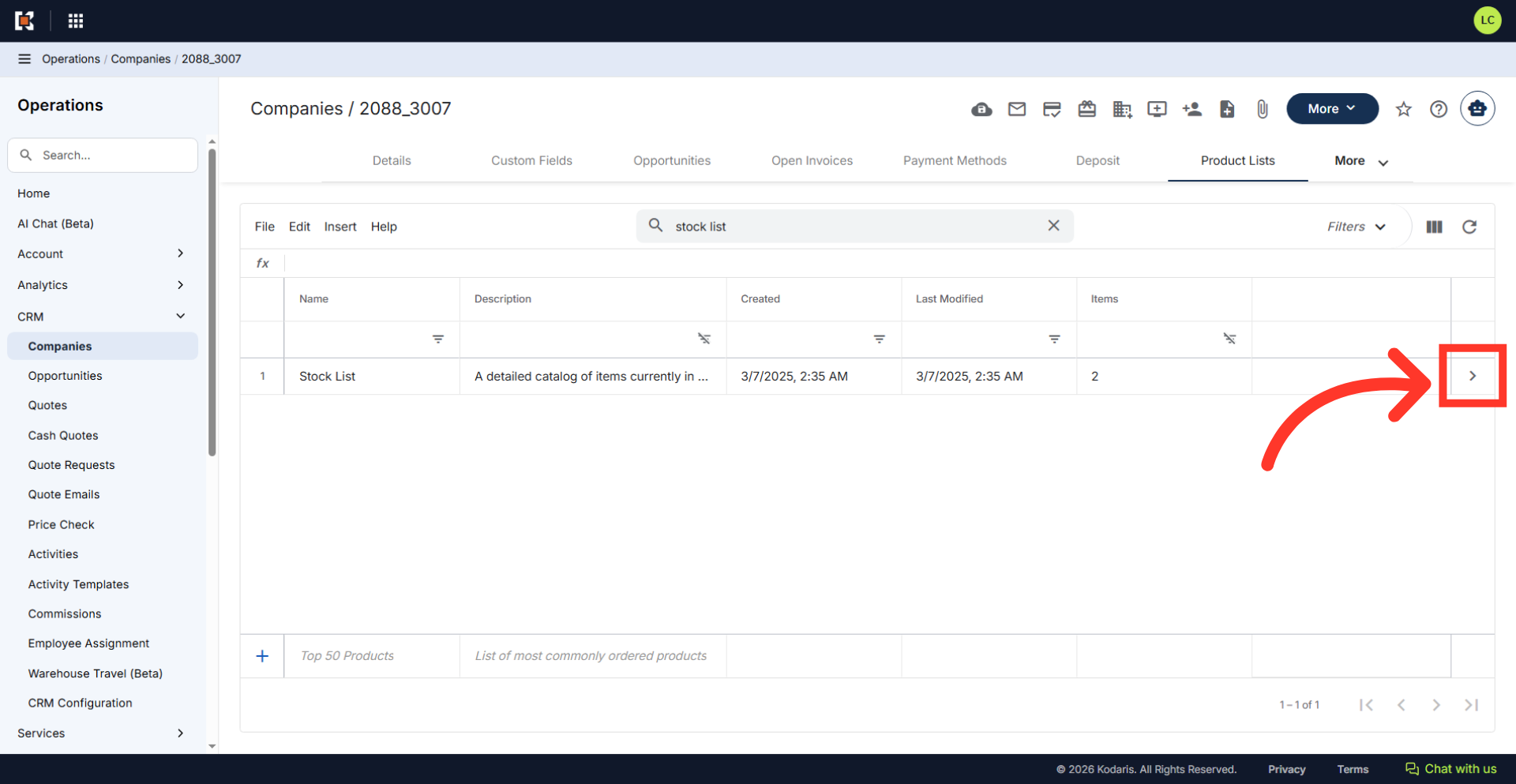
Now that your file is ready for importing, return to your product list in the operations portal. Click on the "more details" icon to view the product list details.
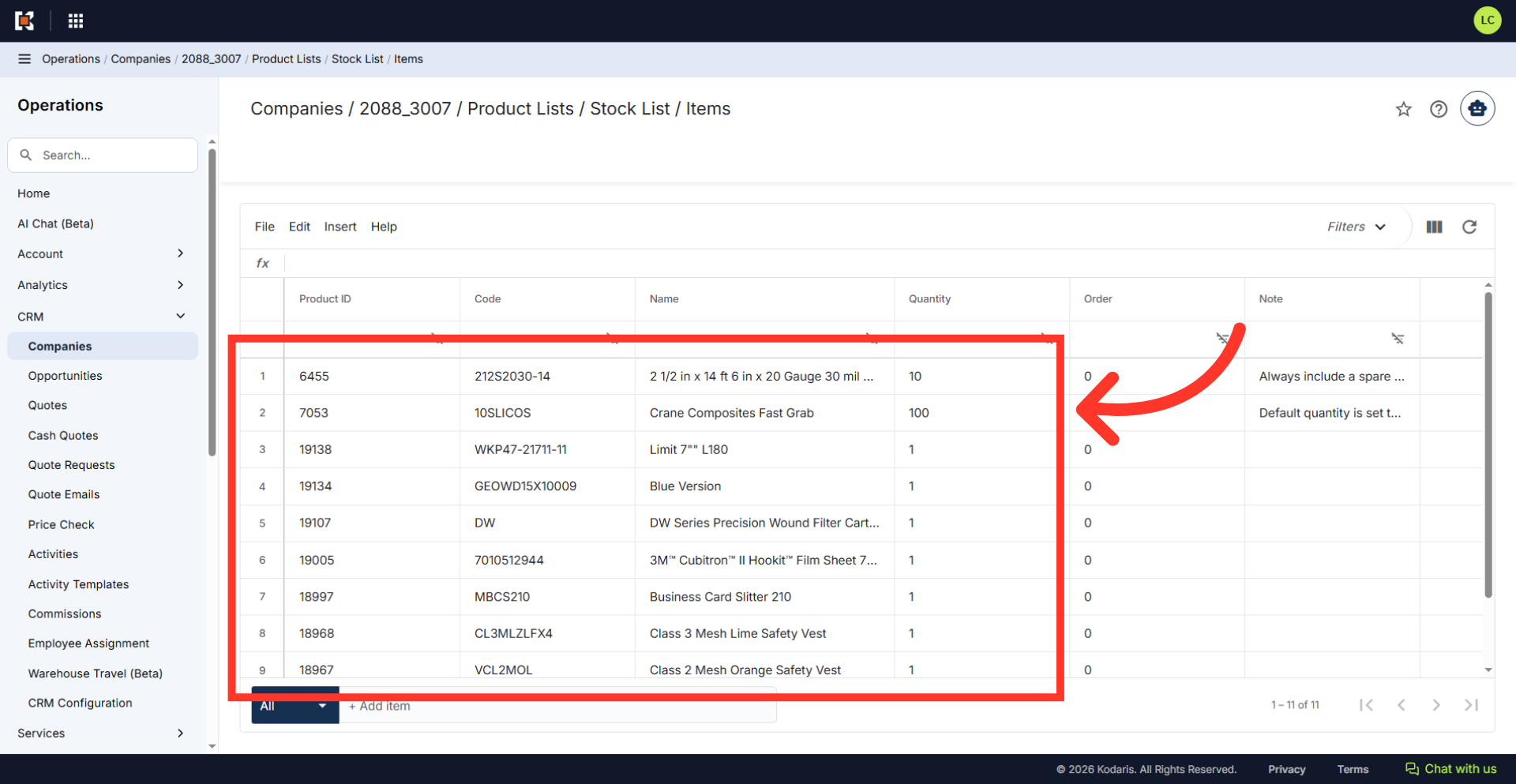
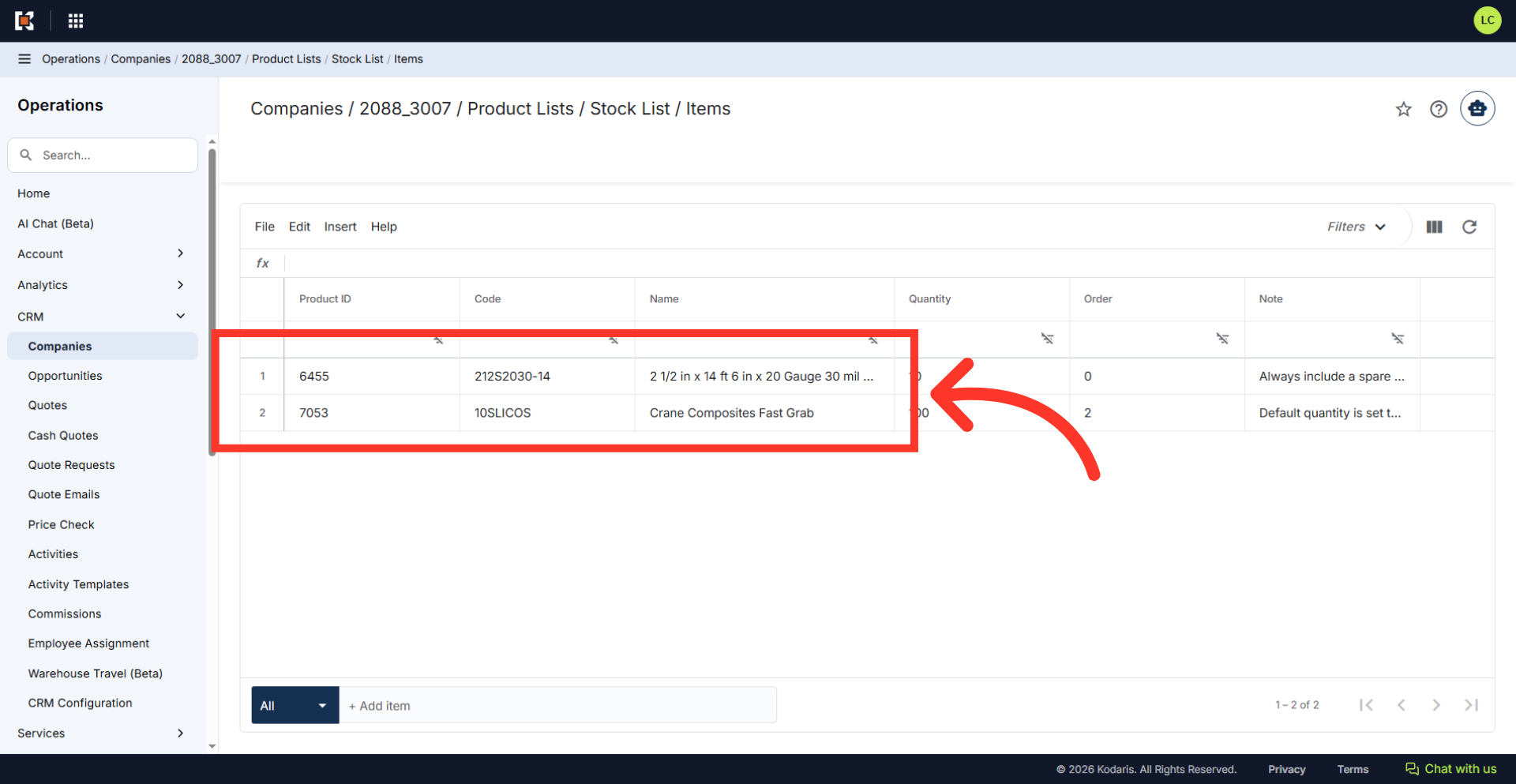
The list displays products currently on the product list.
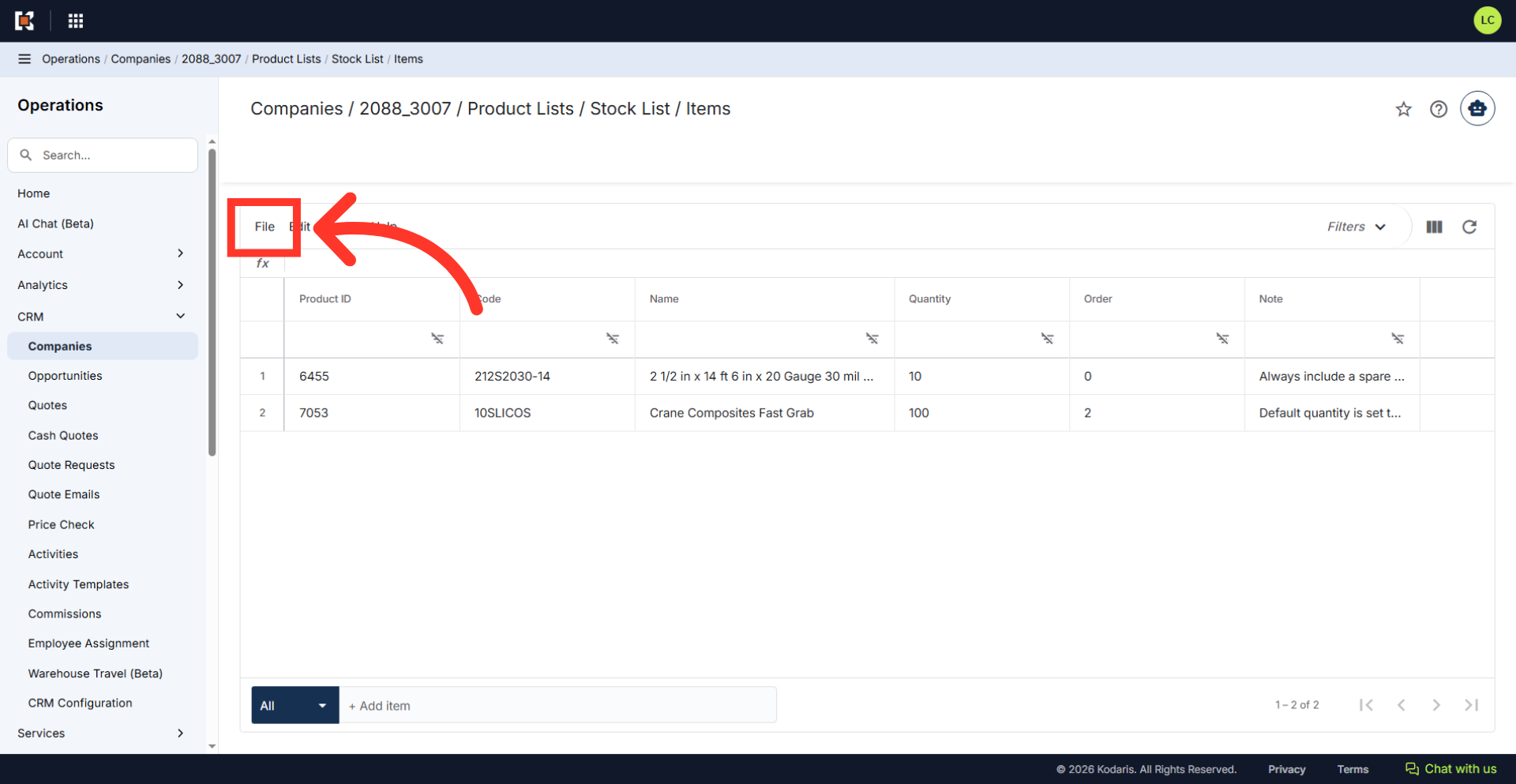
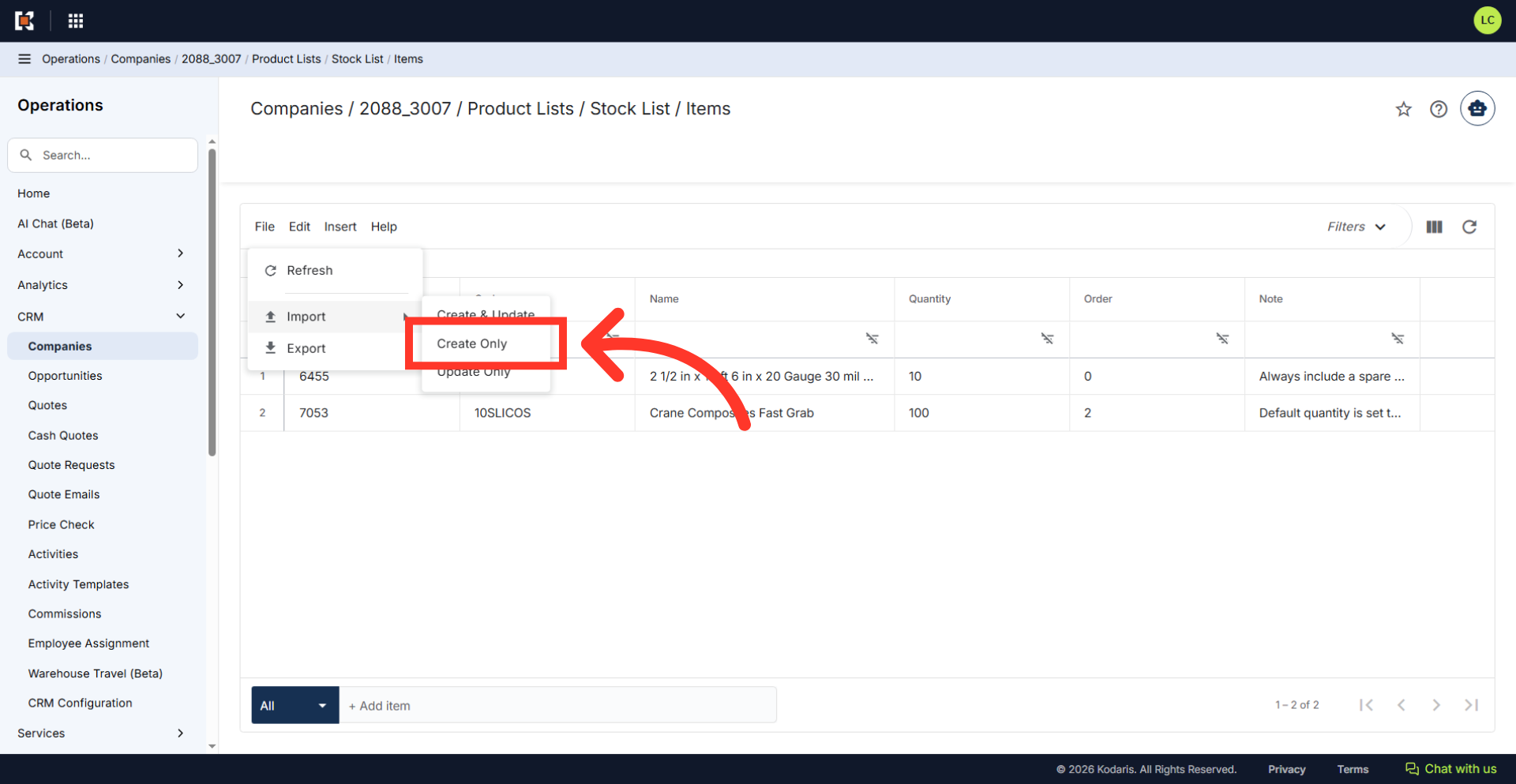
To import the new data, click on the "File" menu.
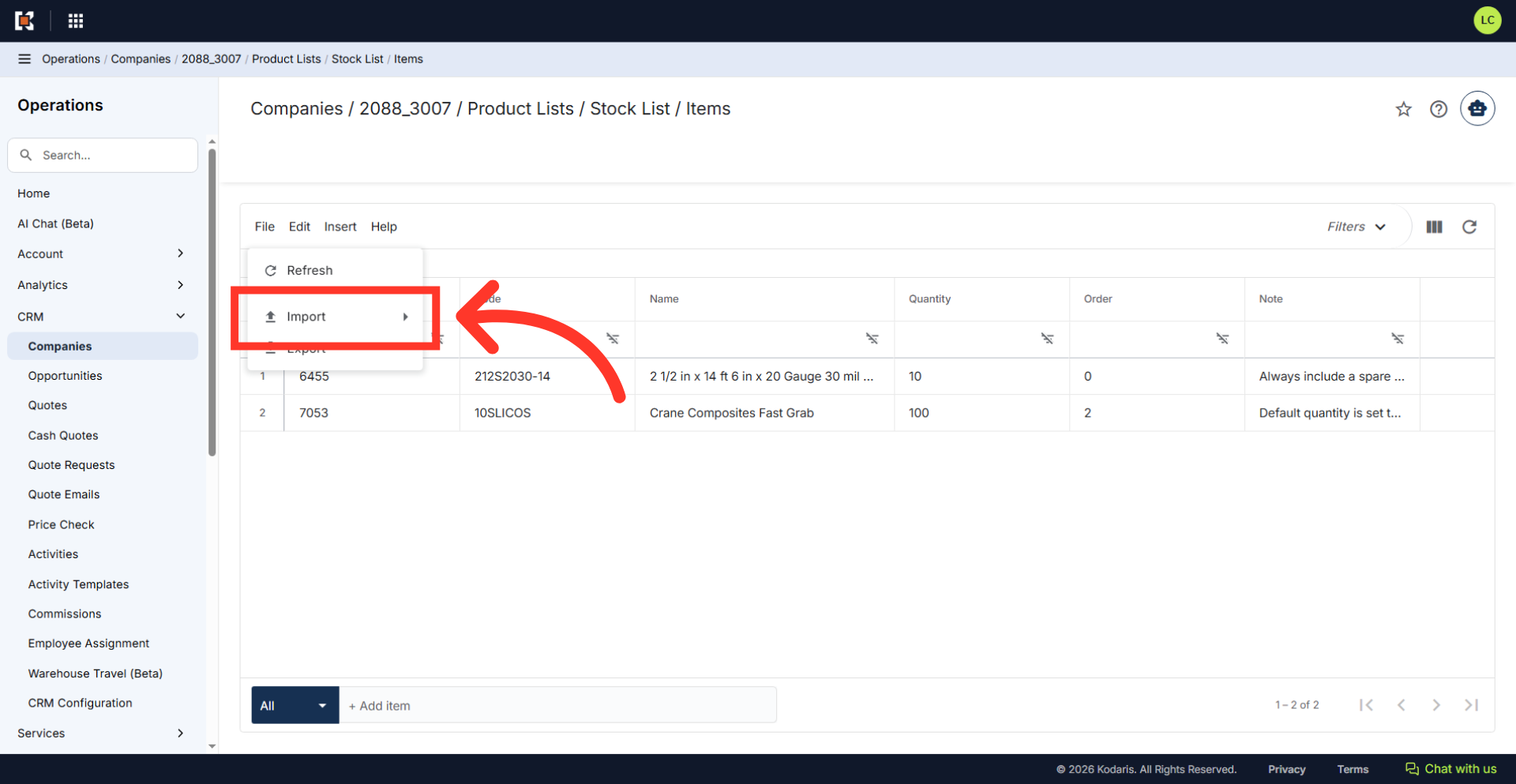
Select "Import."
Then, select "Create Only" since we will be creating new records, without updating existing ones.
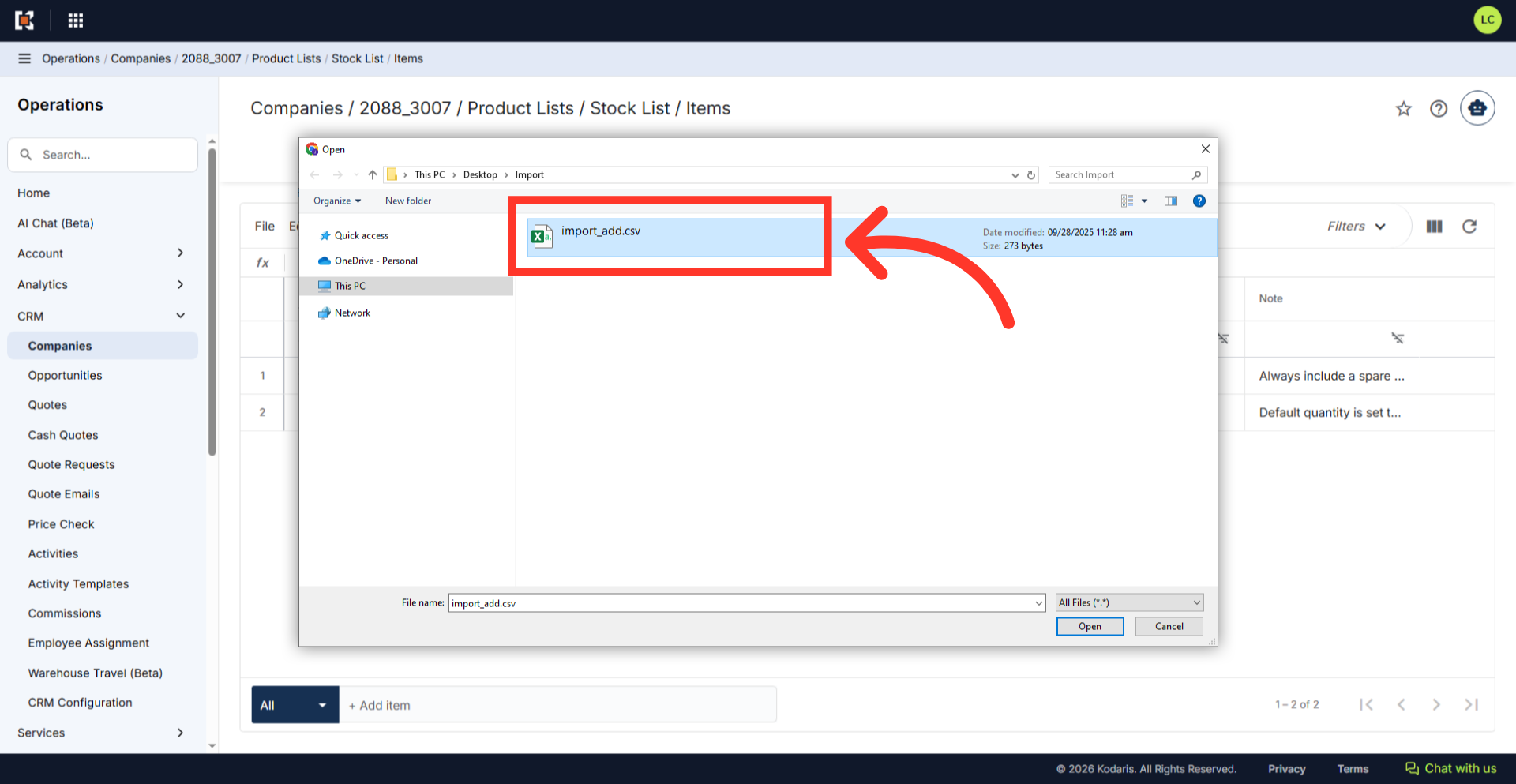
Select the prepared CSV file to begin the import. Be sure to select the correct file.
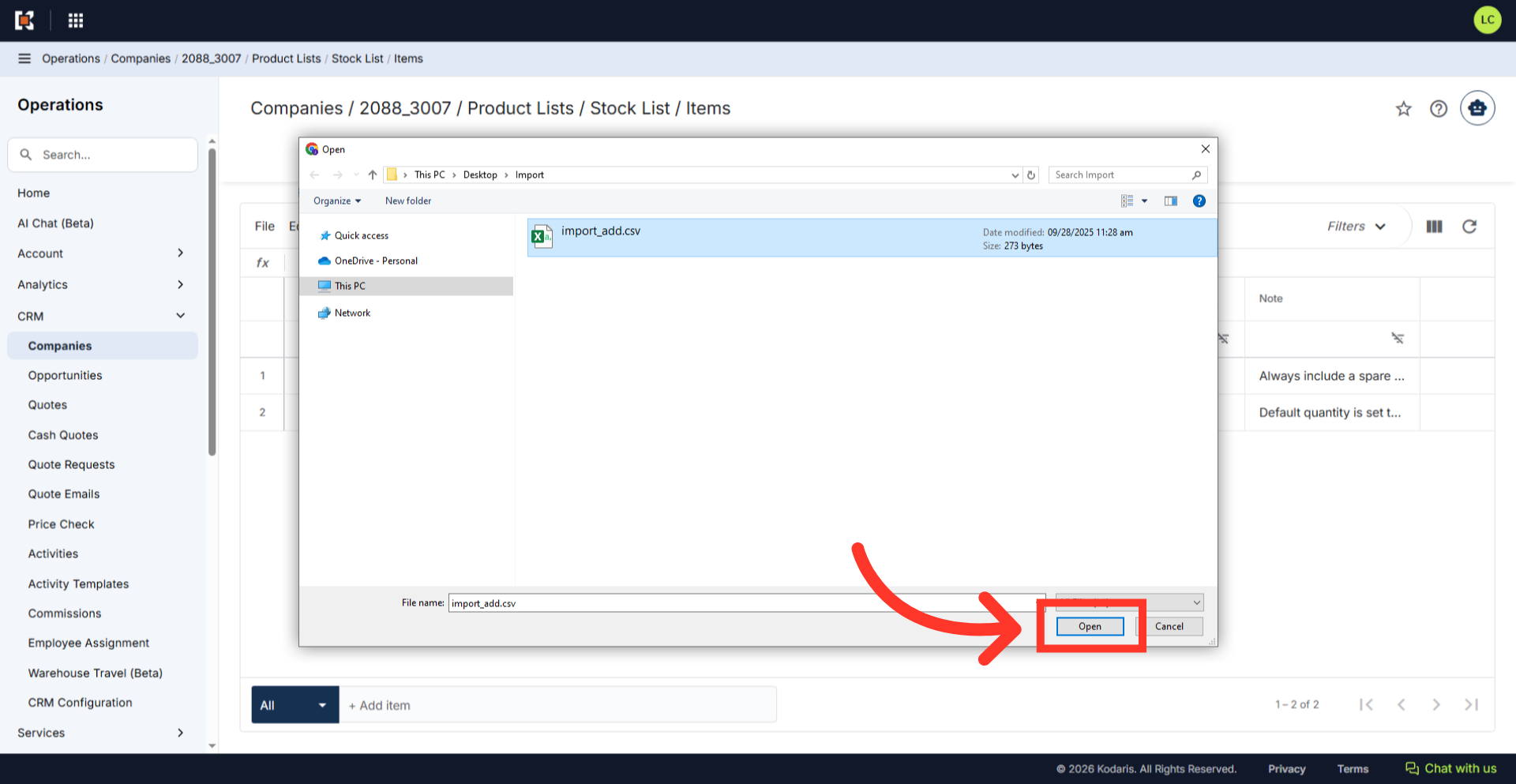
Click "Open." The import will run in the background. Allow a few minutes for the data to be imported, and note that larger imports may take longer.
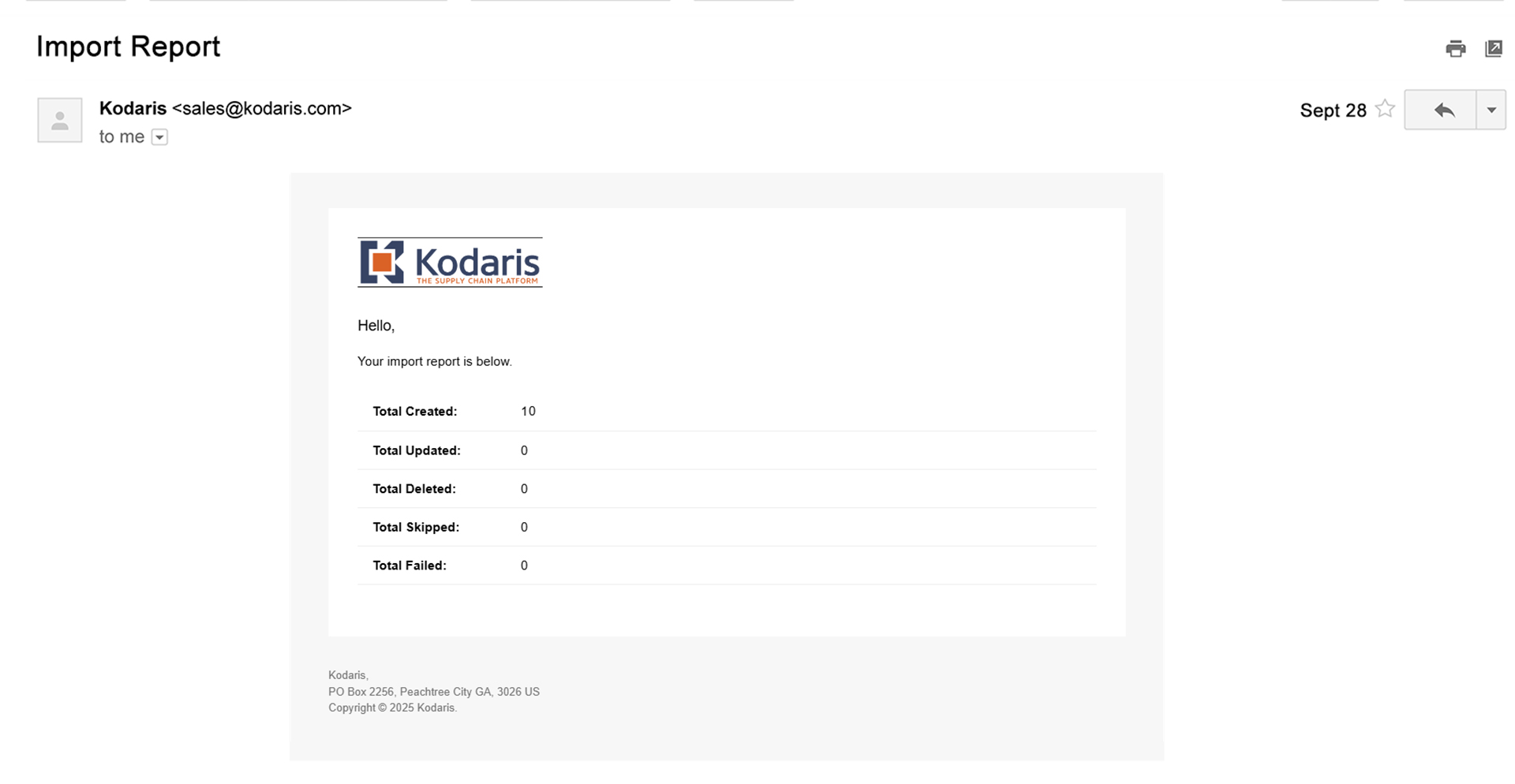
Once the import is complete, you will receive an email with the report of your import.
When the import is complete, refresh the items on the screen by clicking on the "Refresh" icon.
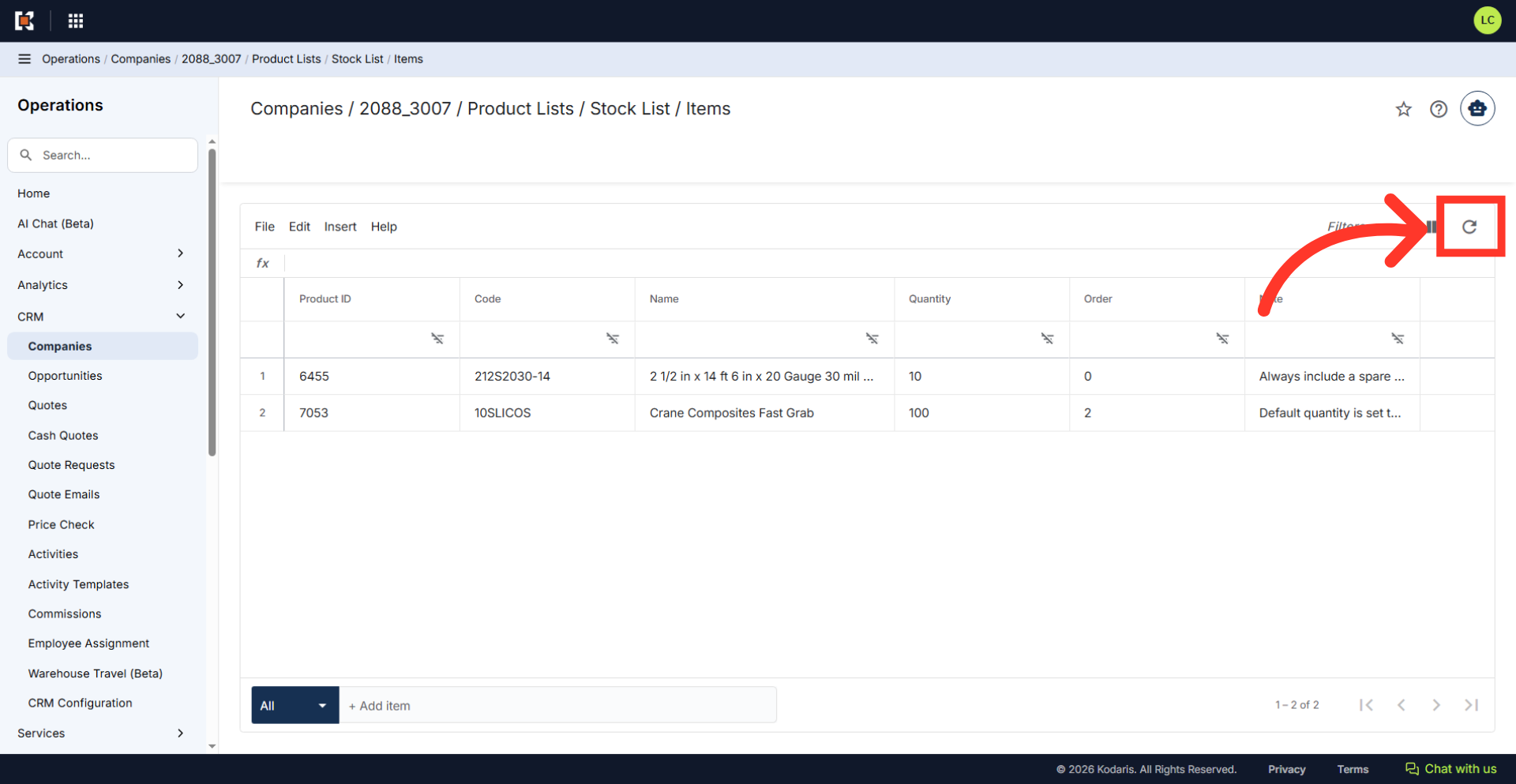
You can now verify that the products have been added.