Product Documentation
Product Documentation
Product Documentation
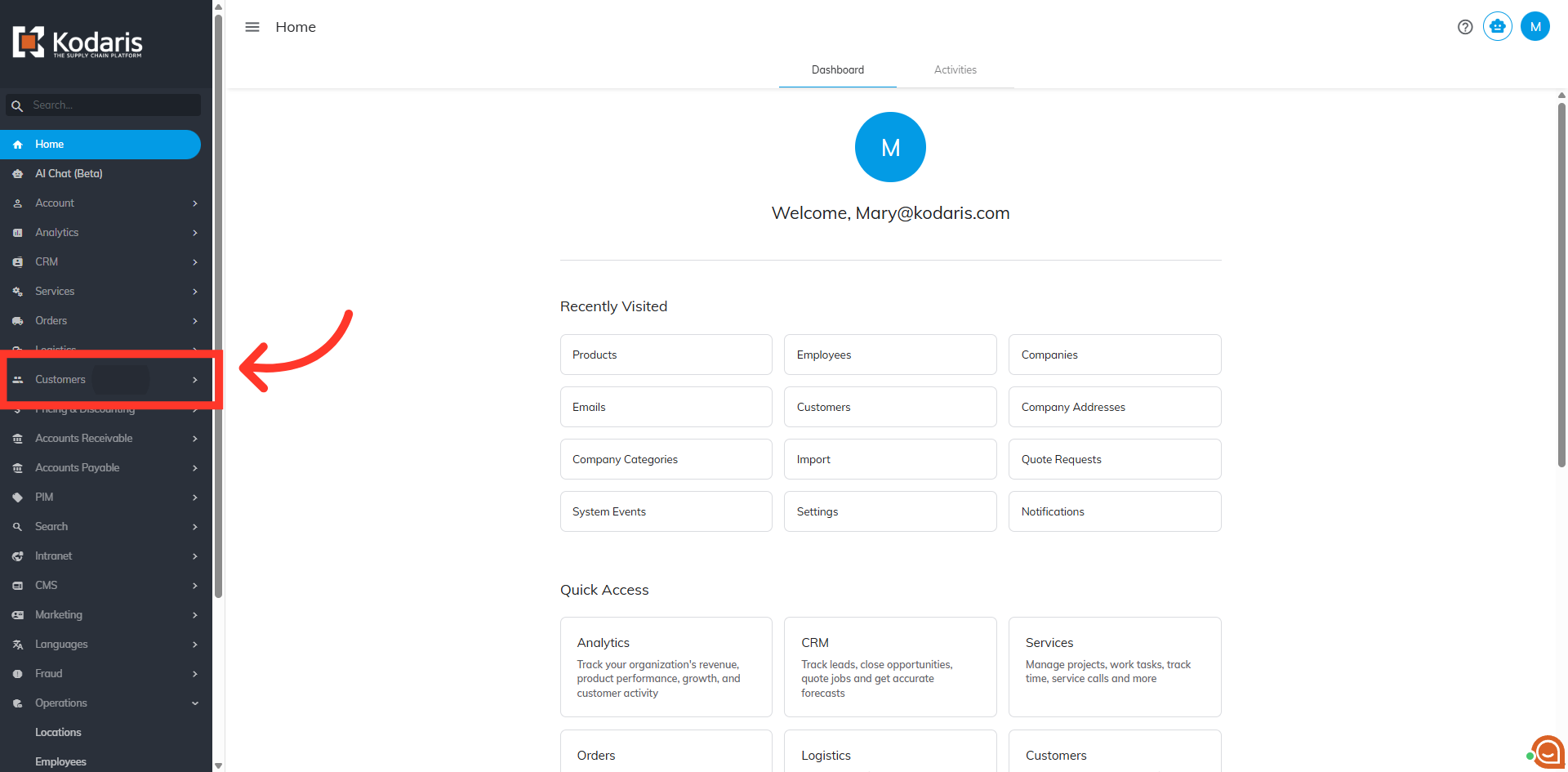
To manually add products to a product list, navigate to "Customers" section in the Operations Portal.
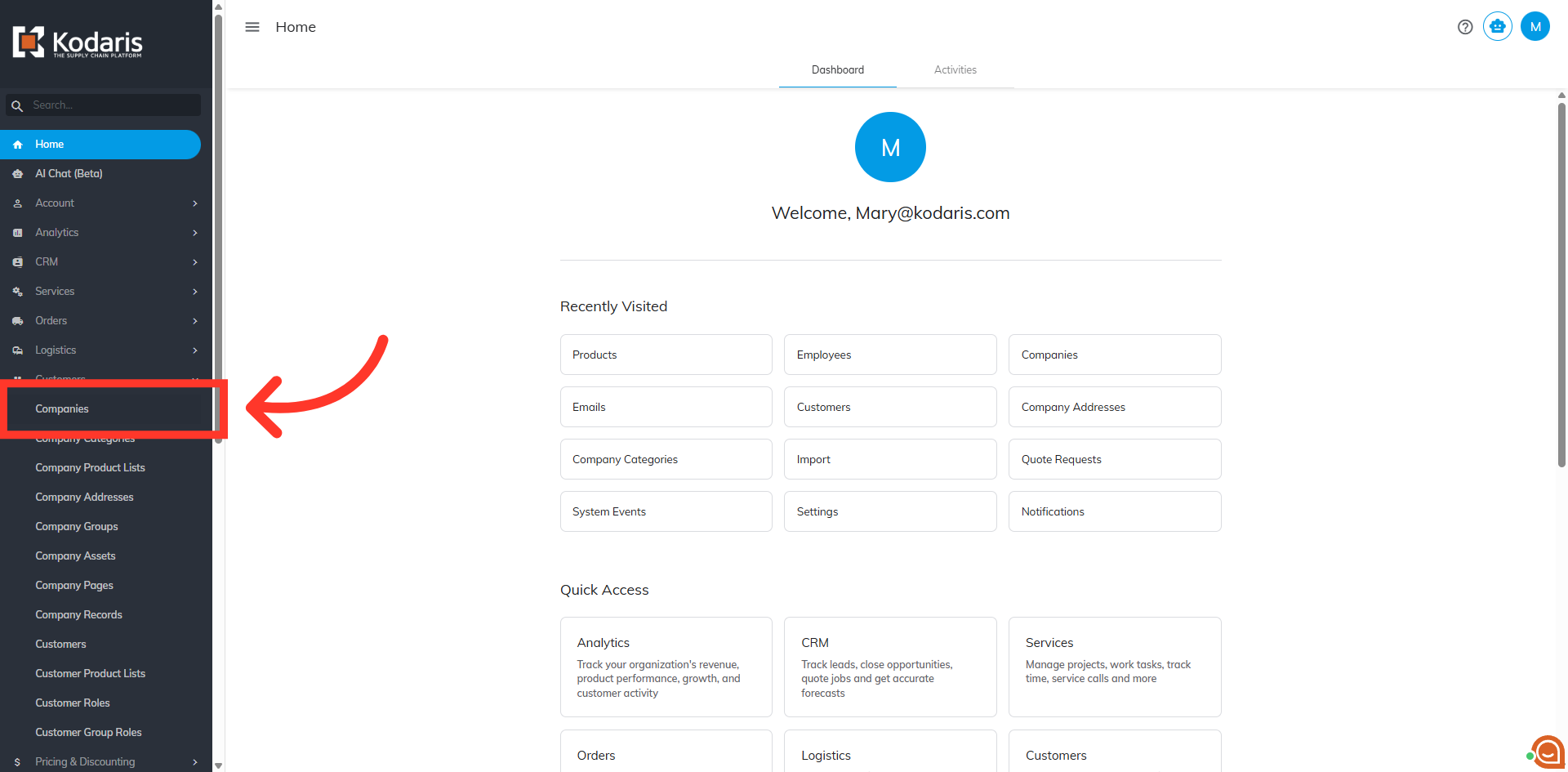
Click "Companies". In order to access "Companies" you will need to be set up either as an "administrator" or a "superuser", or have the appropriate roles: "companyView and companyEdit", or "crmCompanyView and crmCompanyEdit". Just a reminder, "crmCompanyView and crmCompanyEdit" access only allows employees to view companies that are assigned to them.
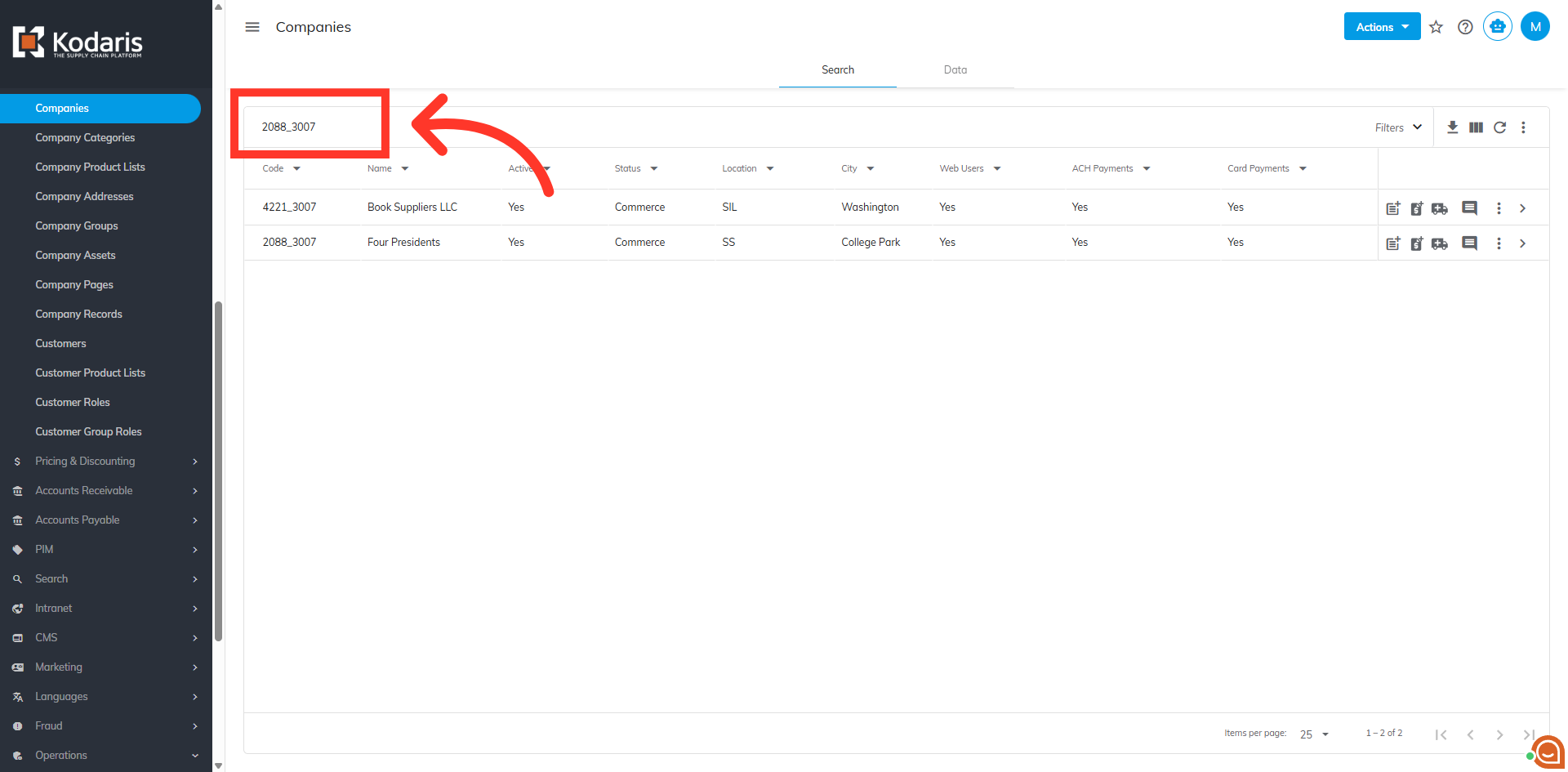
Search for the company by entering the company name or code in the field.
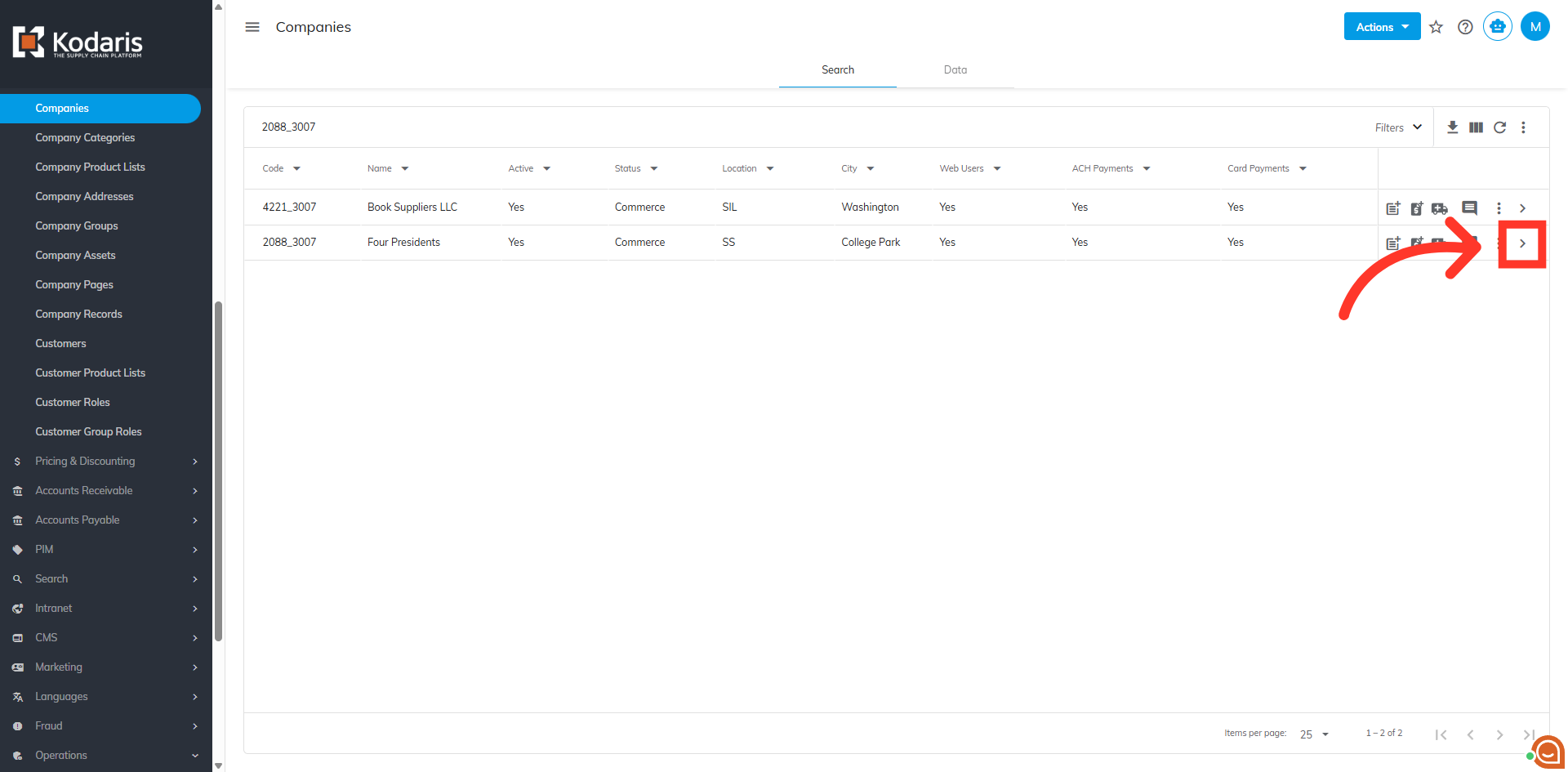
Click on the more details icon to view the company details.
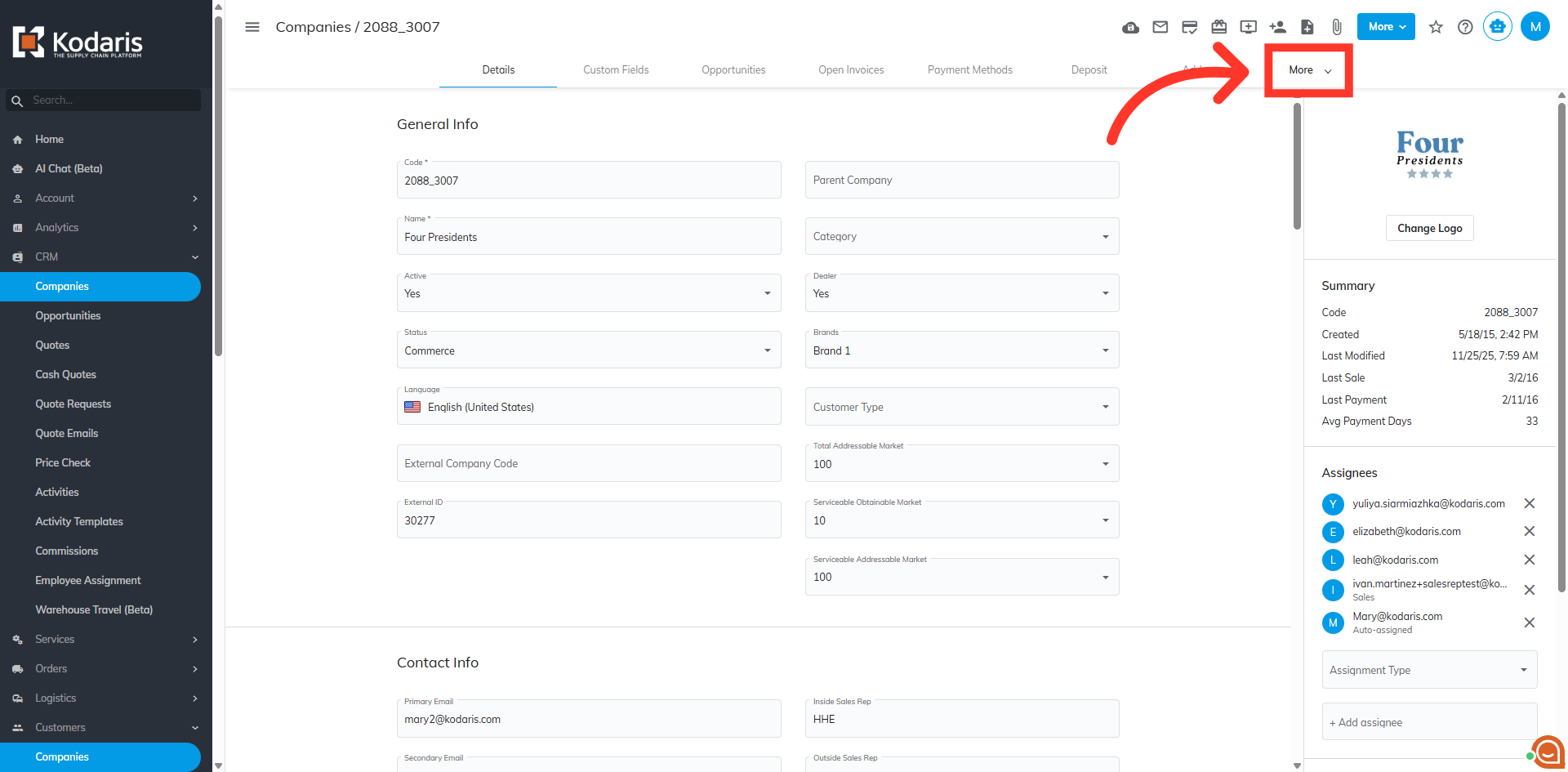
Click on the "More" dropdown.
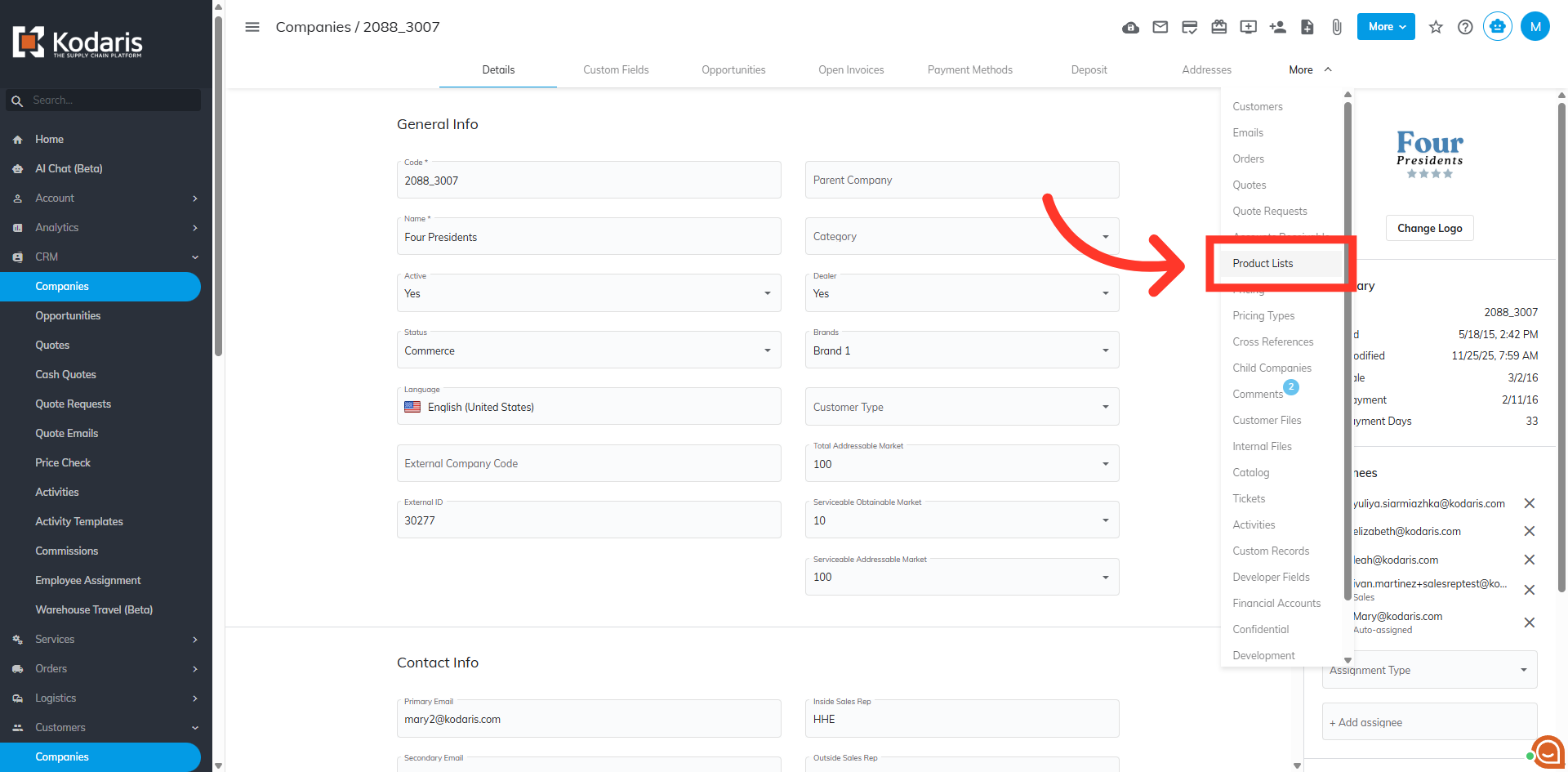
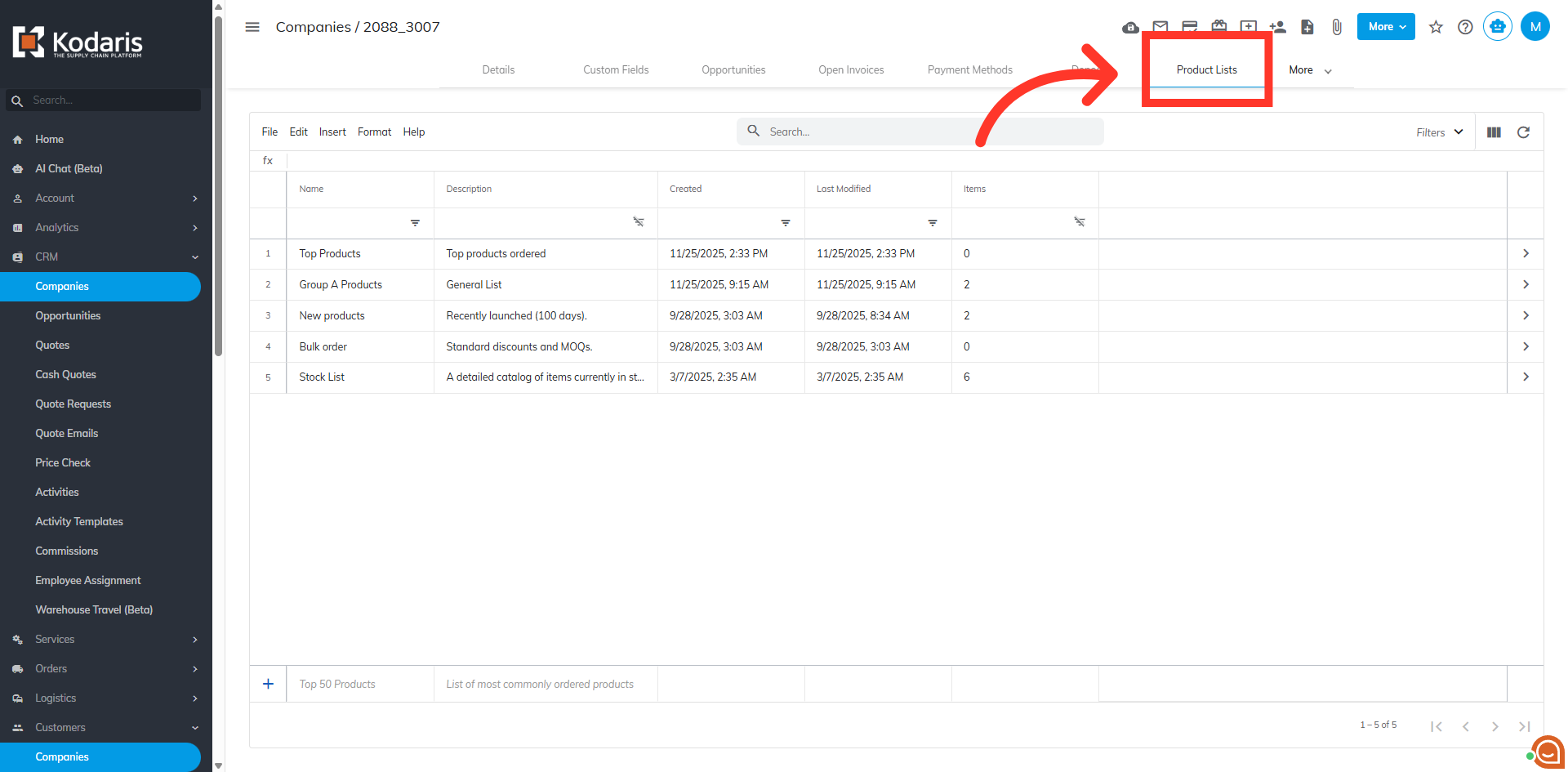
Select "Product Lists" to add it in the grid.
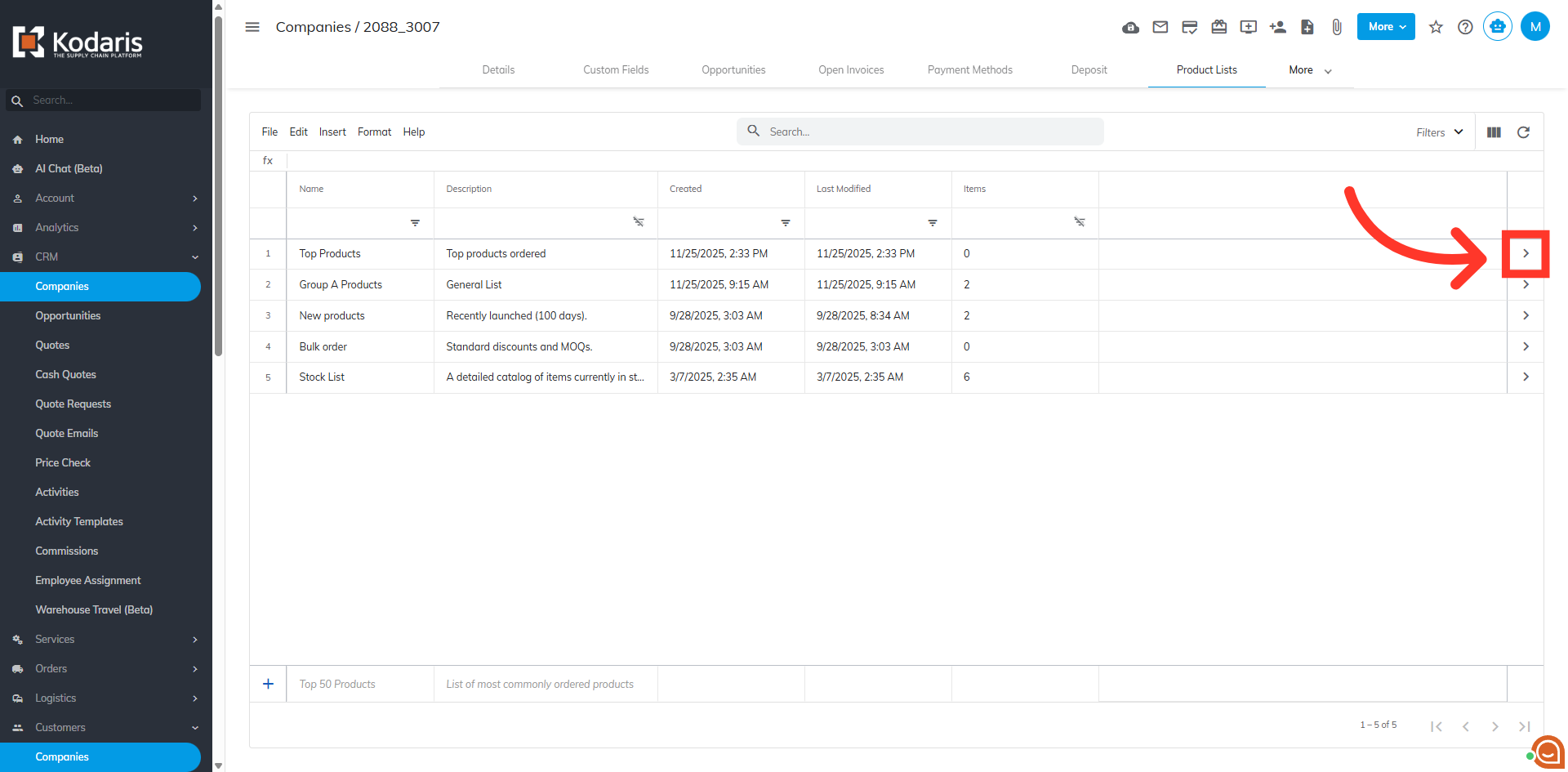
Click the more details icon on the product list where you want to add items on.
Click "+ Add Item" button to add items in the product list.
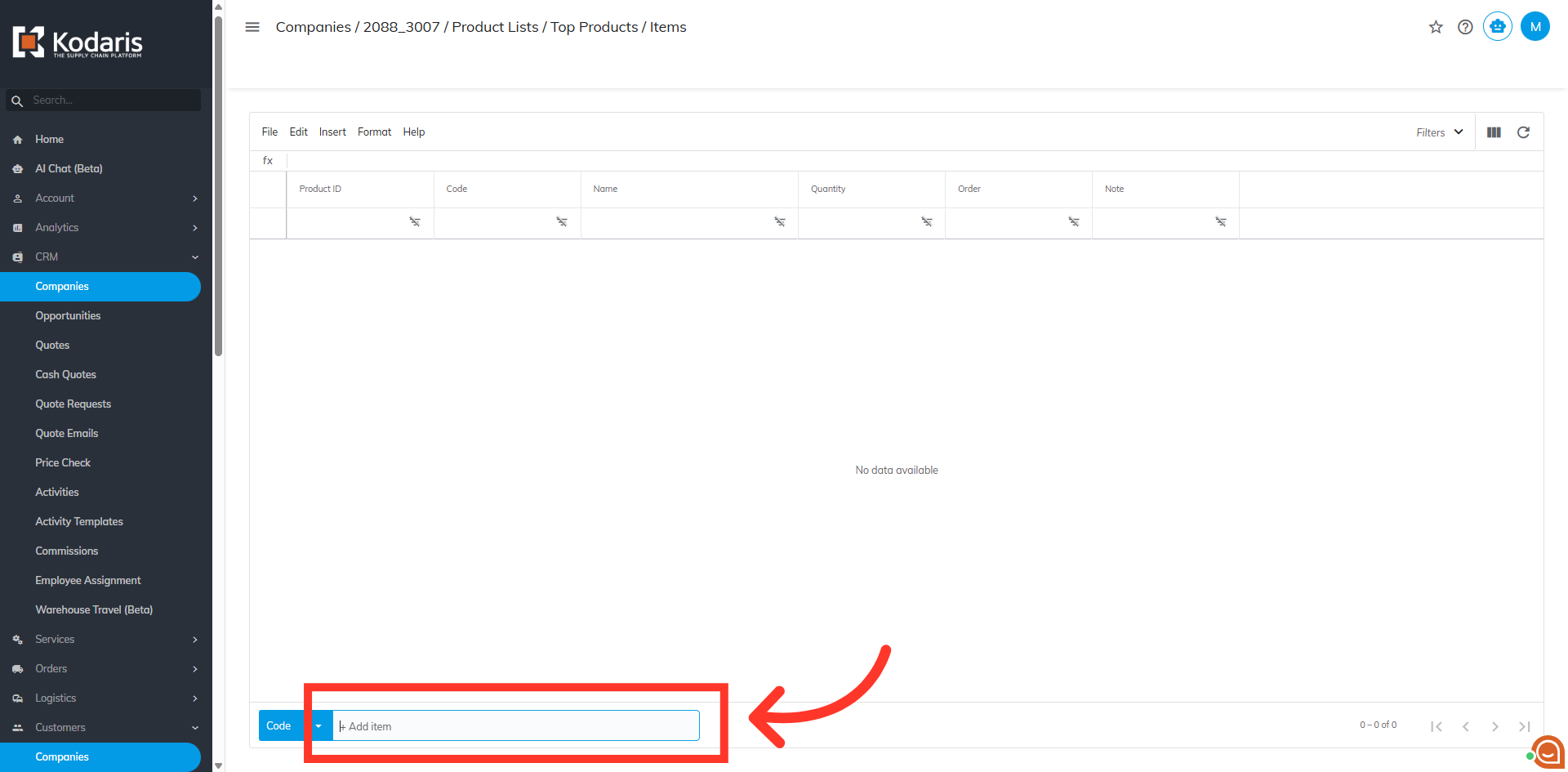
Enter the product code or name you want to add.
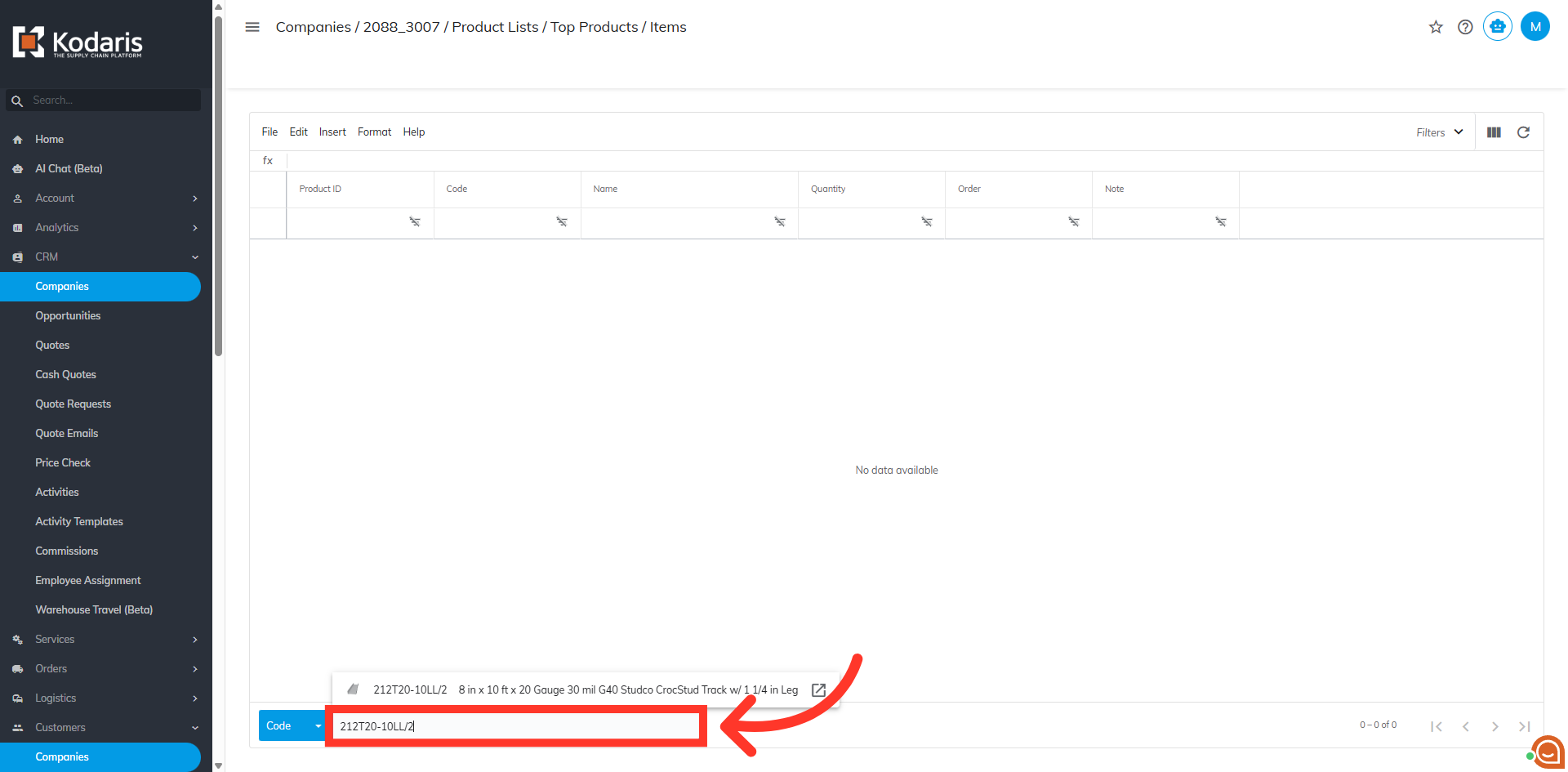
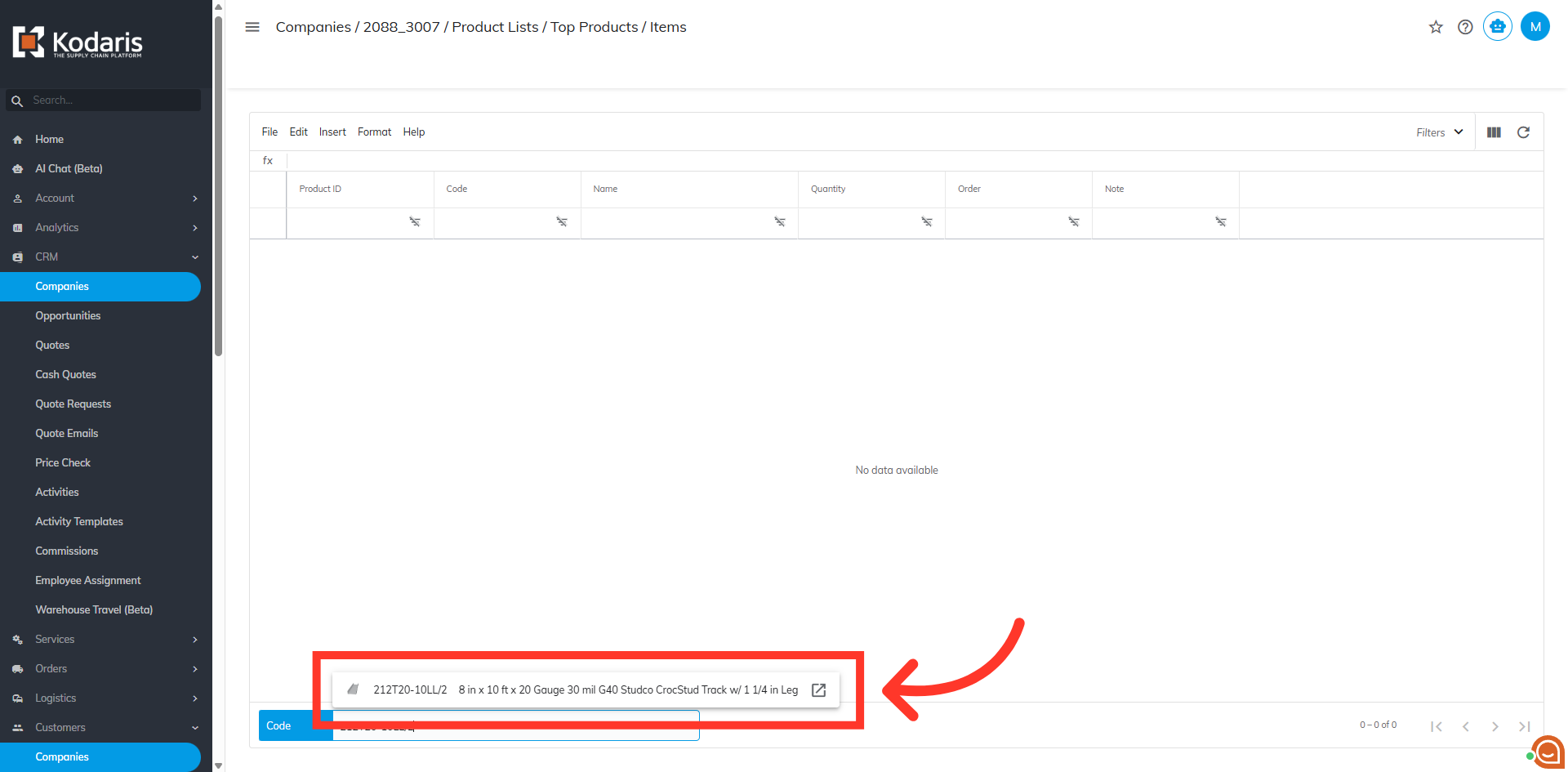
Click the product code from the options.
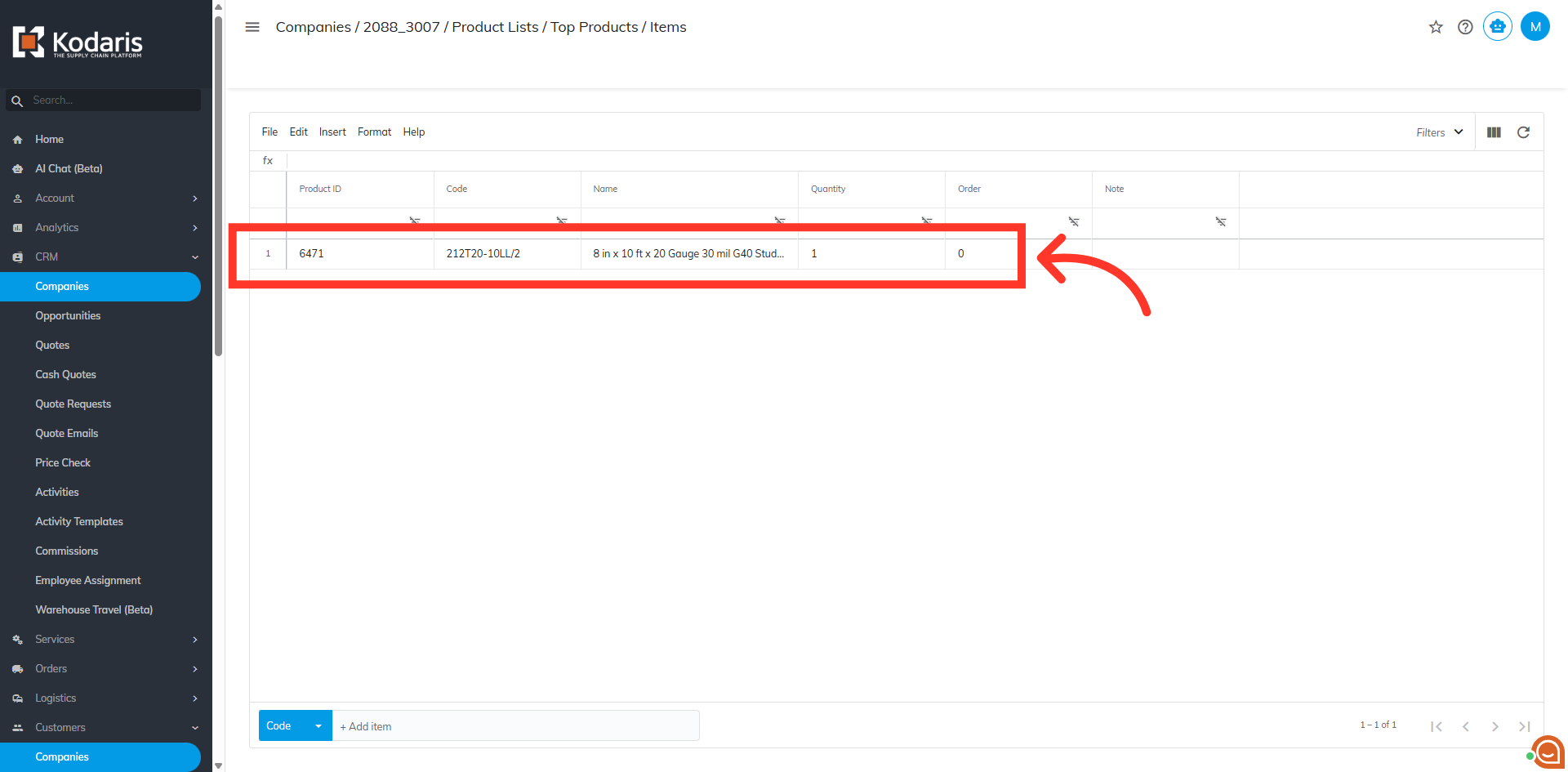
The item should be added in the list.
Go back to the product lists screen.
Now, hit "Refresh".
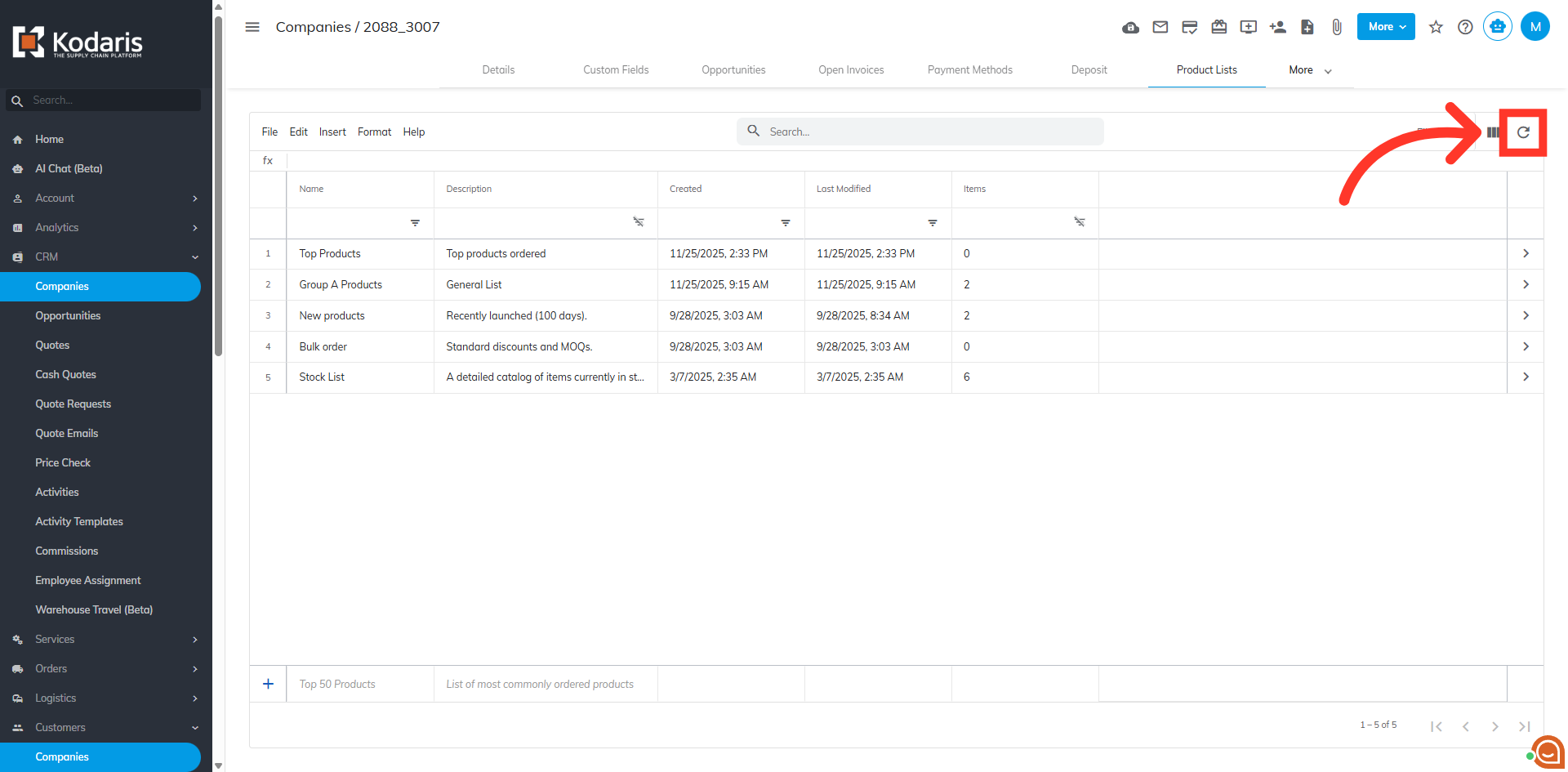
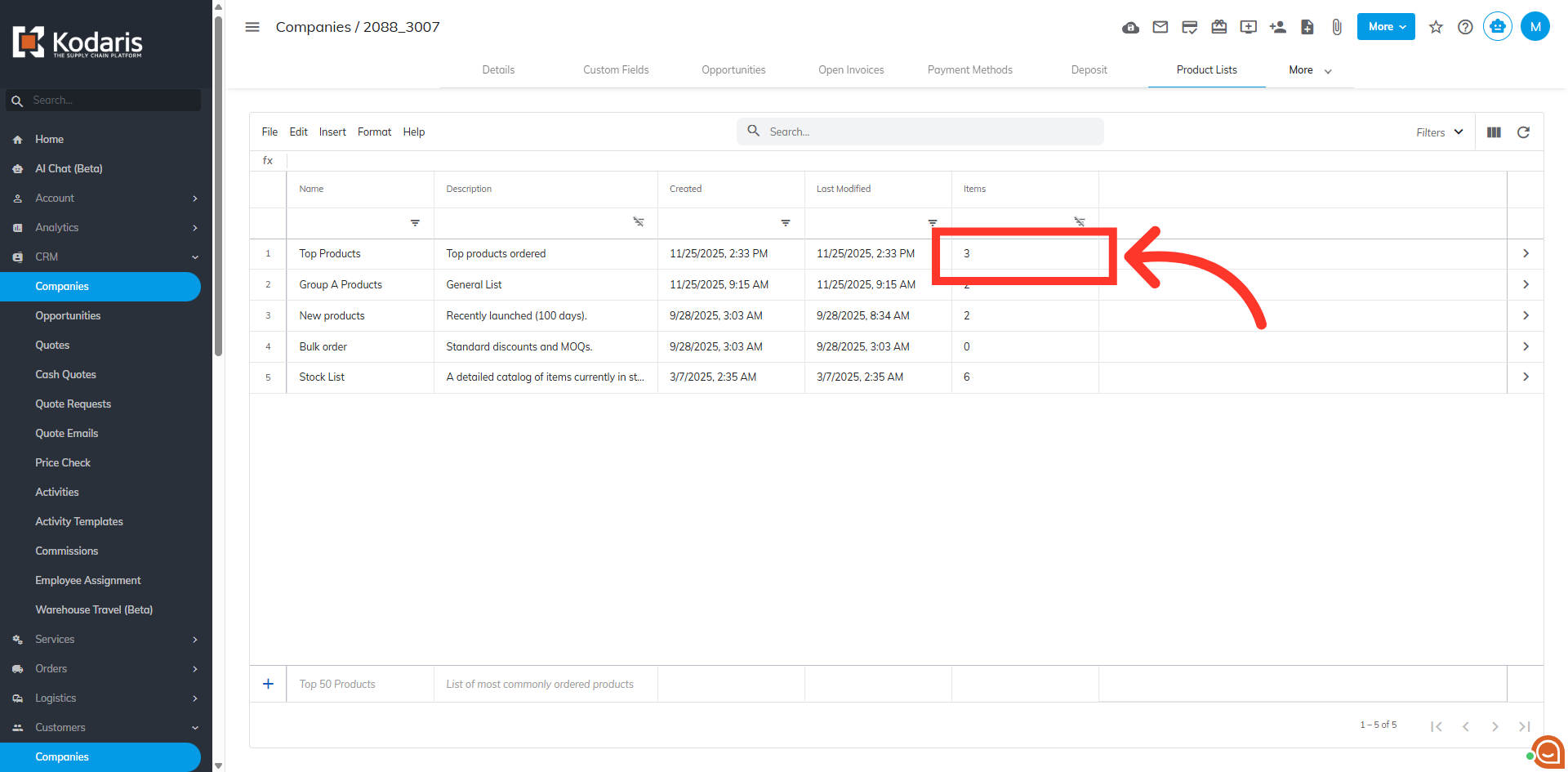
The "Items" column will show the number of items in the product list.