Product Documentation
Product Documentation
Product Documentation
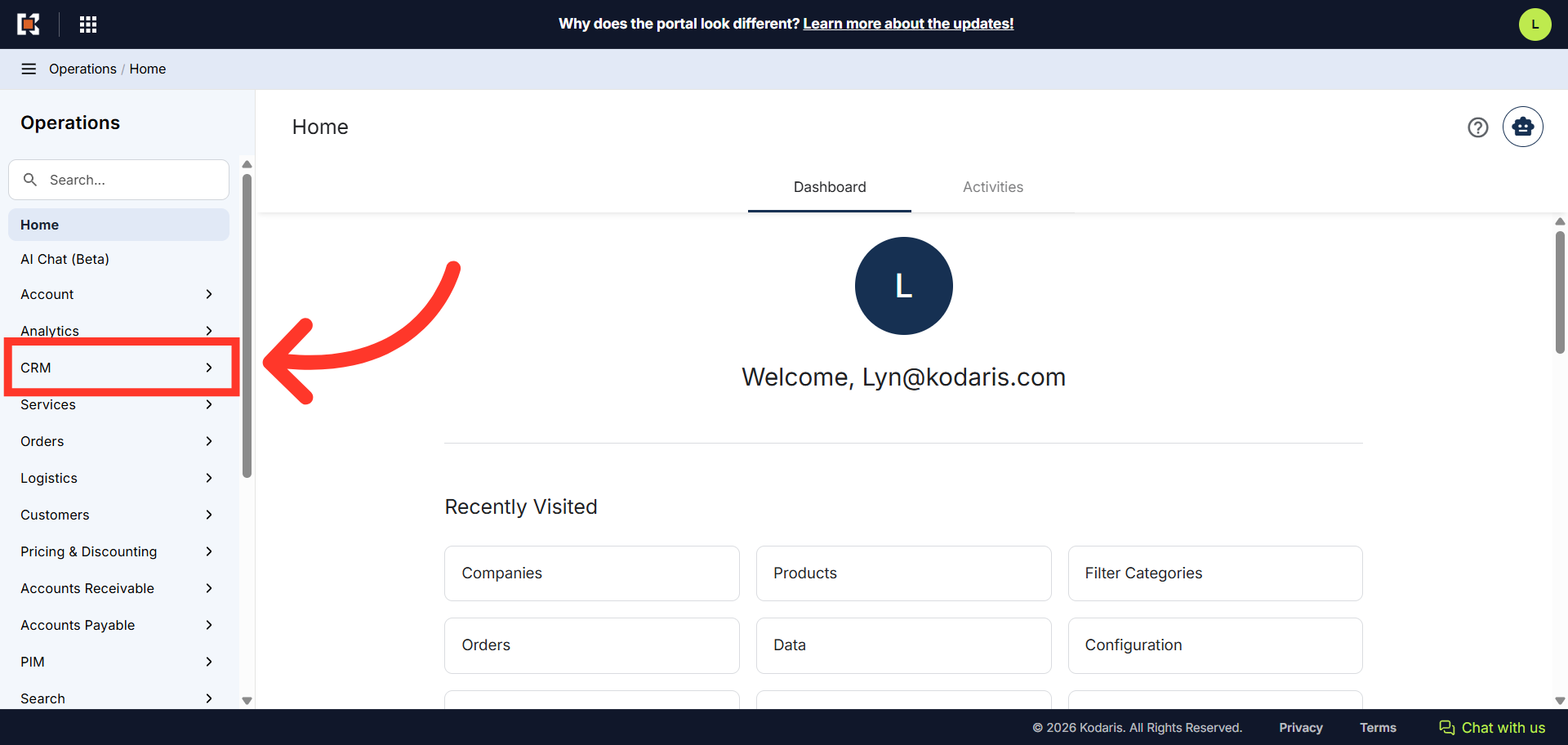
The CRM functionality allows you to add internal comments to companies directly from the search grid interface. These comments are visible only to employees and are useful for CRM purposes and internal collaboration about customers. To start, navigate to "CRM" section in the Operations Portal.
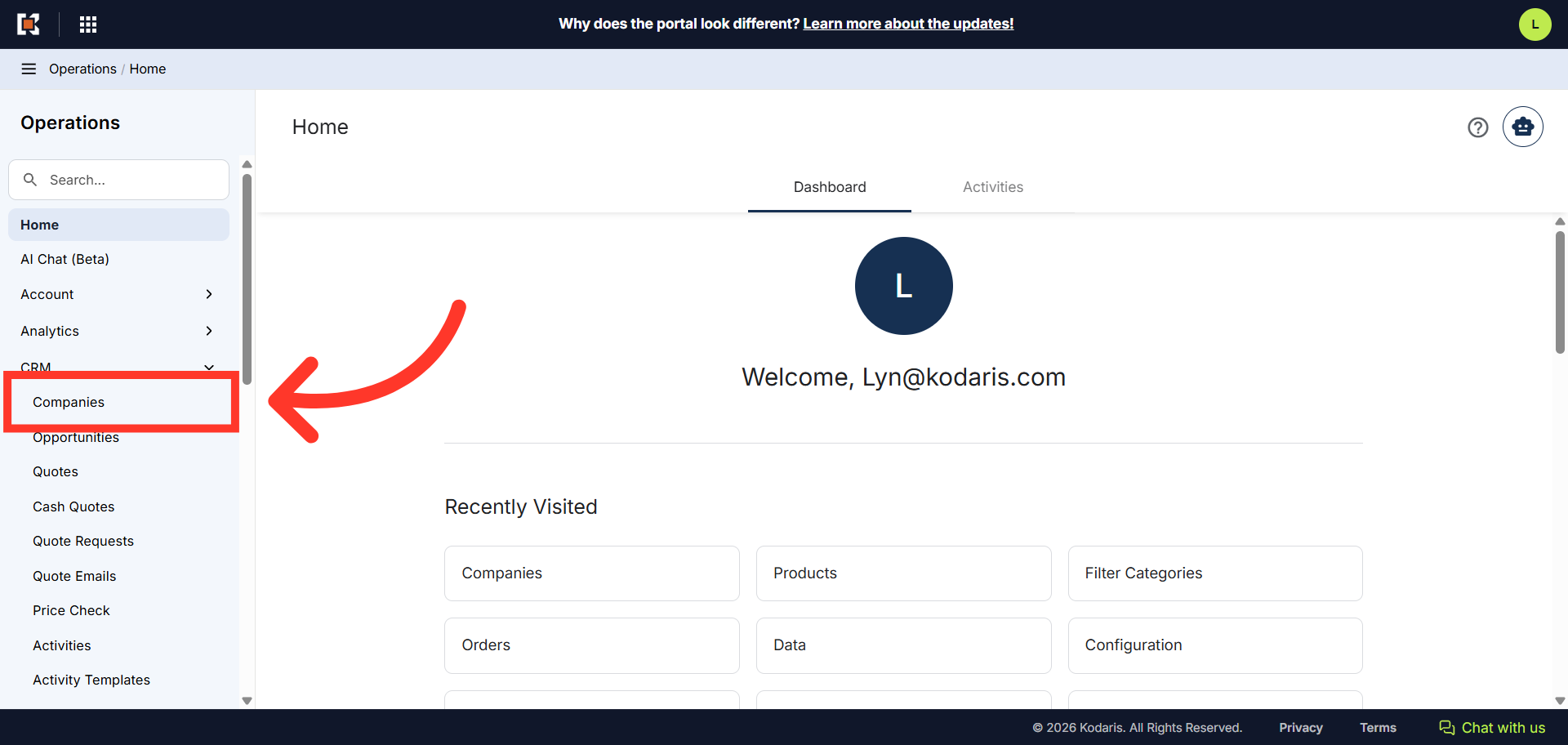
Then, click "Companies". In order to access "Companies", you will need to be set up either as an "administrator" or a "superuser", or have the appropriate roles: "companyEdit", or "crmCompanyEdit". Just a reminder, "crmCompanyEdit" access only allows employees to access companies that are assigned to them.
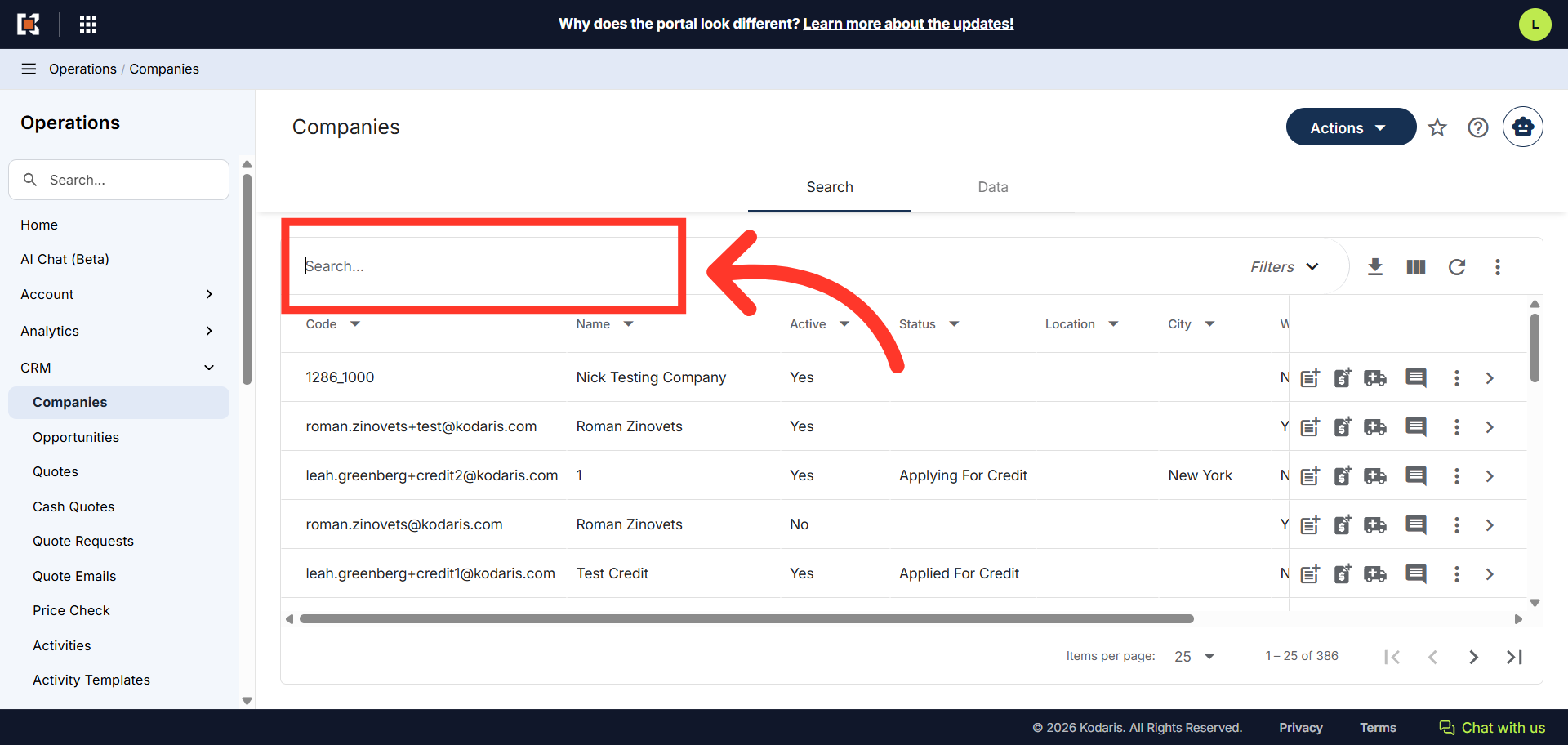
Here in the Search tab, type the company name keyword in the "Search..." field. Companies matching your keywords will appear as you type.
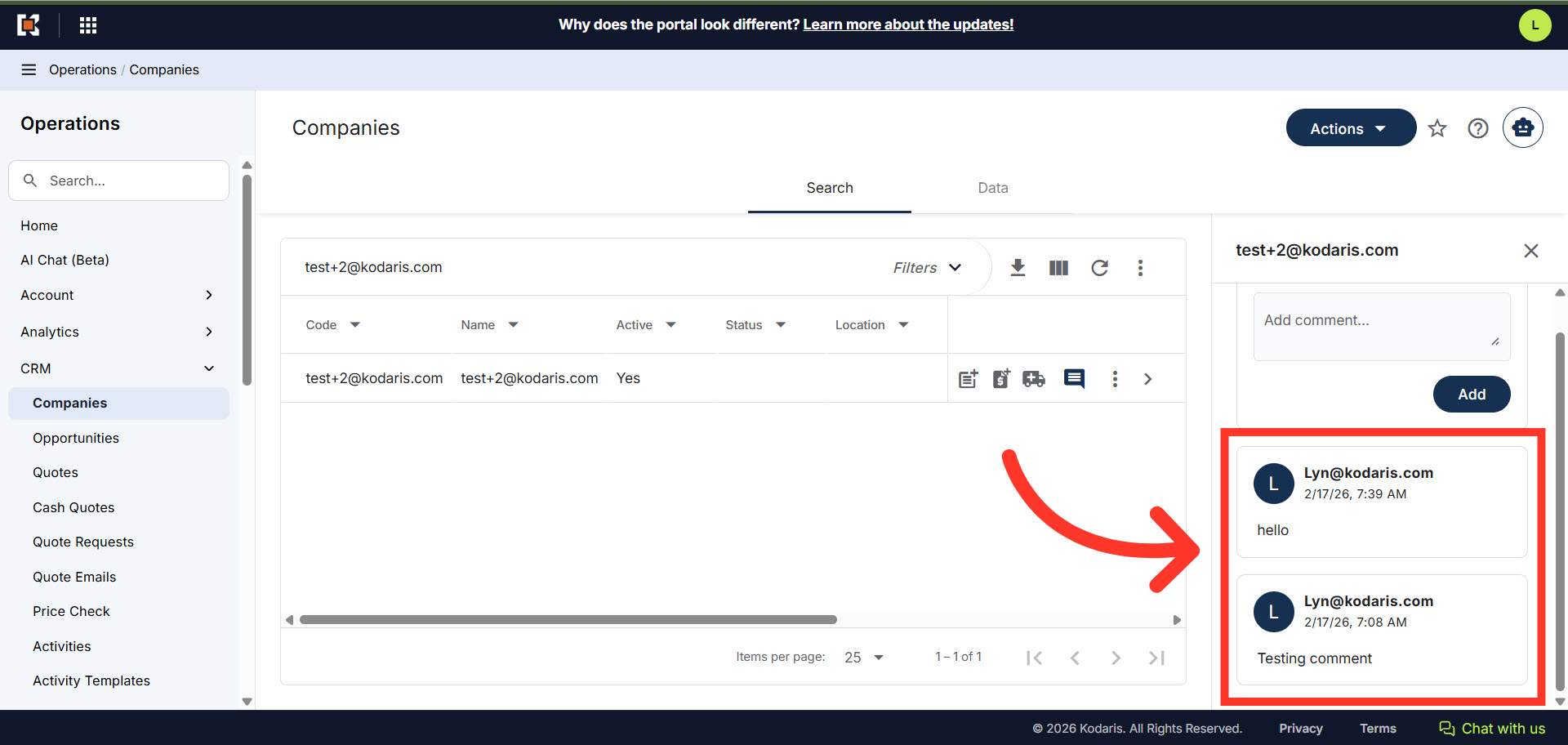
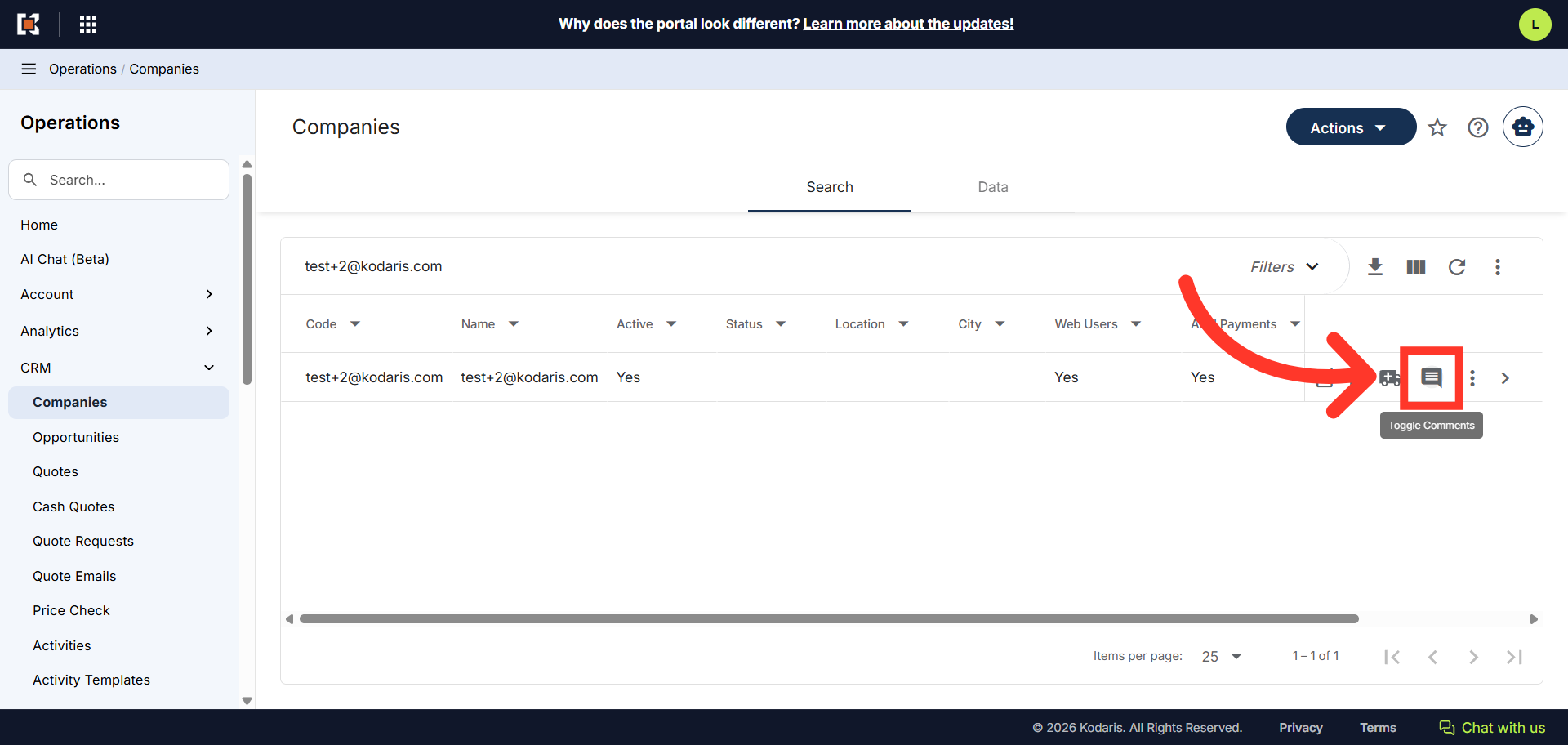
Click on the "Toggle Comments" icon to view comments using this screen.
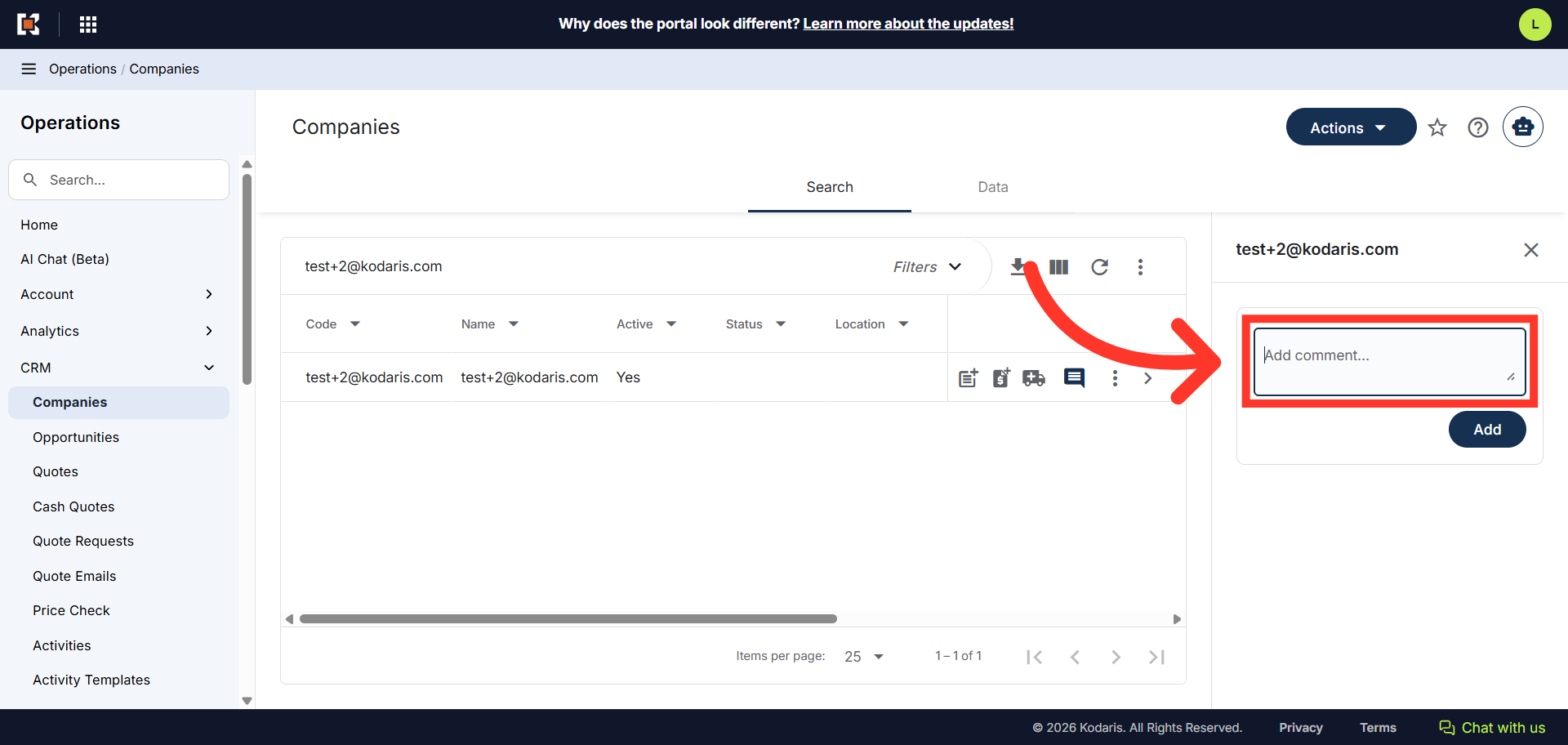
Click into the "Add comment..." box to open the input field for entering your comment.
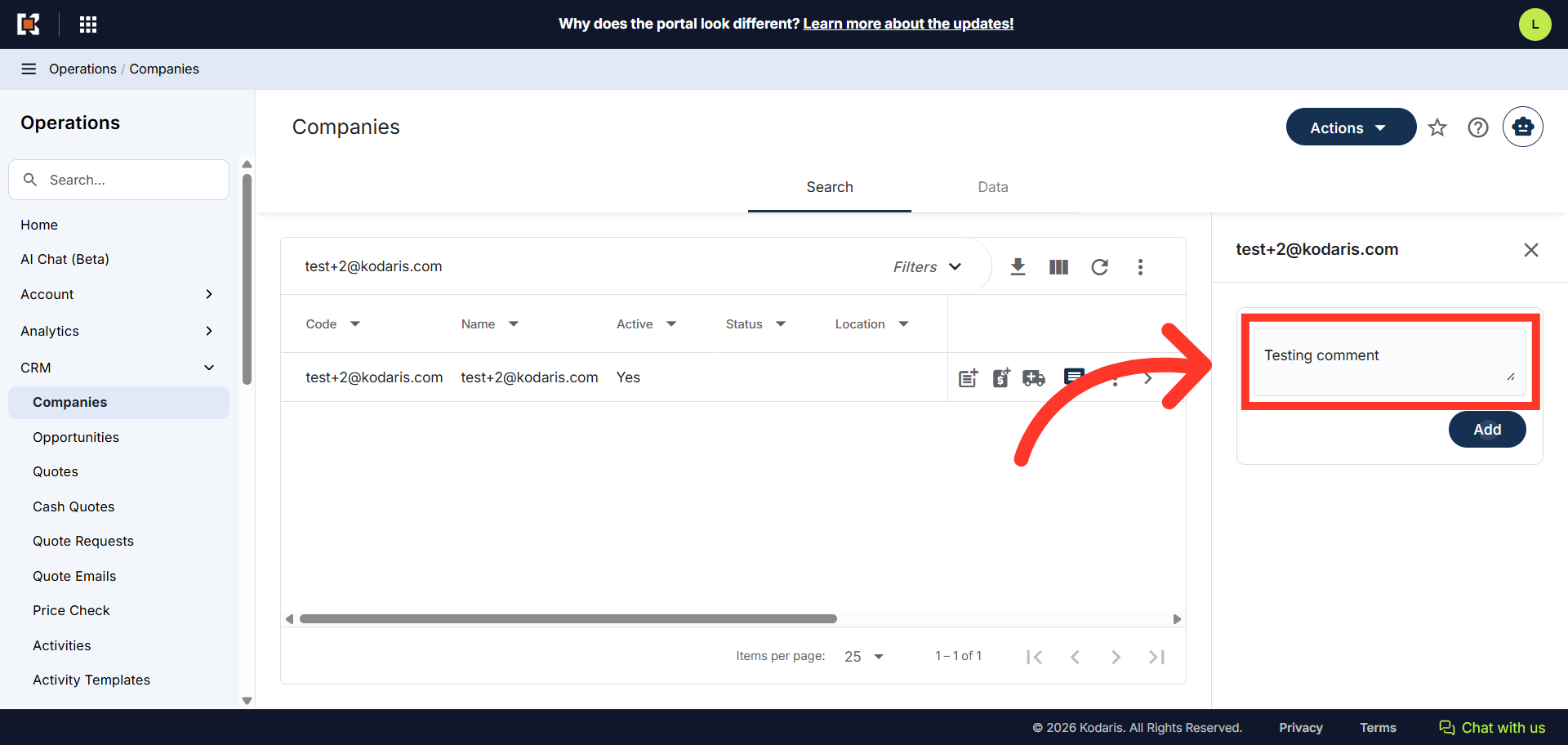
Add your comment.
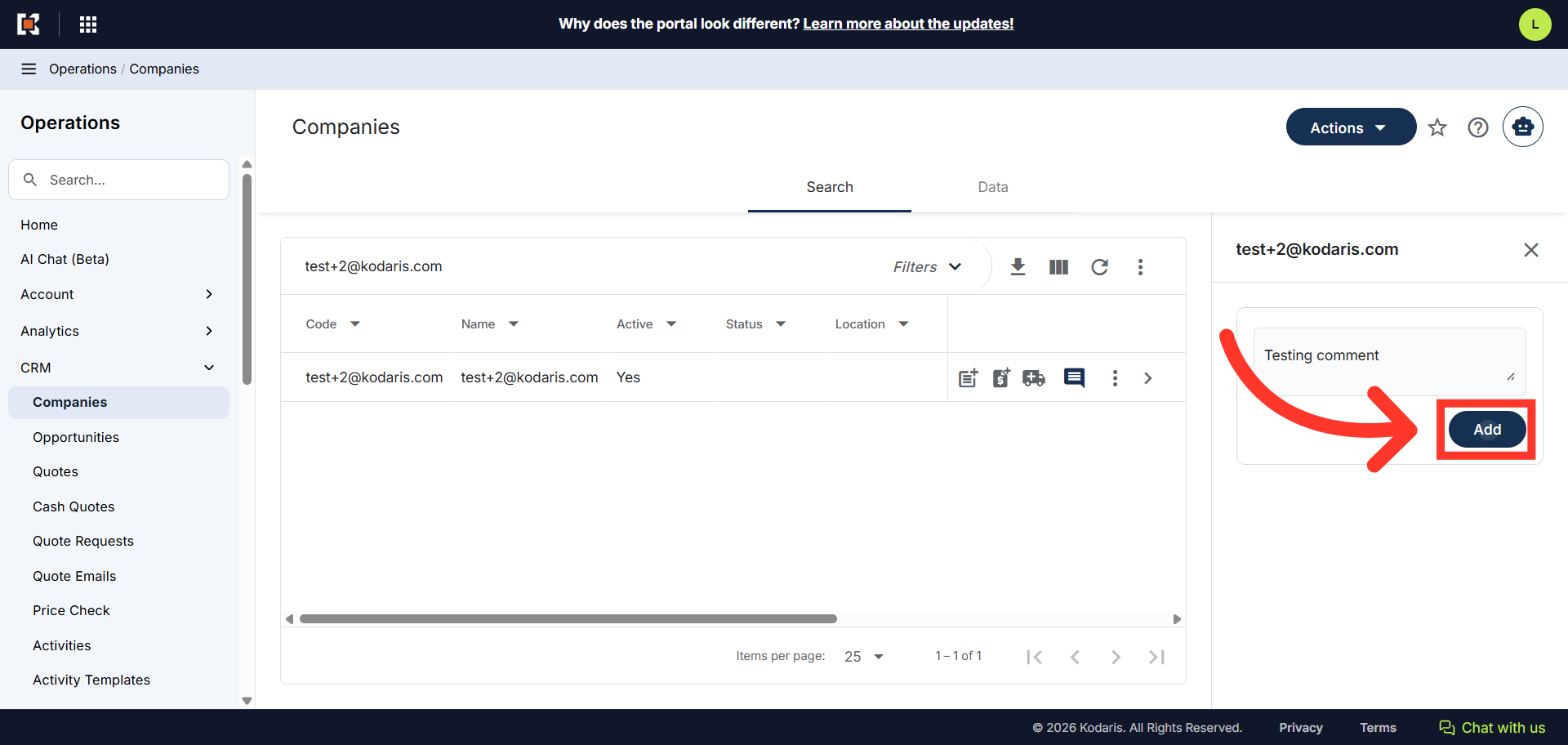
Then, click the "Add" button to save the comment.
Each comment automatically includes the user identification which is your email address; timestamp which is the date and time when the comment was added; and the comment content.
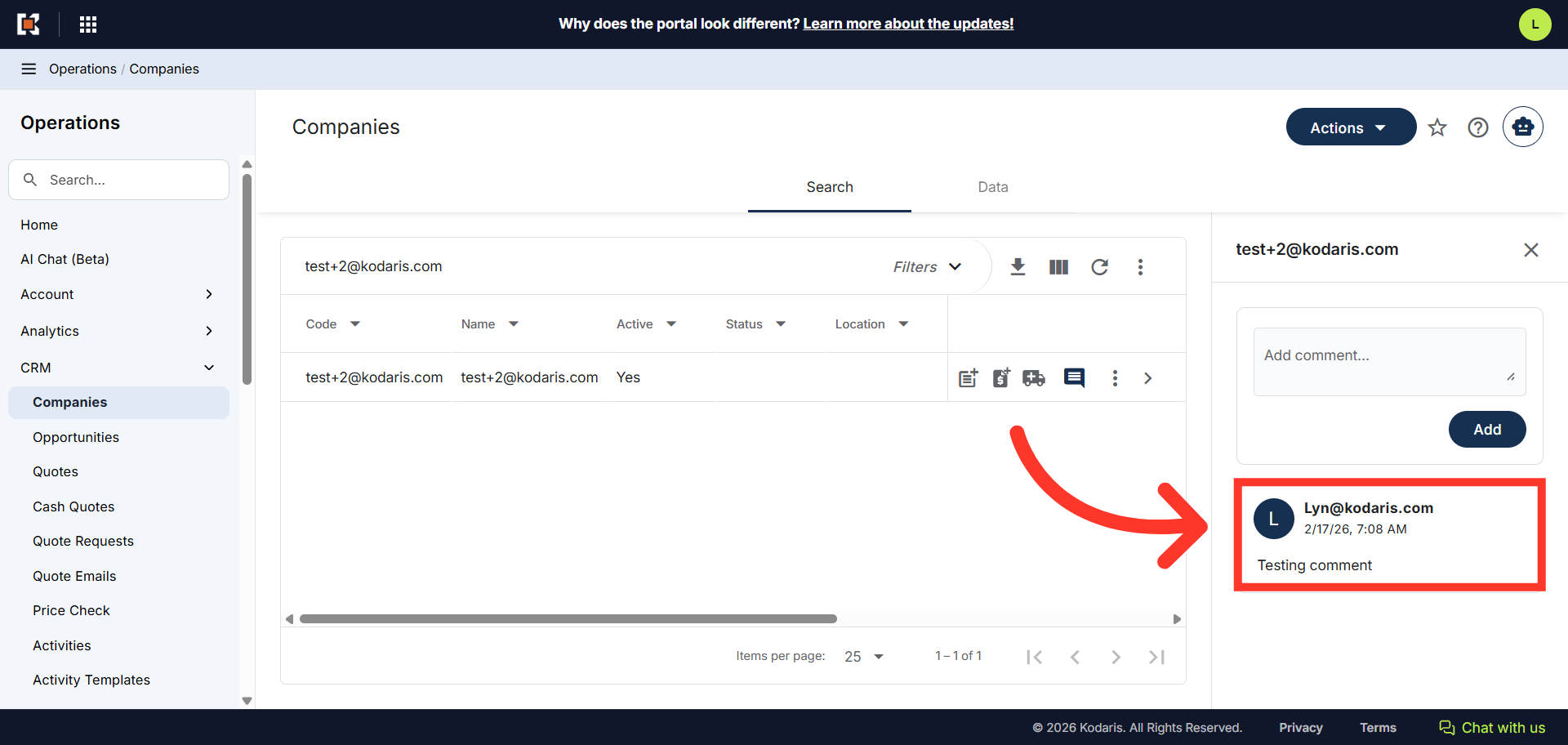
Comments are displayed with the most recent comment listed first. This reduces scrolling through comments to find the latest one. The comment count updates automatically when new comments are added.