Product Documentation
Product Documentation
Product Documentation
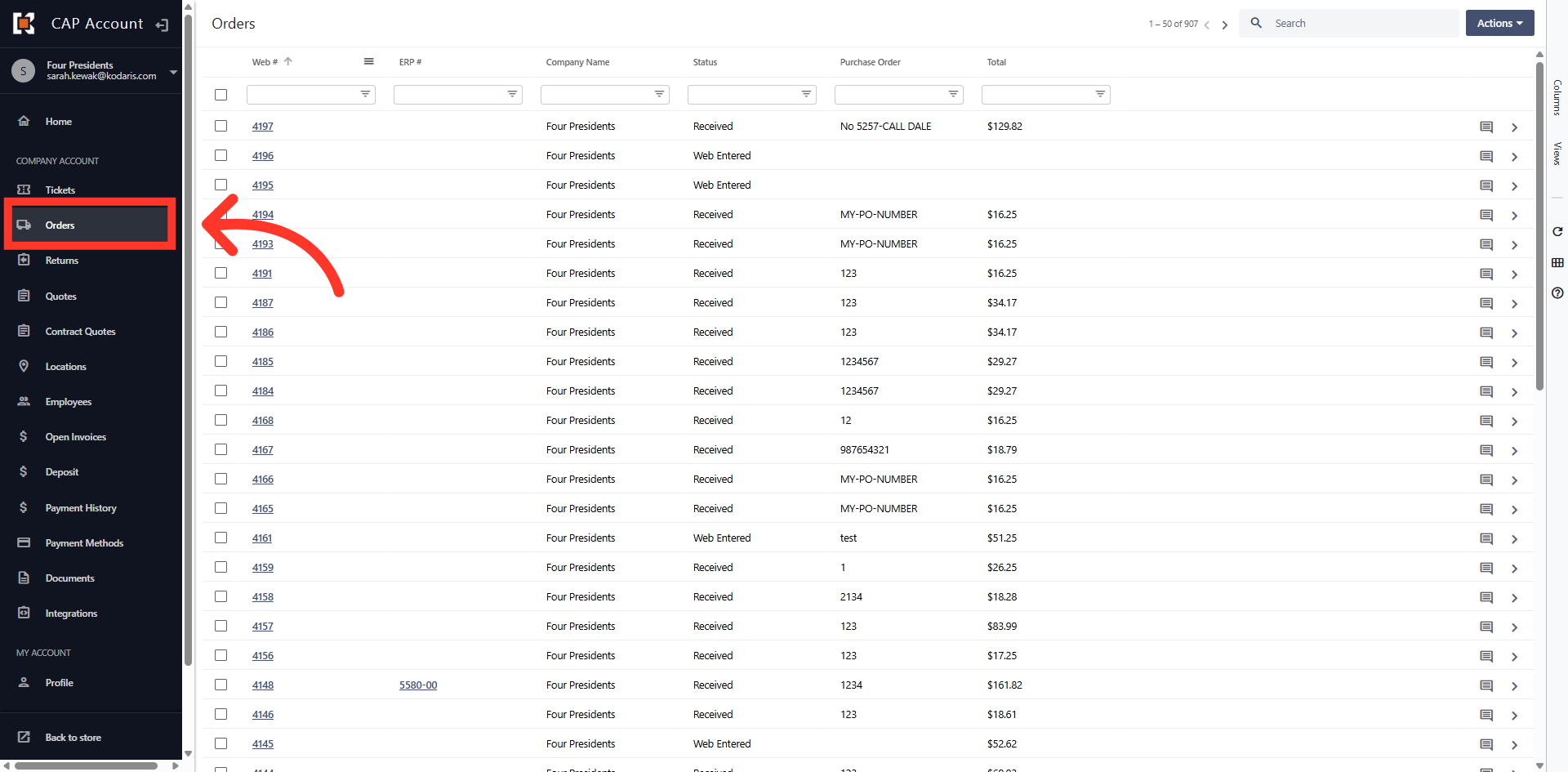
You can customize column labels in the Customer Portal on any column and on any screen. To change a column label, a login on the commerce site that uses the same email address as the Operations Portal will be needed. This user will also need to have the operations portal role of "customerPortalCustomize" added to their employee account. When they log into their customer portal with the matching login and username, the user will be able to edit the column labels.
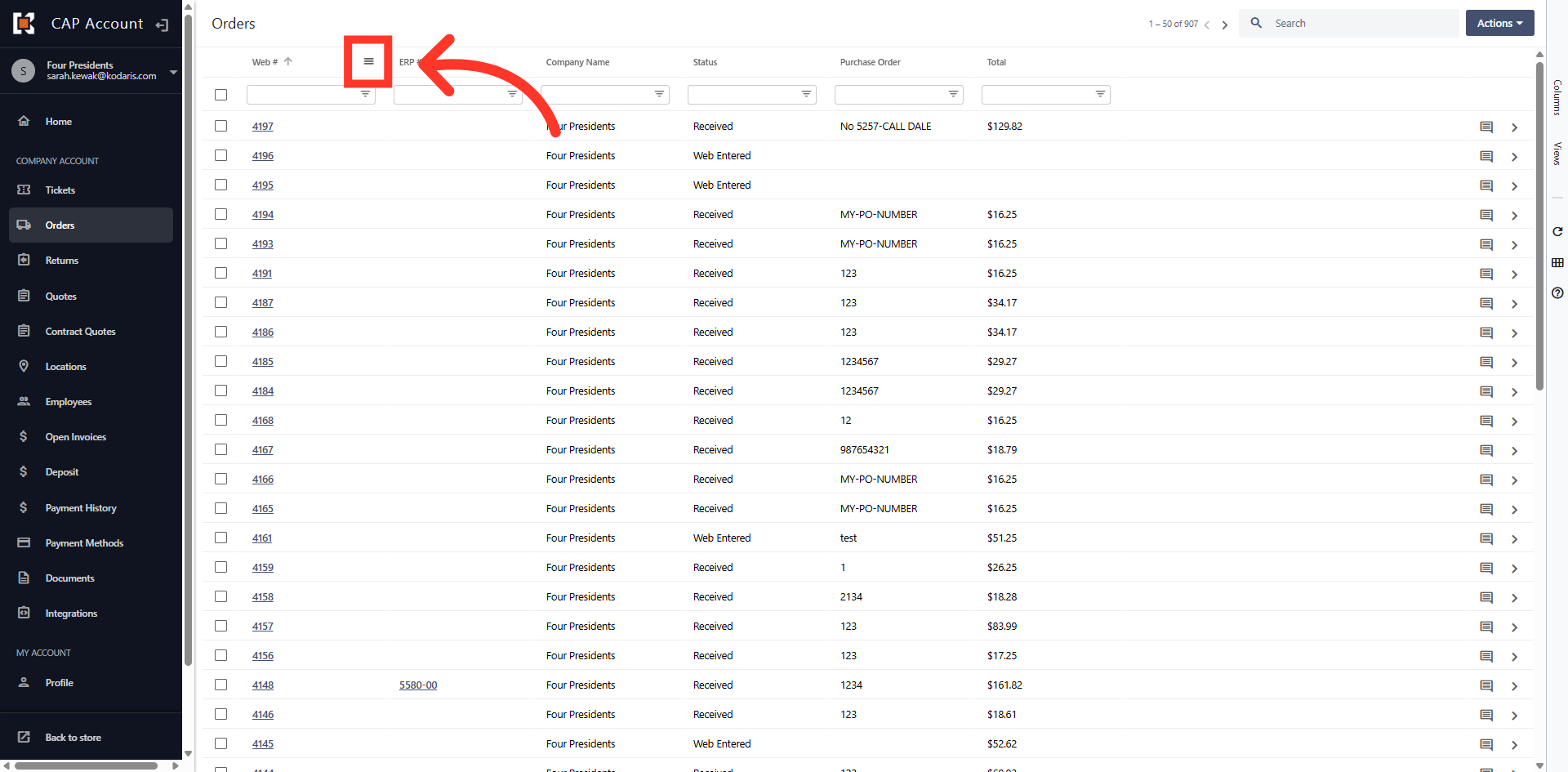
Click the "Menu" icon to view additional column options.
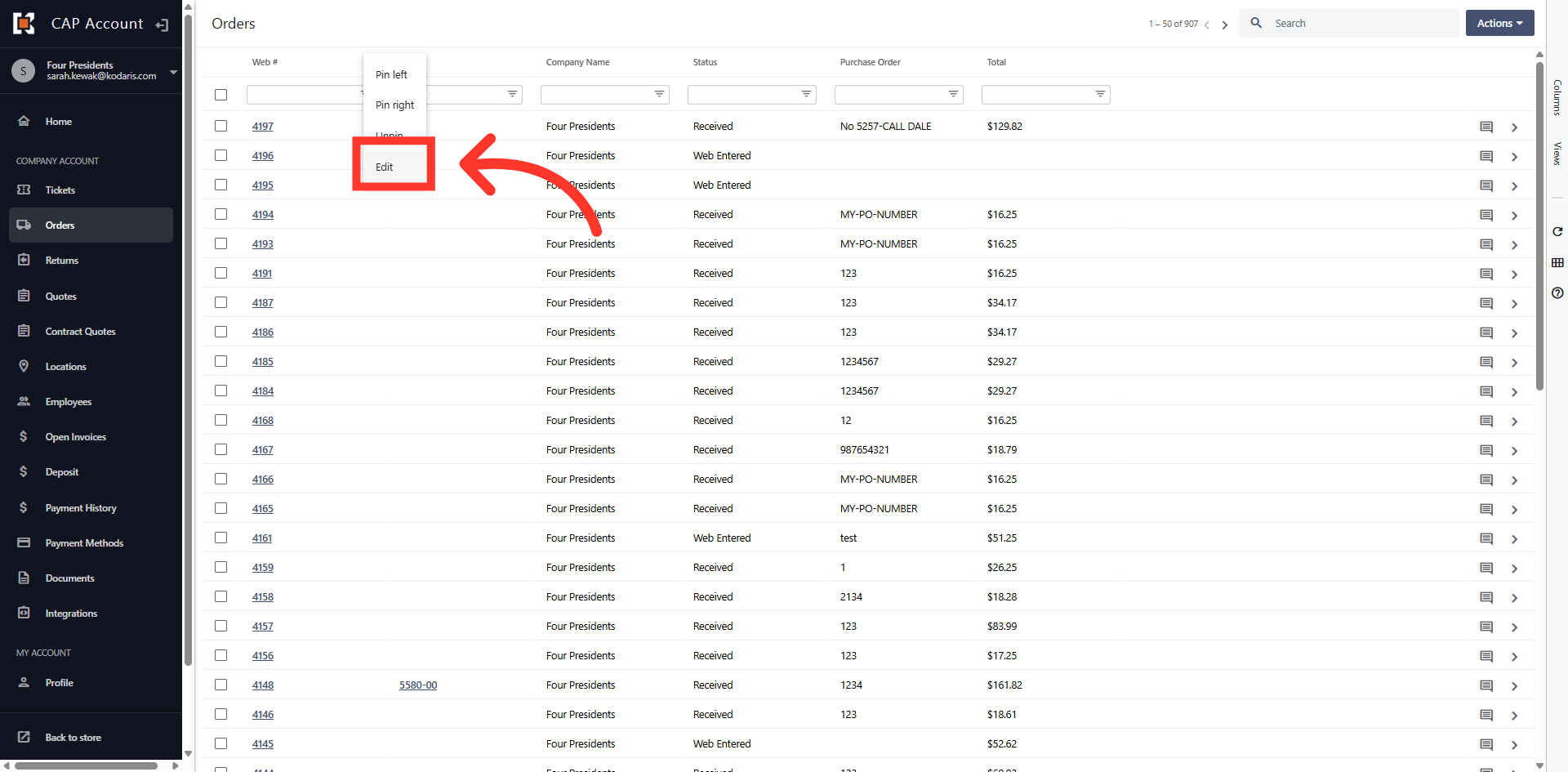
Then, click "Edit.
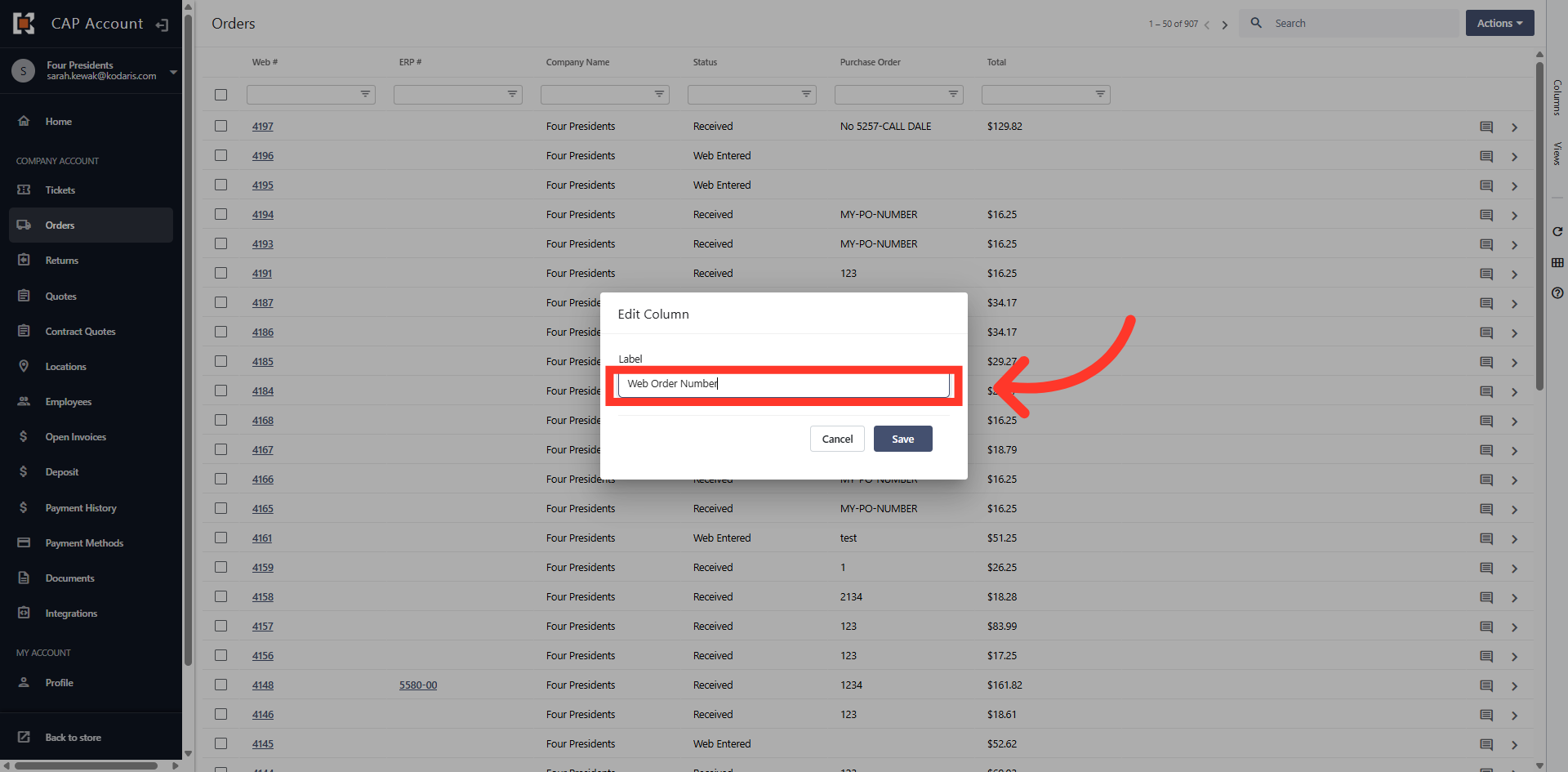
An "Edit Column" dialog box appears. You can edit the label of the column in the "Label" field.
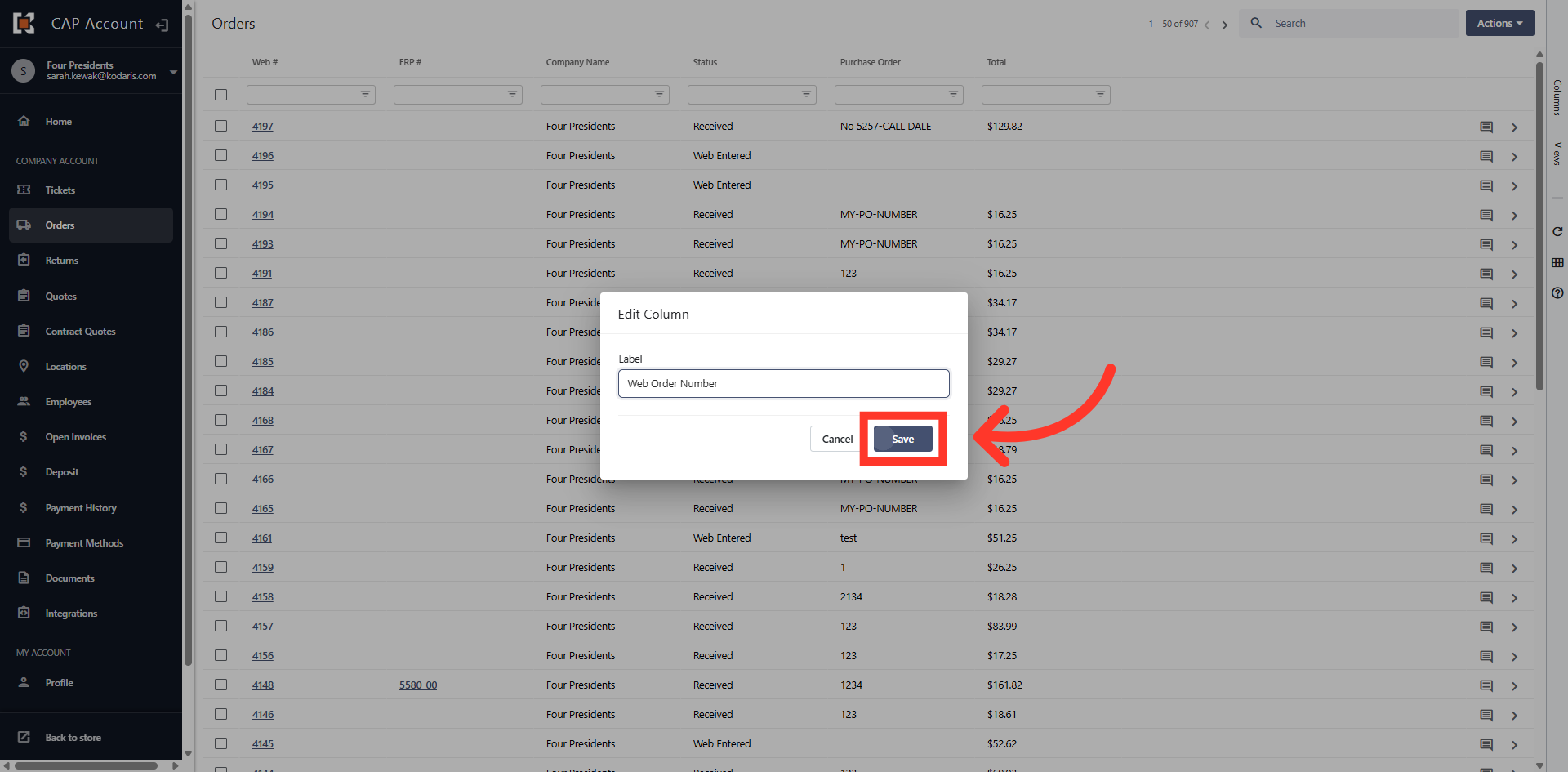
Then, click "Save" to update.
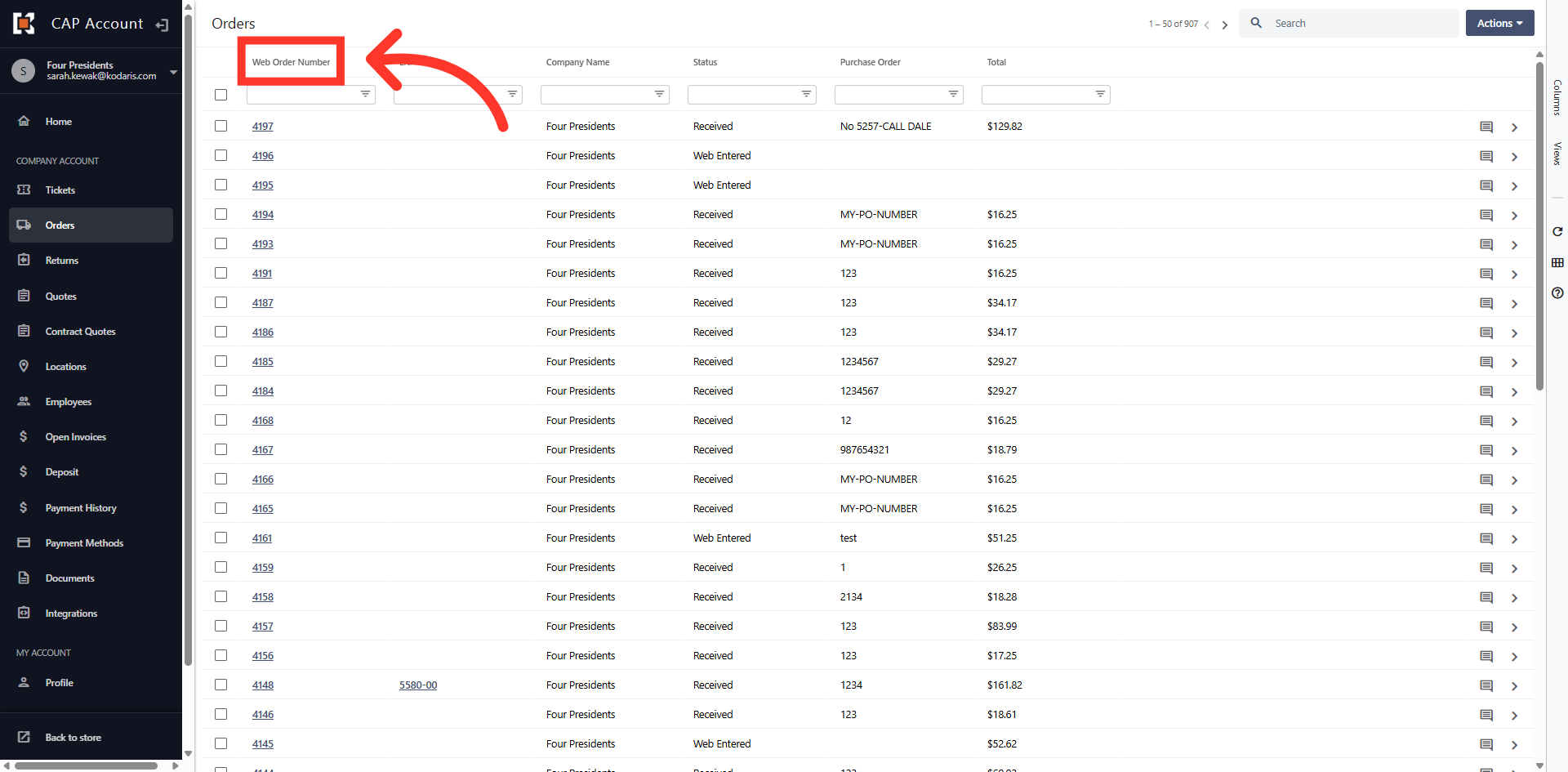
You will see that the column label has been changed. Any column label can be updated on any screen.
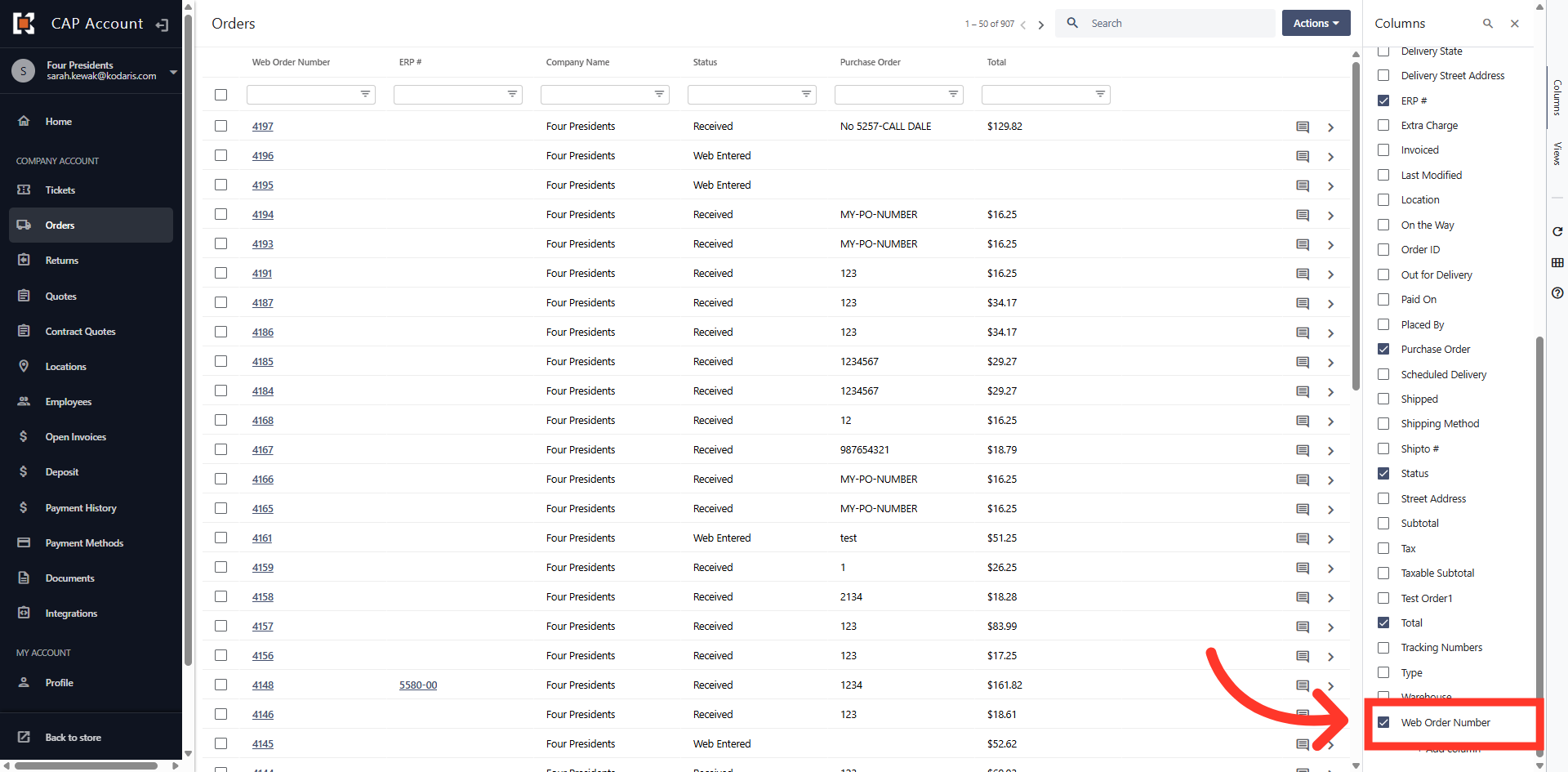
You can also view this label change in the "Columns" view by clicking the "Columns" tab.
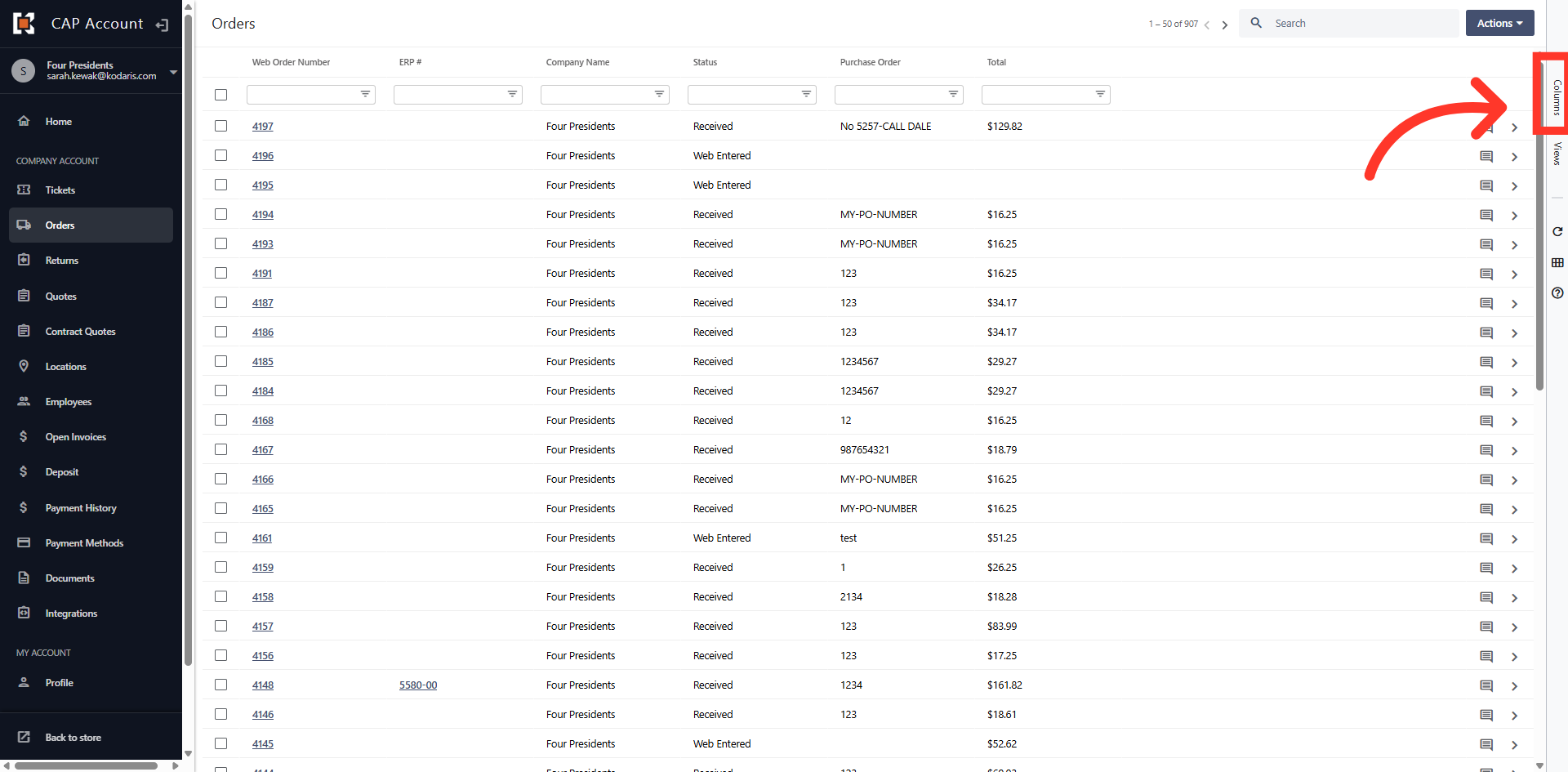
The renamed column appears in the list.