 Product Documentation
Product Documentation
Product Documentation
Sometimes swiftly switching across accounts to assist customers is needed, such as if a sales representative needs to access multiple accounts. Please note that for this feature to work, your employee username must match your personal customer username.

To switch companies, navigate to the "Customers" section in the Operations Portal.
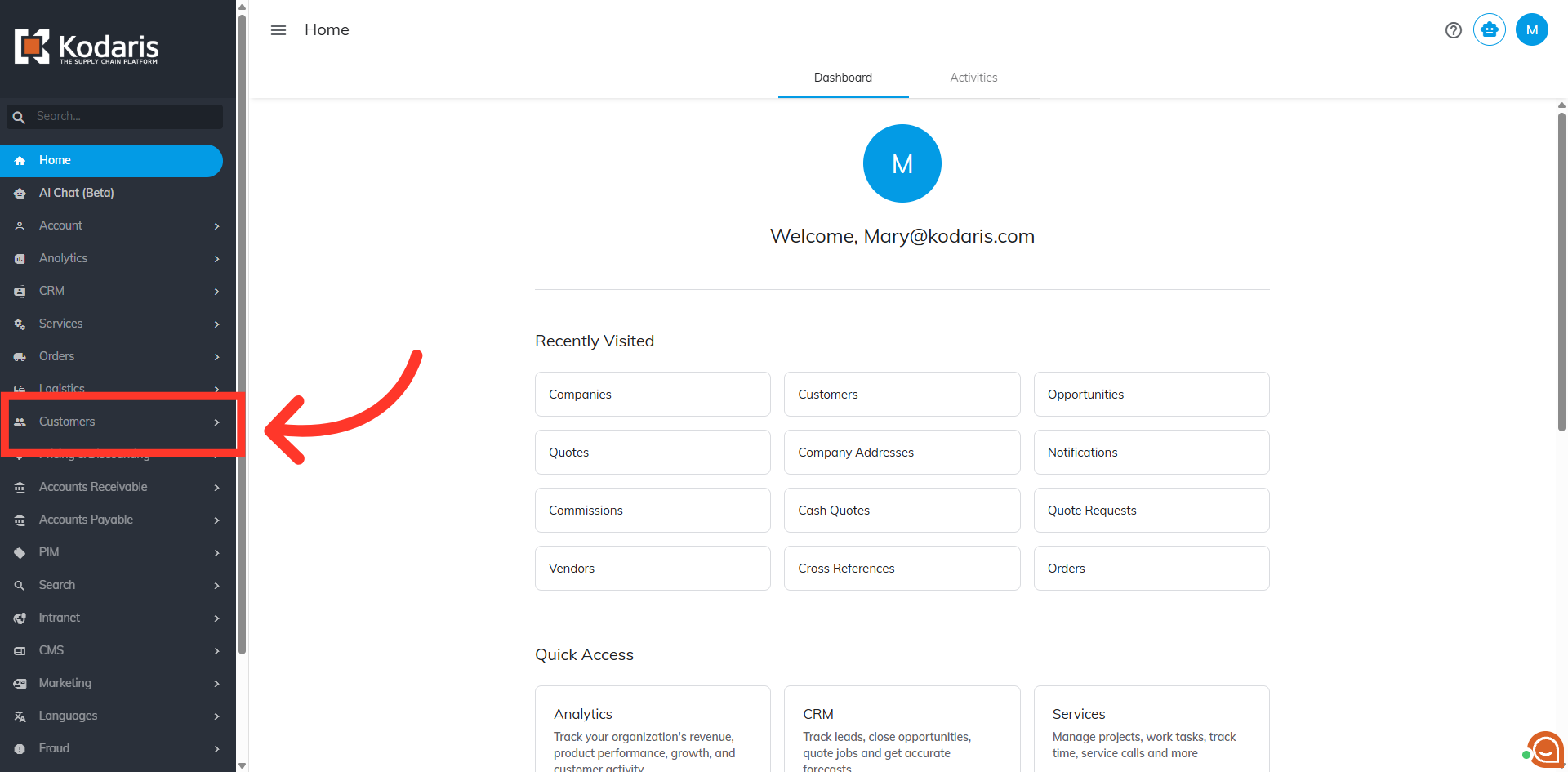
Then, click "Customers". In order to access and update "Customers" details, you must have "administrator" or a "superuser", or "support", or have appropriate roles: "customerView", and "customerEdit".

Search for your customer username in the "Search" field.
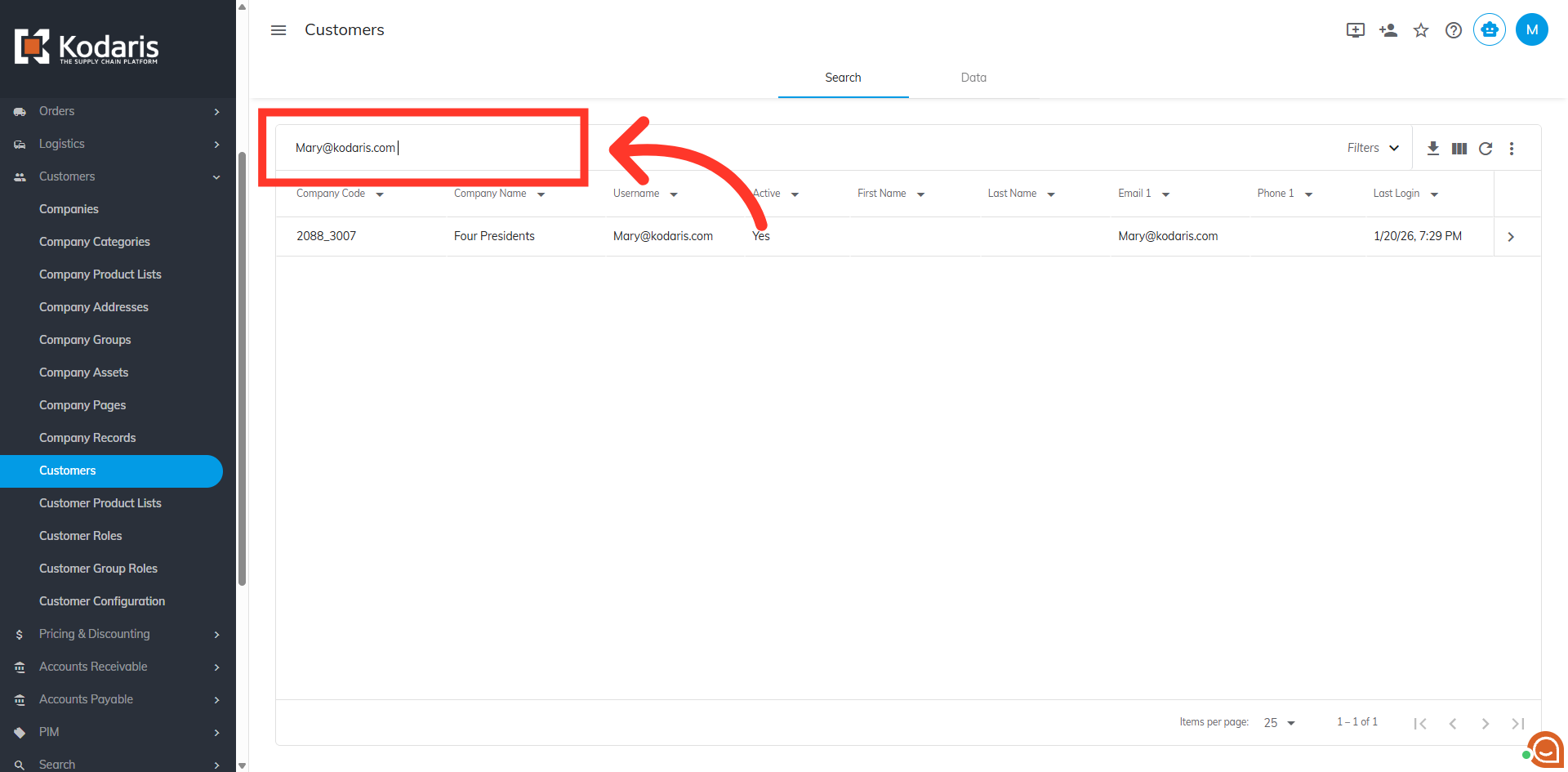
Click on the more details icon to view your customer details.

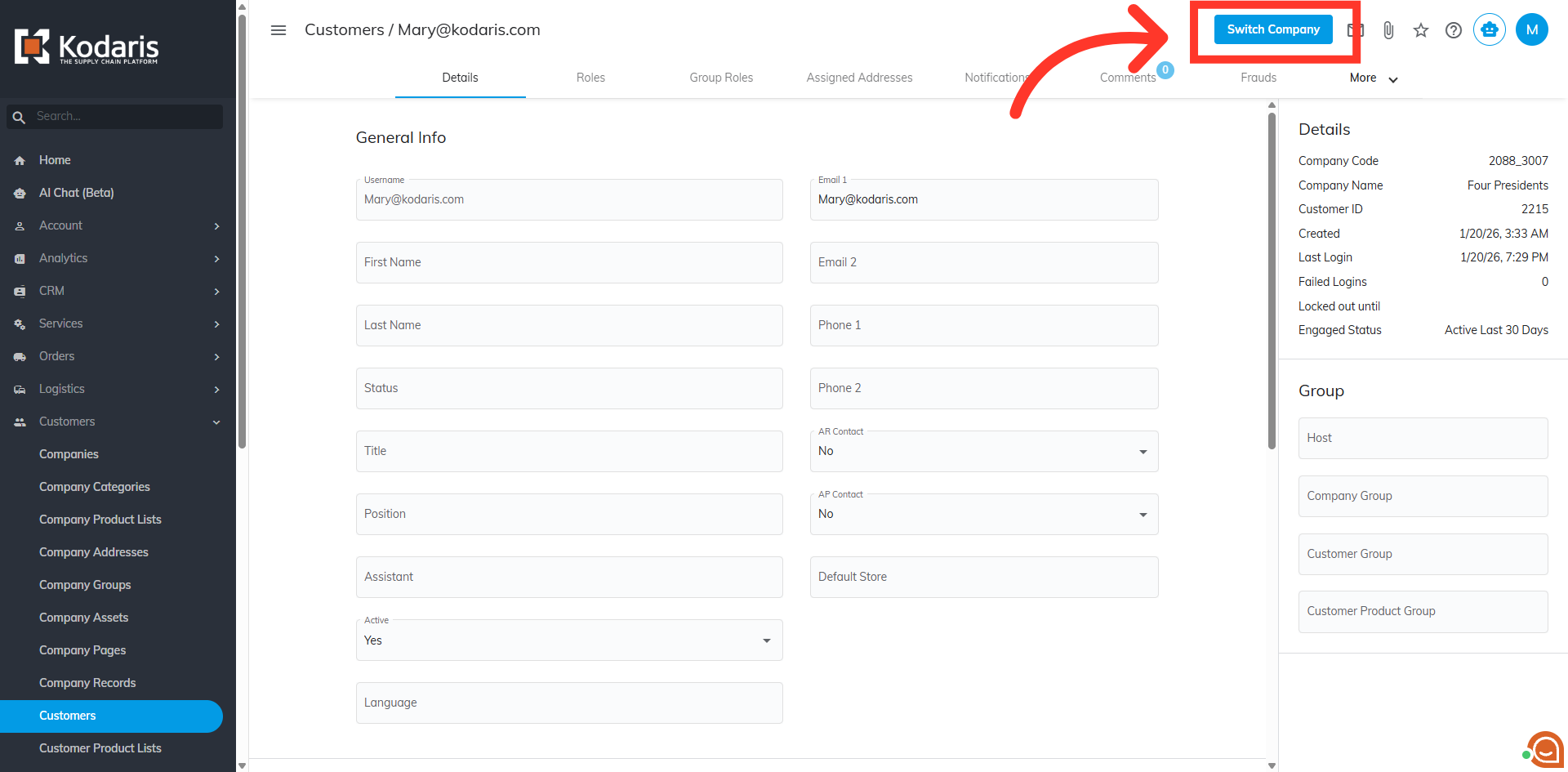
Click the "Switch Company" button.
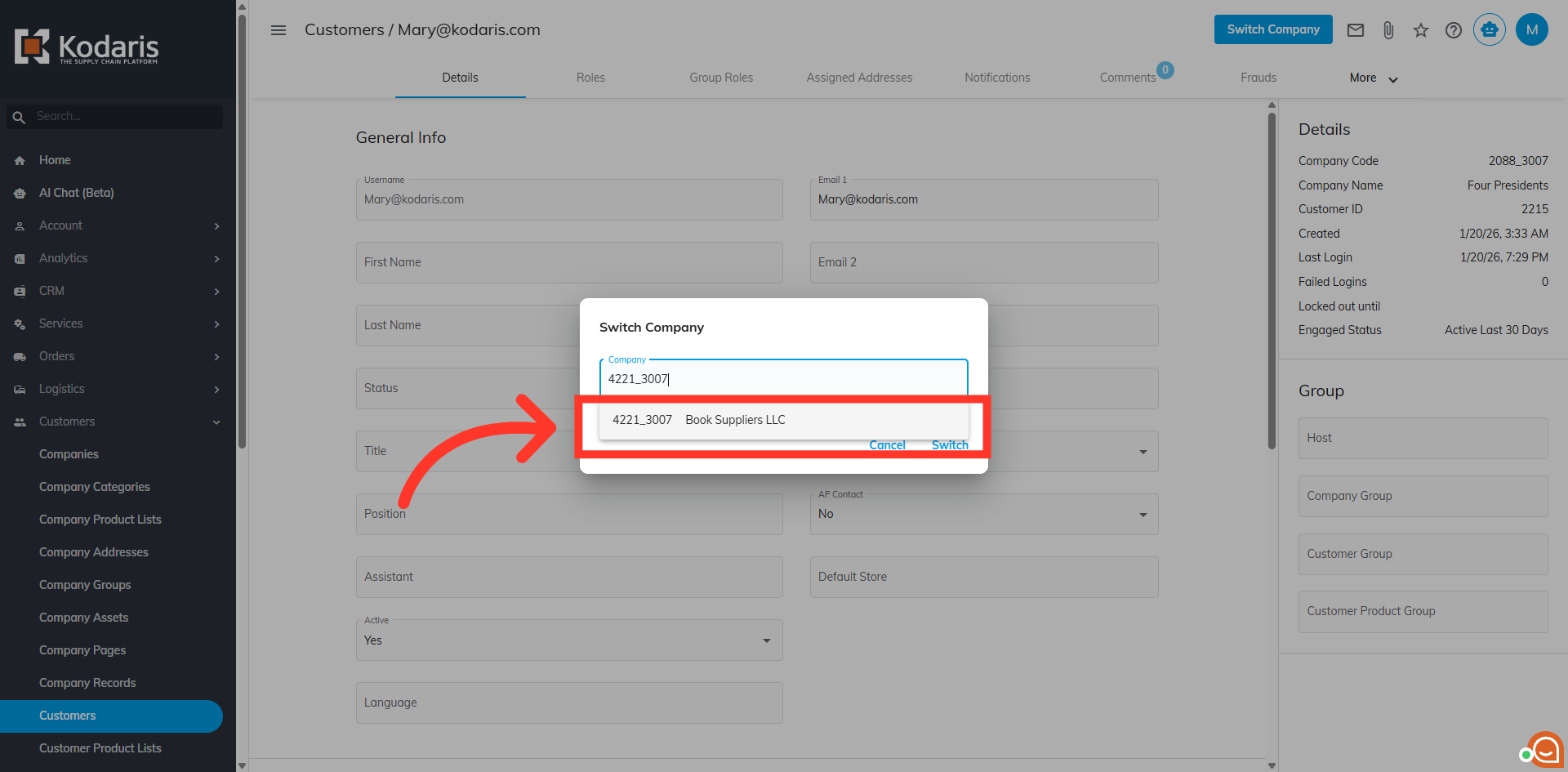
Enter the company code or name in the "Company" field to find the company you would like to switch to.

Then, select the company from the dropdown.
Finally, click "Switch" to proceed with switching the customer login to the selected company.

To verify the update, go back to the Commerce site to see if the company has been switched. As you can see, the company has successfully been switched.
