 Product Documentation
Product Documentation
Product Documentation
The Abandoned Cart feature automatically sends reminder emails to customers who add items to their cart but don't complete their purchase within a specified timeframe. These notifications can be updated by following the included instructions. To do this, navigate to the "System" section in the operations portal.

Click "Settings"

Search for the setting "abandonedCartEmailGuestHours". This setting allows you to set the number of hours before an abandoned cart reminder is sent to guest users.

Click the "more details" icon.

Set the value to any whole number of hours before an abandoned cart reminder is sent to guest users. The default value is 10. The initial email can take up to 2 hours to send out due to events and job run times. After that, the email will be sent out per entered value.

Click the "Save" button to apply all recent configuration changes.

Click "Settings" to navigate back to the settings page.

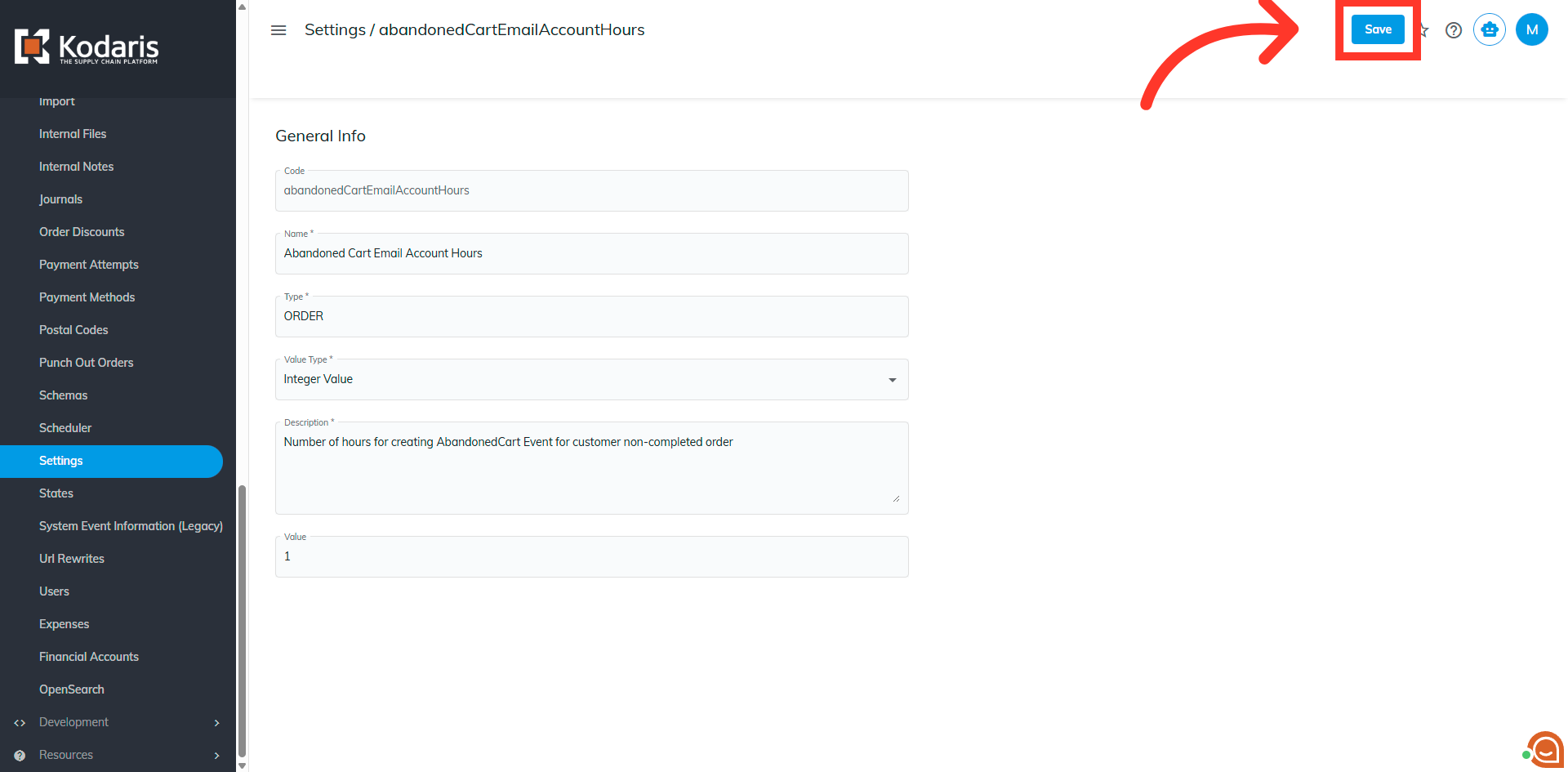
Search for the setting "abandonedCartEmailAccountHours". This setting sets the number of hours before an abandoned cart reminder is sent to registered customers that have a login.

Click the "more details" icon.

Set the value to any whole number of hours before an abandoned cart reminder is sent to registered customers with a login. The default value is 10.

Click "Save" to apply all recent configuration changes.
Click "Settings" to navigate back to the main settings page.

Search for the setting "guestSavedCartExpirationDays". This setting sets the amount of days before guest carts expire and are no longer visible.

Click the "more details" icon.

Set the value to any whole number of days before guest carts expire and are no longer visible. The default value is 90.
