Product Documentation
Product Documentation
Product Documentation
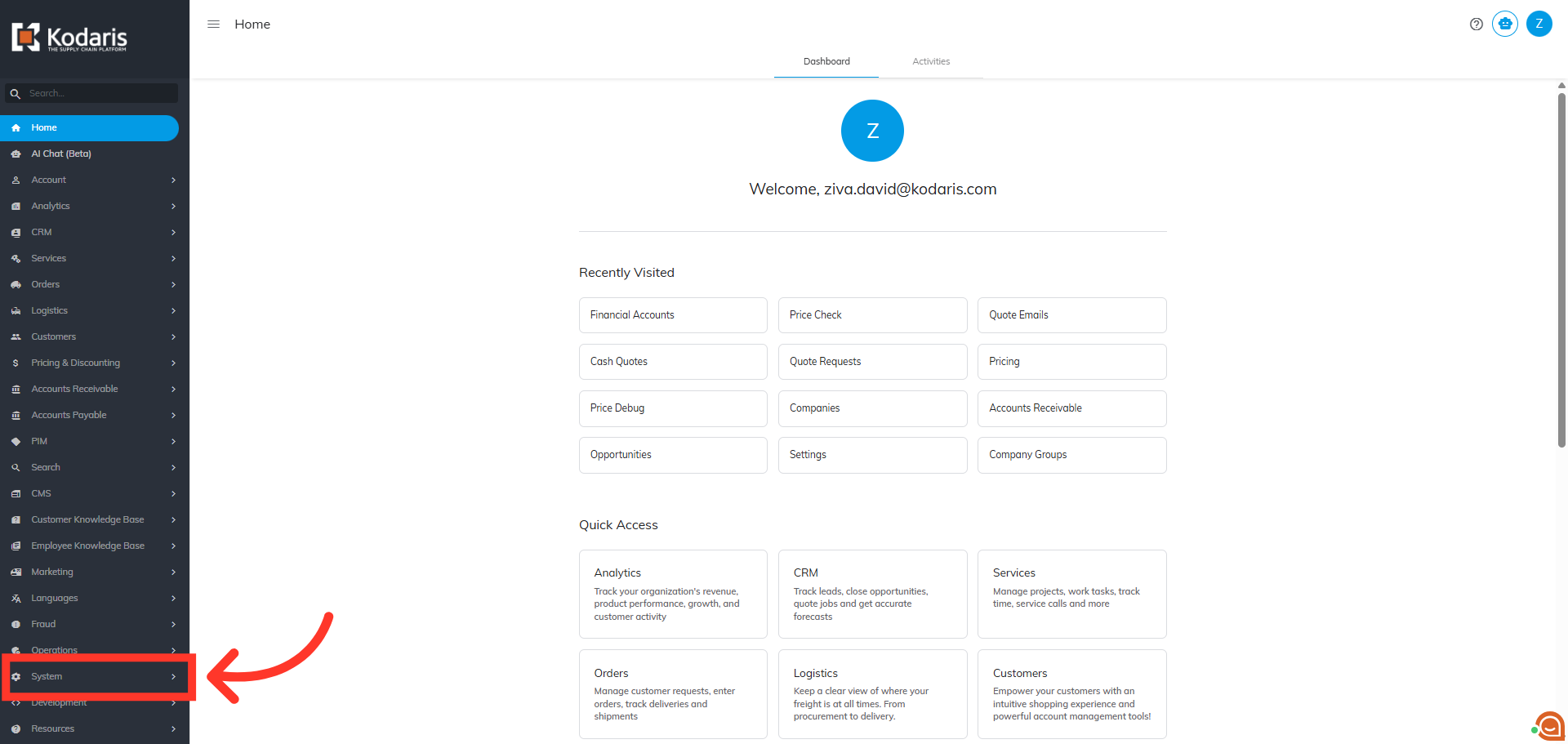
You can generate and export a report on store credits from the global Financial Account screen in the Operations Portal. First, navigate to "System".
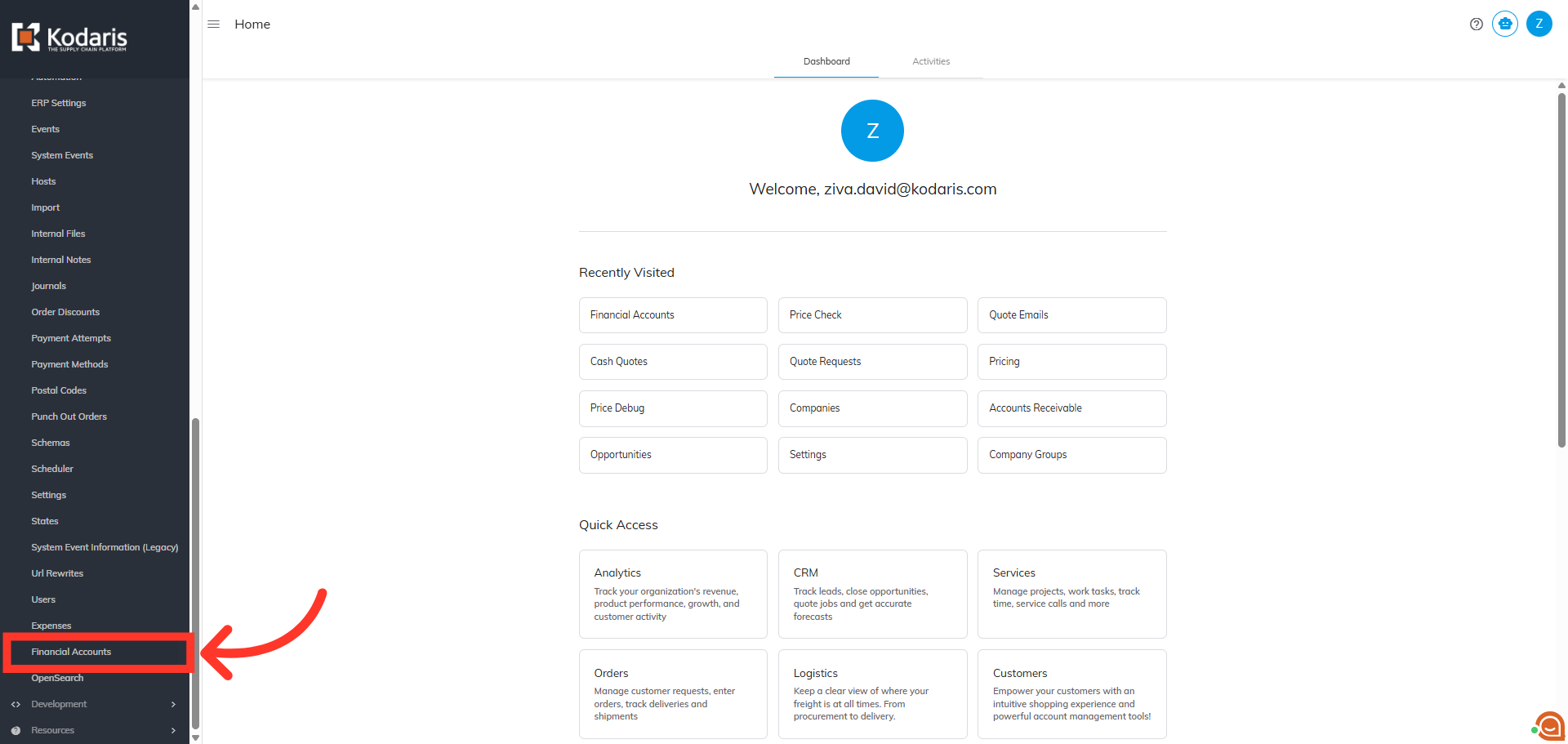
Then, click "Financial Accounts". In order to access "Financial Accounts" you will need to be set up either as an “administrator” or a “superuser”, or have the roles of: “fiAccountView” and “fiAccountEdit”
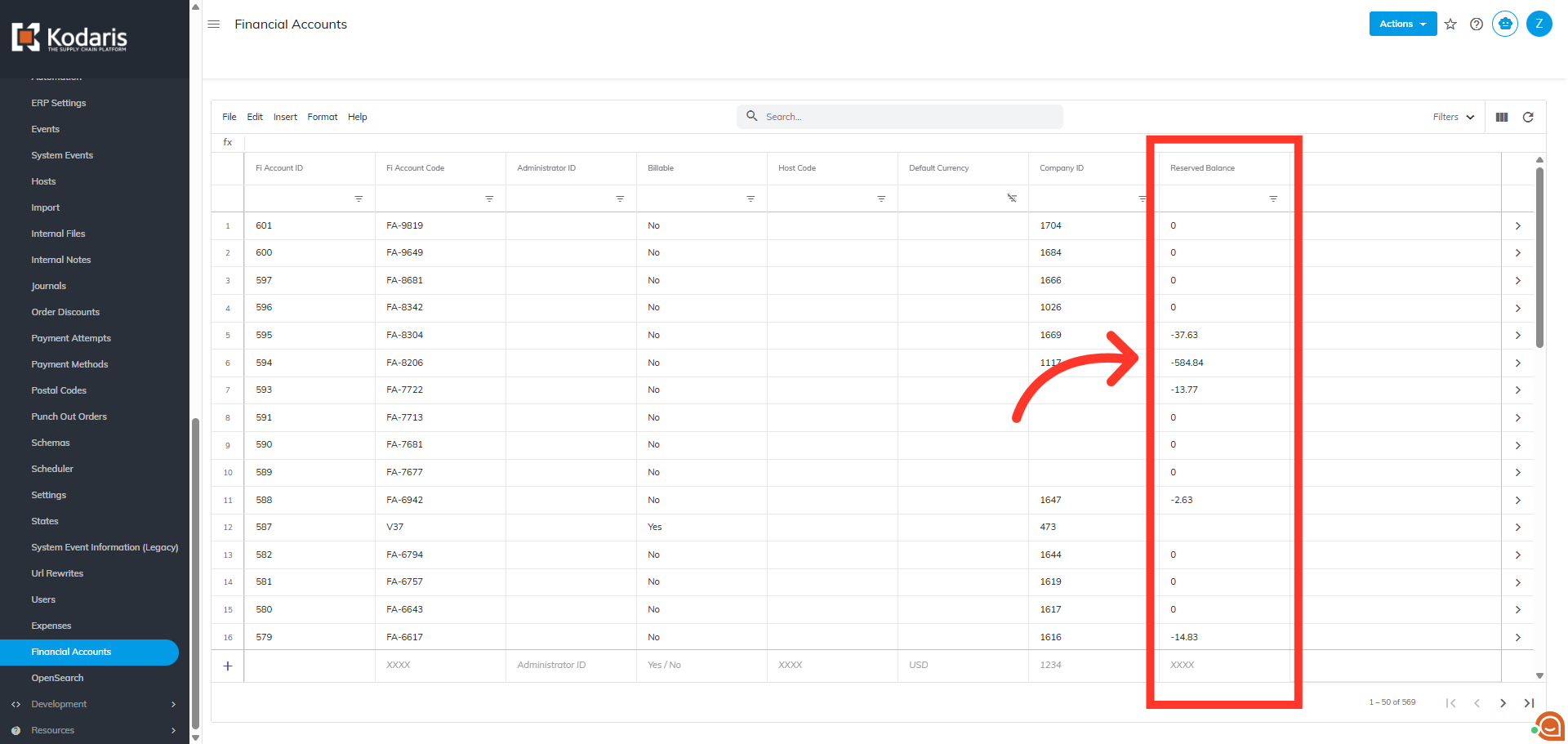
This screen is a global overview of all the financial account data in the system. You can add additional options by clicking the "Show/Hide Column" icon.

In this example, we will add the "Reserved Balance" column to our view by clicking the checkbox for the option.

The column has been added and you can now see the existing balance on the store credits.
Next, click "File".

Then, click "Export.

From the "Save as" dialog box, you can rename the file or use the default file name. You also have the choice to save as a CSV or JSON file depending on your reporting needs. Click "Save" to generate and download the file to your computer.

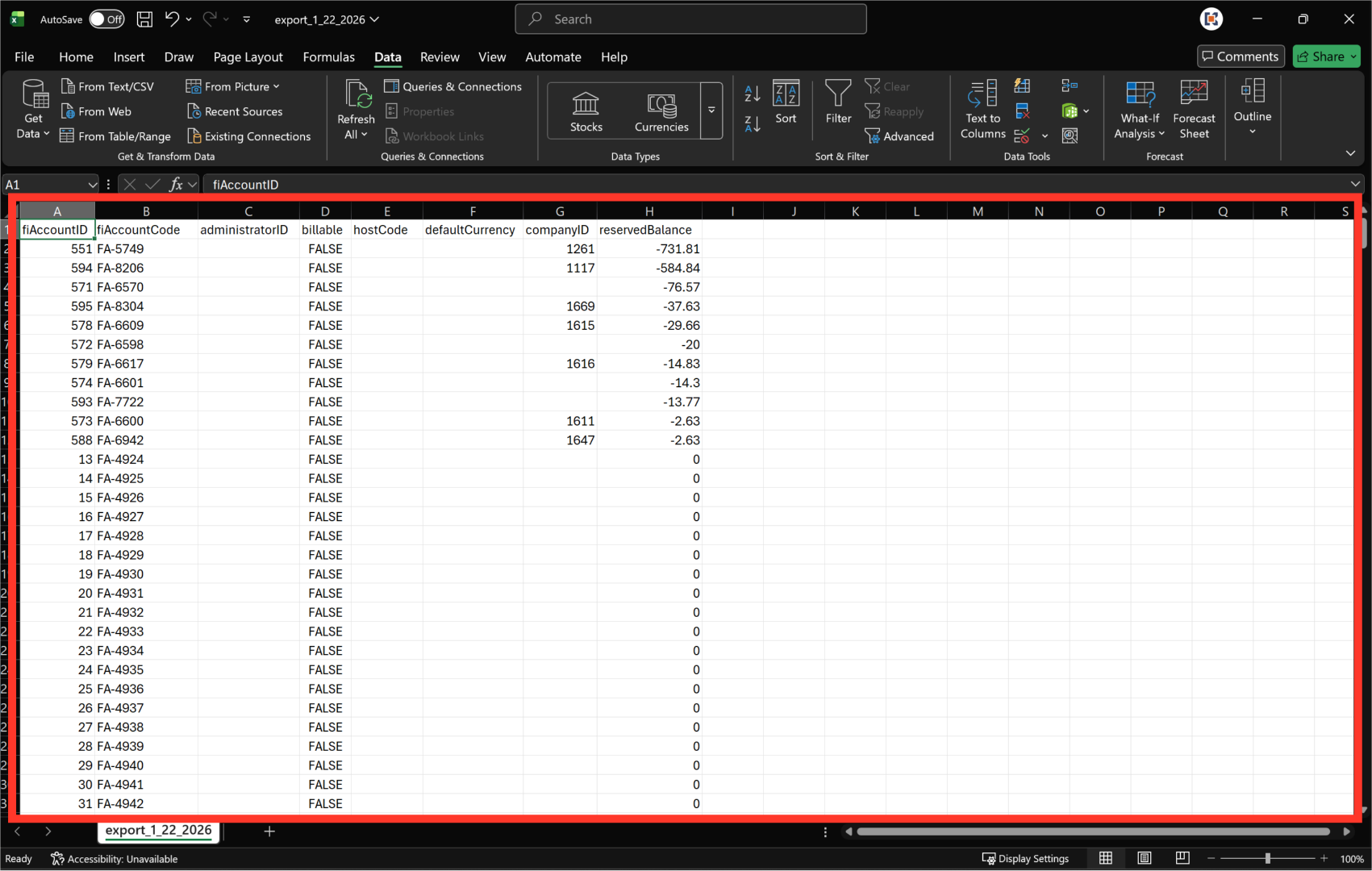
The exported report displays all the financial information displayed from our view.