DejaVoo Z11 Terminal Update
Settle batches and prepare terminal for updating
Prior to doing any file or terminal adjustments, it is strongly suggested that any open batches are settled.
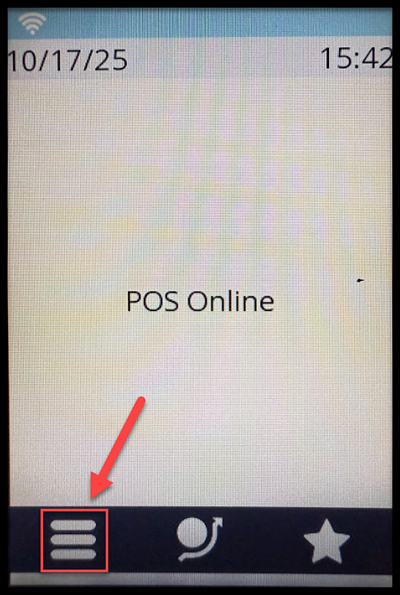
On the home screen, tap the menu button on the lower left hand corner of the touch screen.
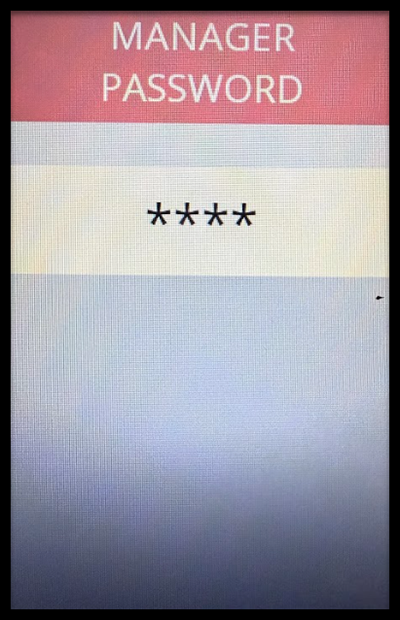
On the key pad, enter the manager password of 1234 and press the green button.
Settle any open batches by navigating through Settlement > Settle Daily Batch.
To update the terminal
- On the home screen, tap the menu button in the lower left hand corner of the touch screen.
- On the key pad, enter the manager password 1234 and press the green button.
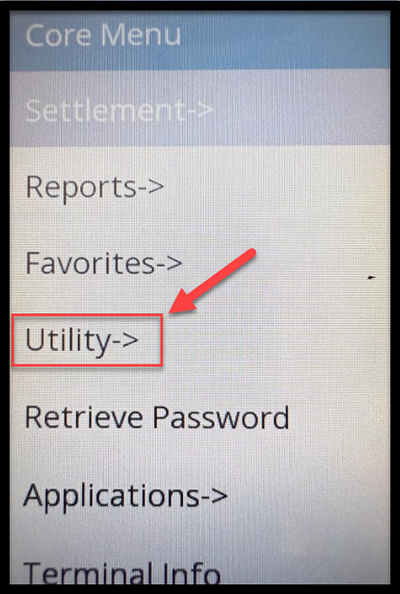
- Next, the Core Menu screen will appear. Tap Utility on the touch screen.
- On the next screen, you will be prompted to re-enter the manager password. On the key pad enter 1234 and press the green button.
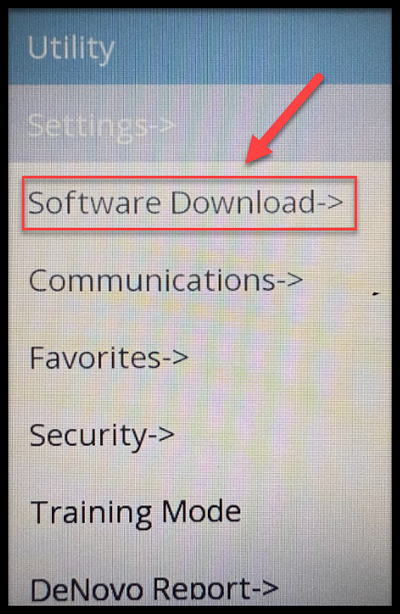
- Next the Utility Menu screen will appear. Tap Software Download on the touch screen.
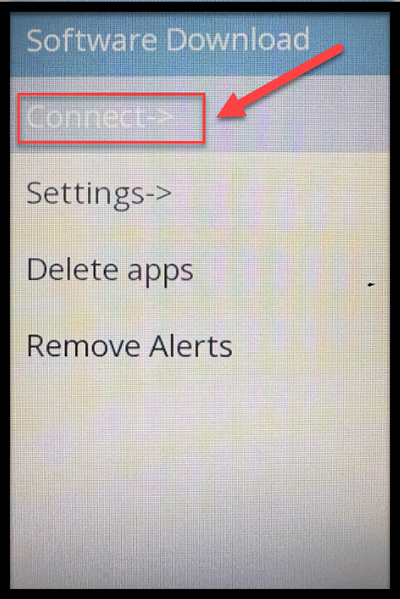
- Next, is the Software Download Menu. Tap Connect on the touch screen.
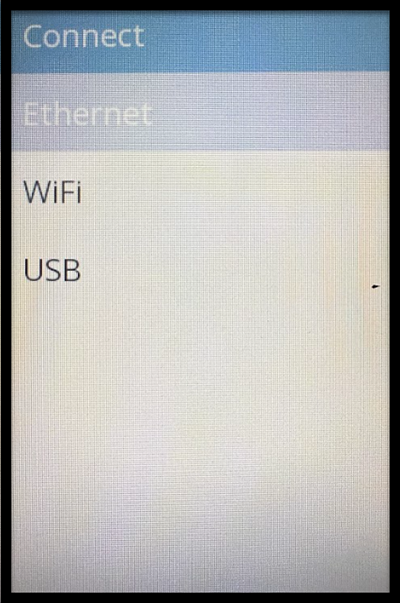
- Next is the Connect Menu. On the touch screen, tap the method you are using to connect to the internet.
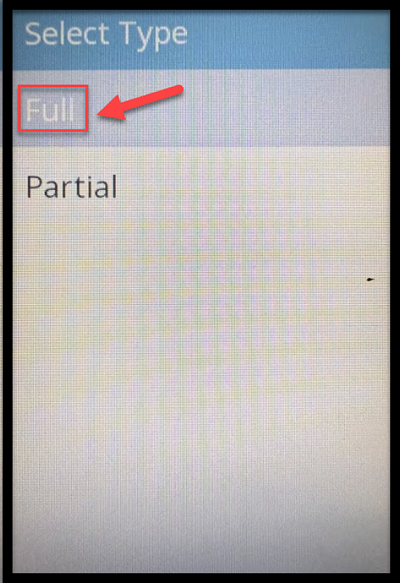
- Next the Select Type (of download) screen will appear. Tap Full on the touch screen.
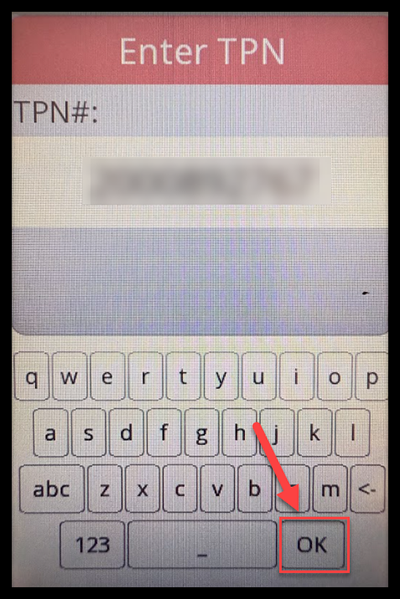
- On the next screen, the TPN (Terminal Profile Number) will automatically display on the screen. Tap the OK button on the touch screen.
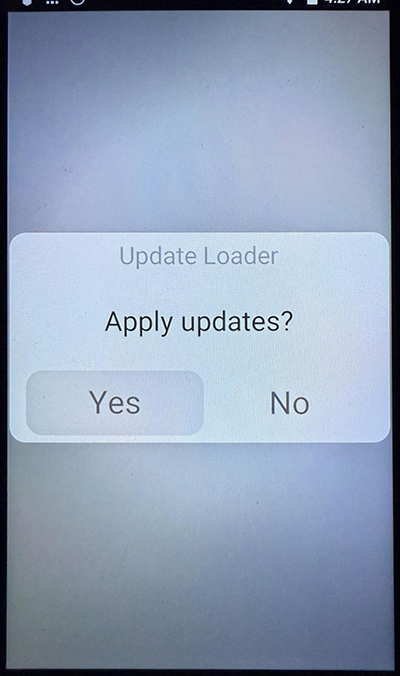
- The terminal will start the download sequence by checking the server to see if there are updates to download. If it finds updates, it will ask you to Apply Updates. Tap Yes to continue.
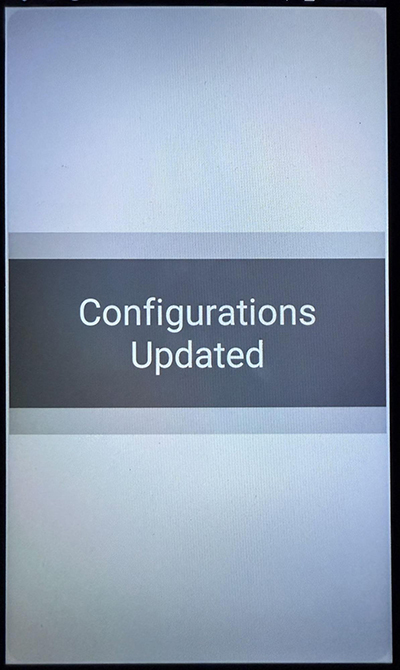
- The device will now cycle through a reboot sequence and the terminal will be updated. A confirmation screen will appear for a few seconds and the terminal will return to normal.
 Product Documentation