 Product Documentation
Product Documentation
Product Documentation
You can apply a store credit to a customer order in CloudSuite Distribution (CSD), by first navigating to the order entry screen and entering a sales order.

Enter the account number for the customer order. This could be an existing customer, or a generic, cash sale account that has an available store credit. In this example, we will use an existing customer.
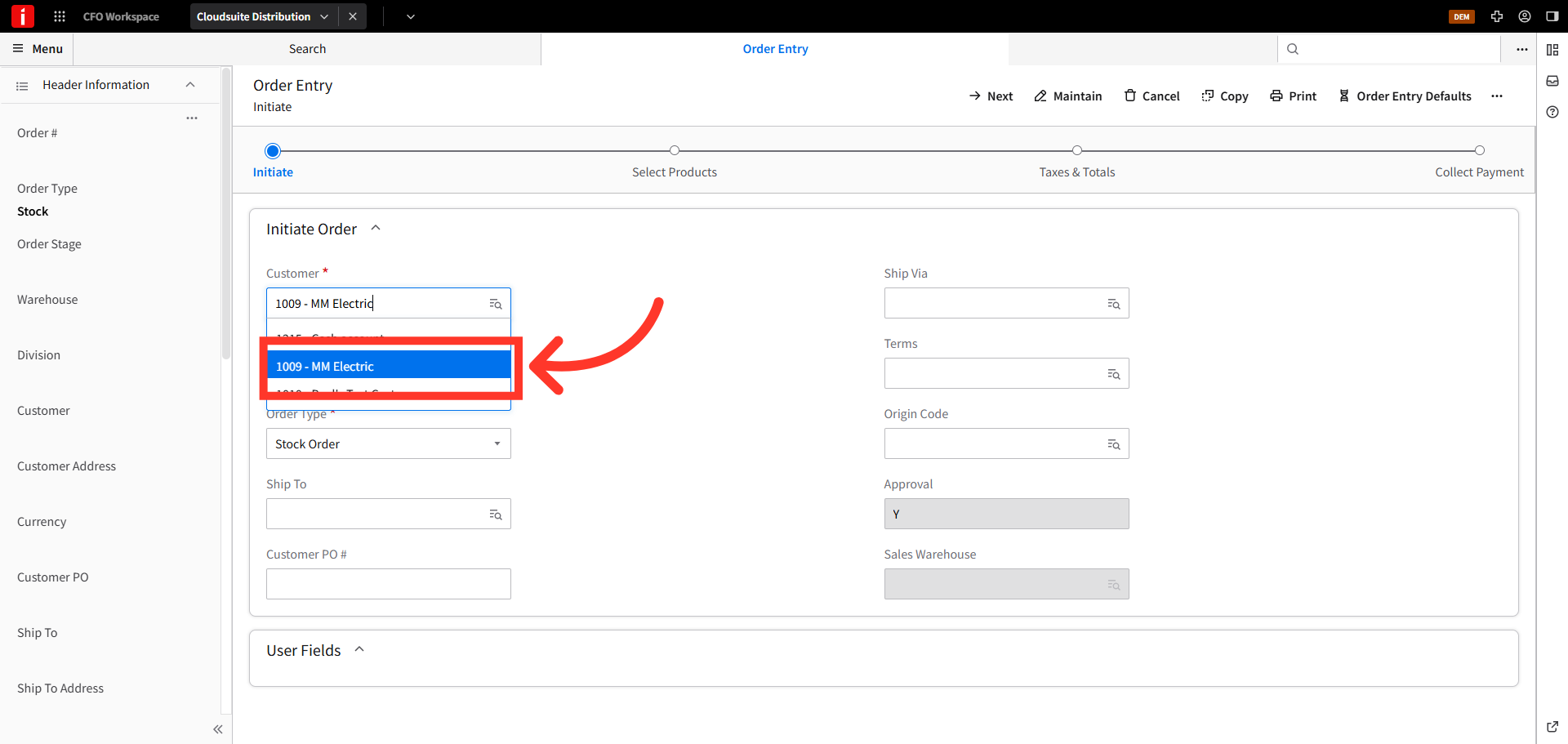
Then, click "Next".

Add a product to the order.
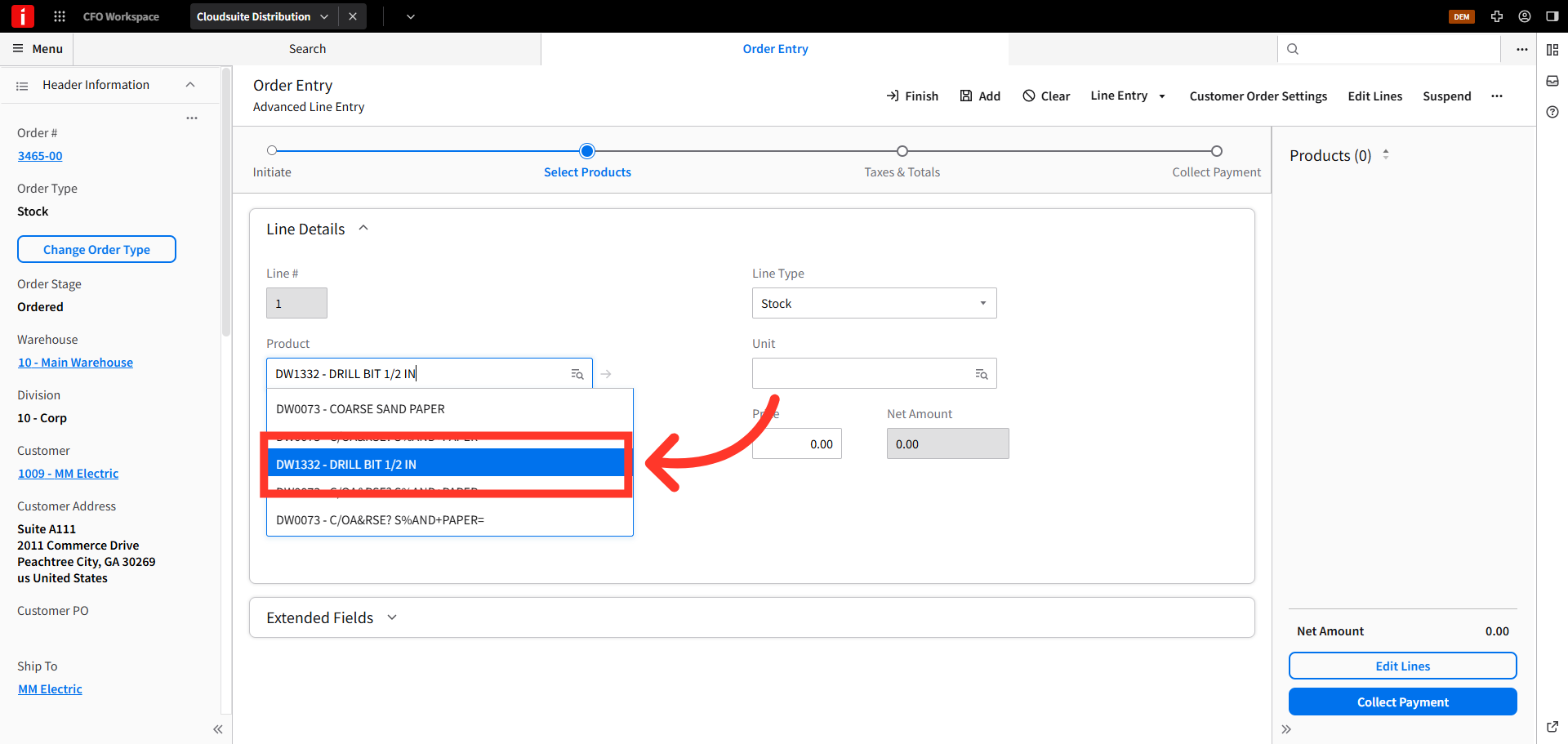
Then, click "Add".

Next, click the "Collect Payment" button.

Confirm the total amount due, and then from the "Process Payment" section, choose "Store Credit" in the "Payment" dropdown.
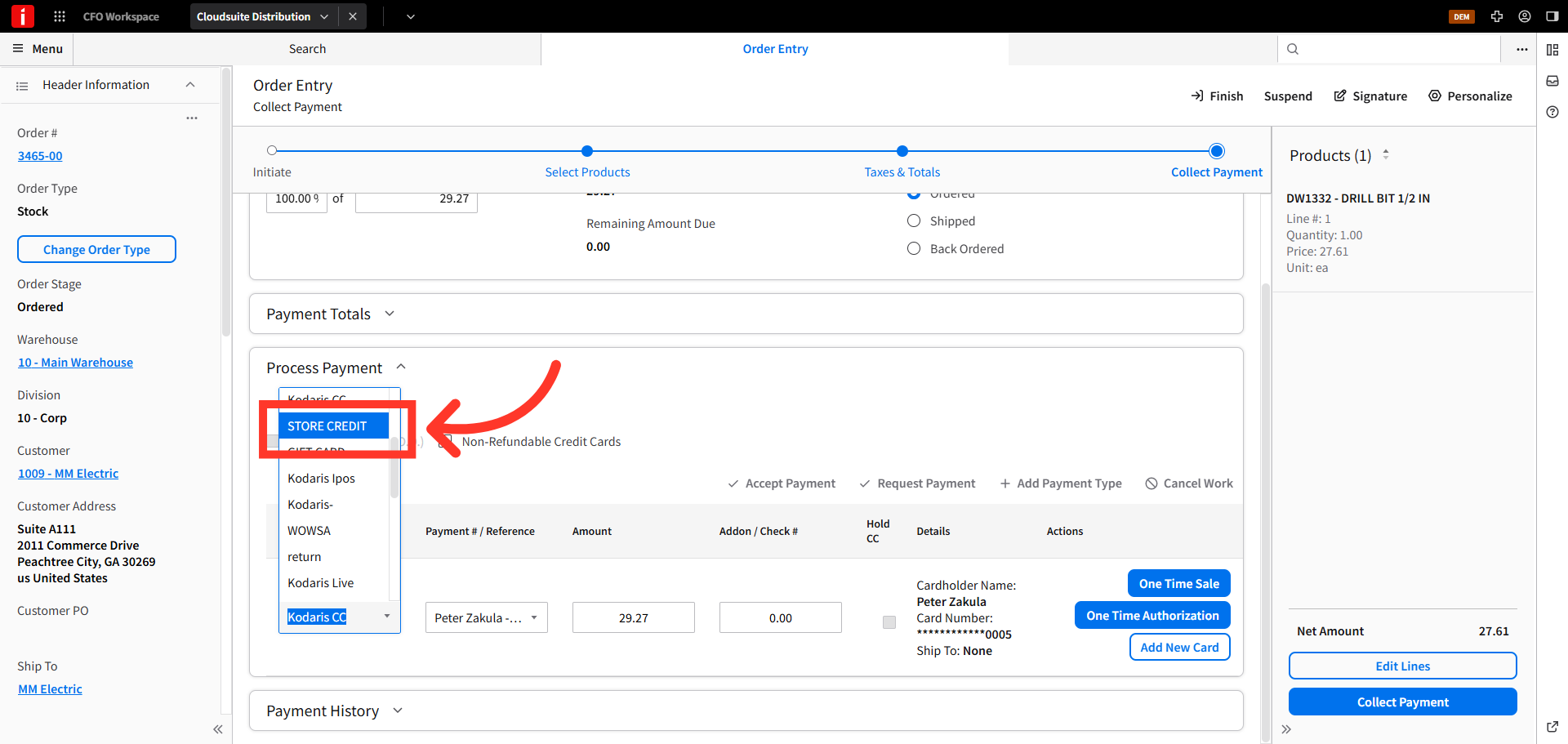
Then, click "One Time Sale".

Next, click "OK".

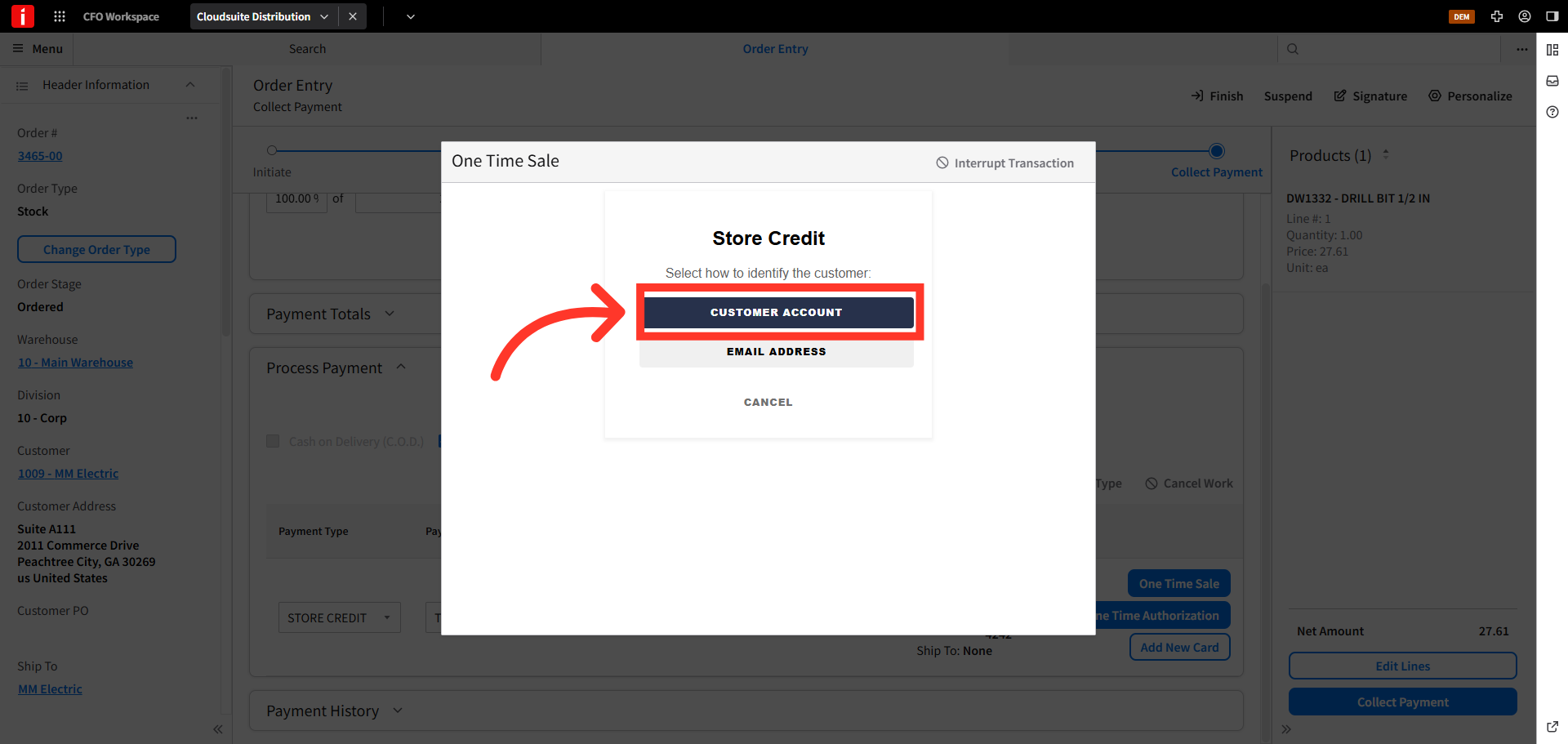
Click "Customer Account" to use the store credit that is available on this particular customer account.
Confirm the credit payment details and verify there is sufficient balance to cover the amount due. If there wasn't, you would apply the credit and CSD would allow for a second method of payment for the balance. Next, click "Process Payment" to execute the transaction.

You can print the receipt, then click "Finish" to finalize the payment.
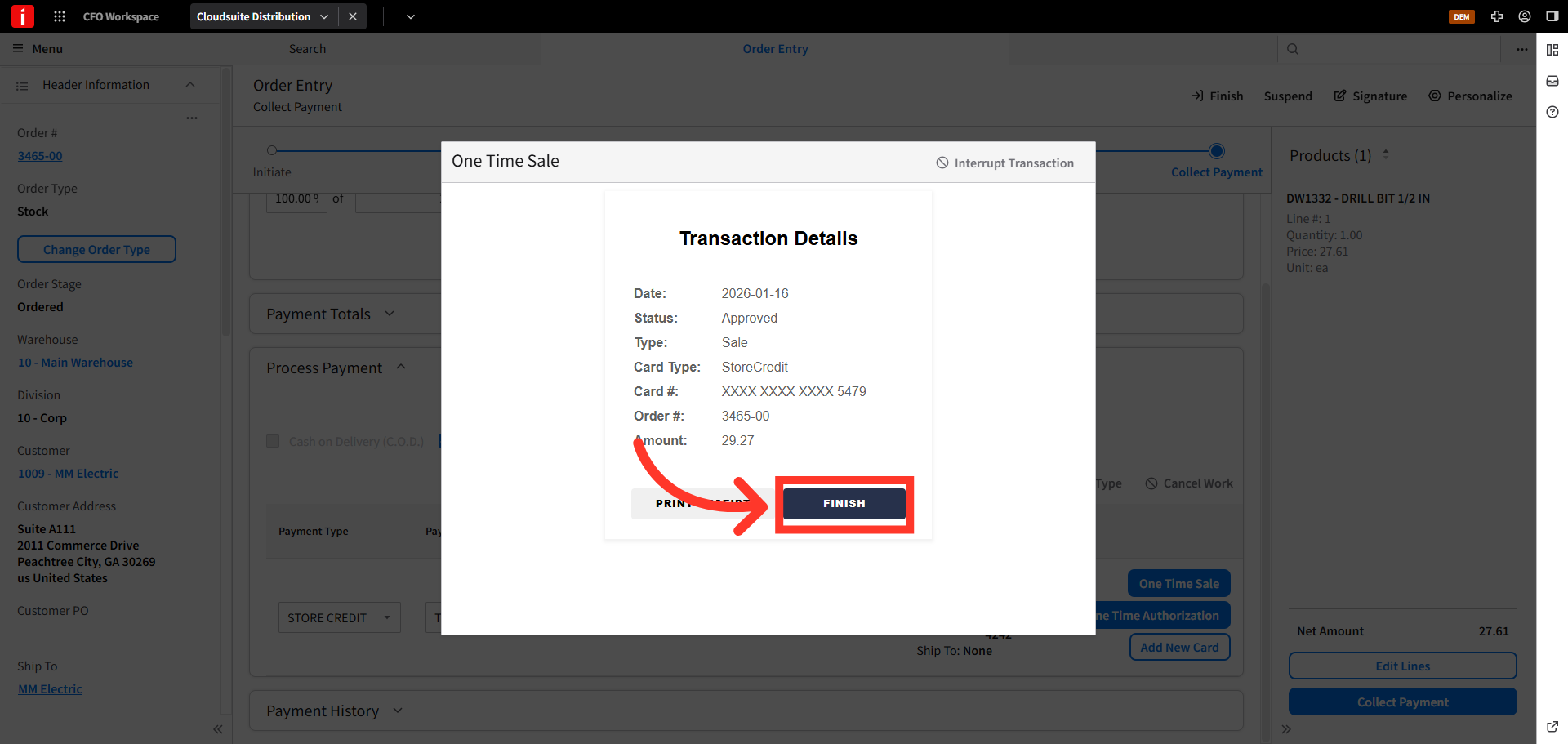
Finally, click "Finish" to complete the order entry process and save all transaction details.
