 Product Documentation
Product Documentation
Product Documentation
Store credits can be issued to specific customer accounts or associated with email addresses for cash sale customers. To issue a store credit in CSD, navigate to the order entry screen in CSD.

Then, in the "Order Type" field, choose the "Return Merchandise" option to initiate the return process for a customer order.

Enter the customer account number in the "Customer" field associated with the return.
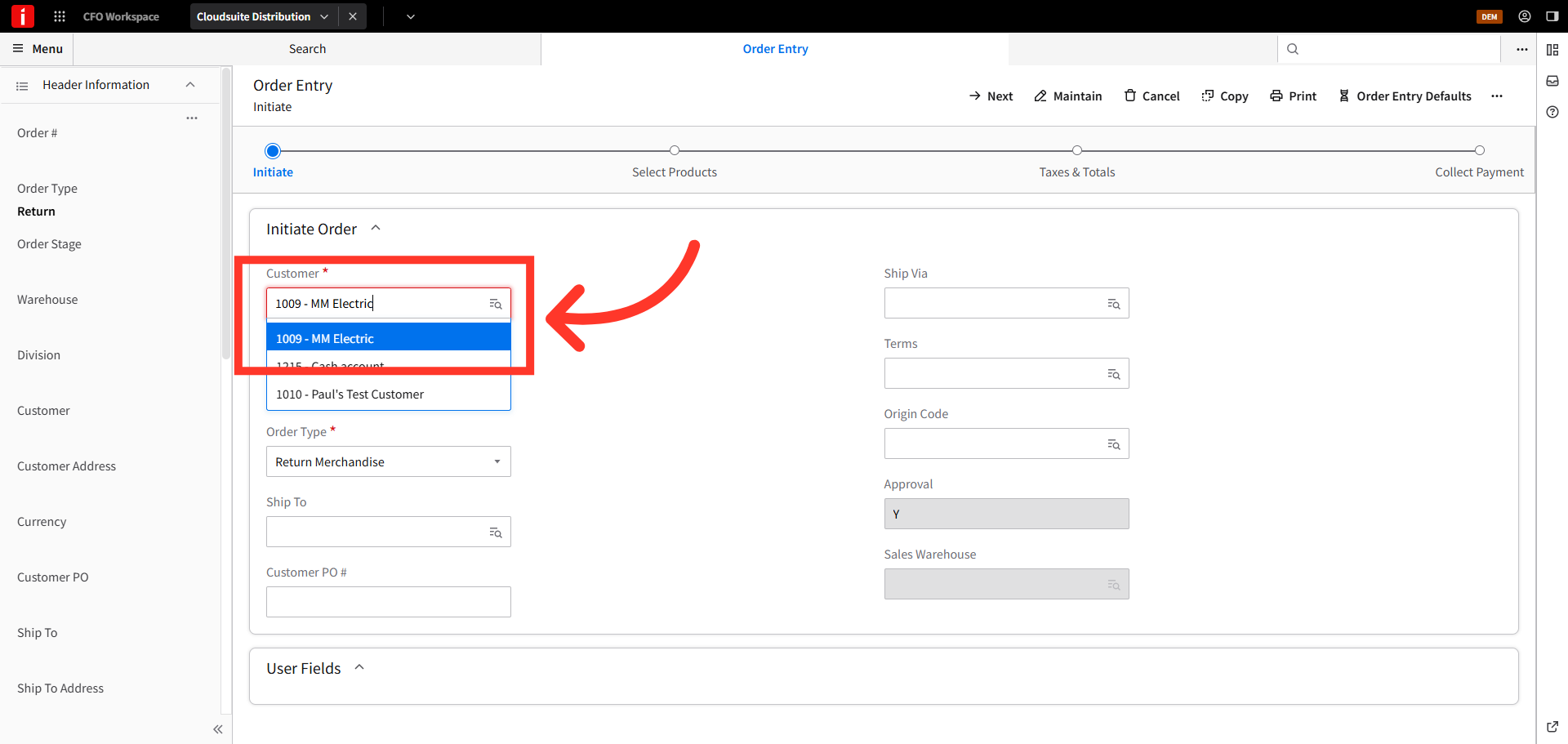
Then, click "Next".

Select a return reason from the "Return Adjust Reason" dropdown menu. In this example, we will use, "Return".
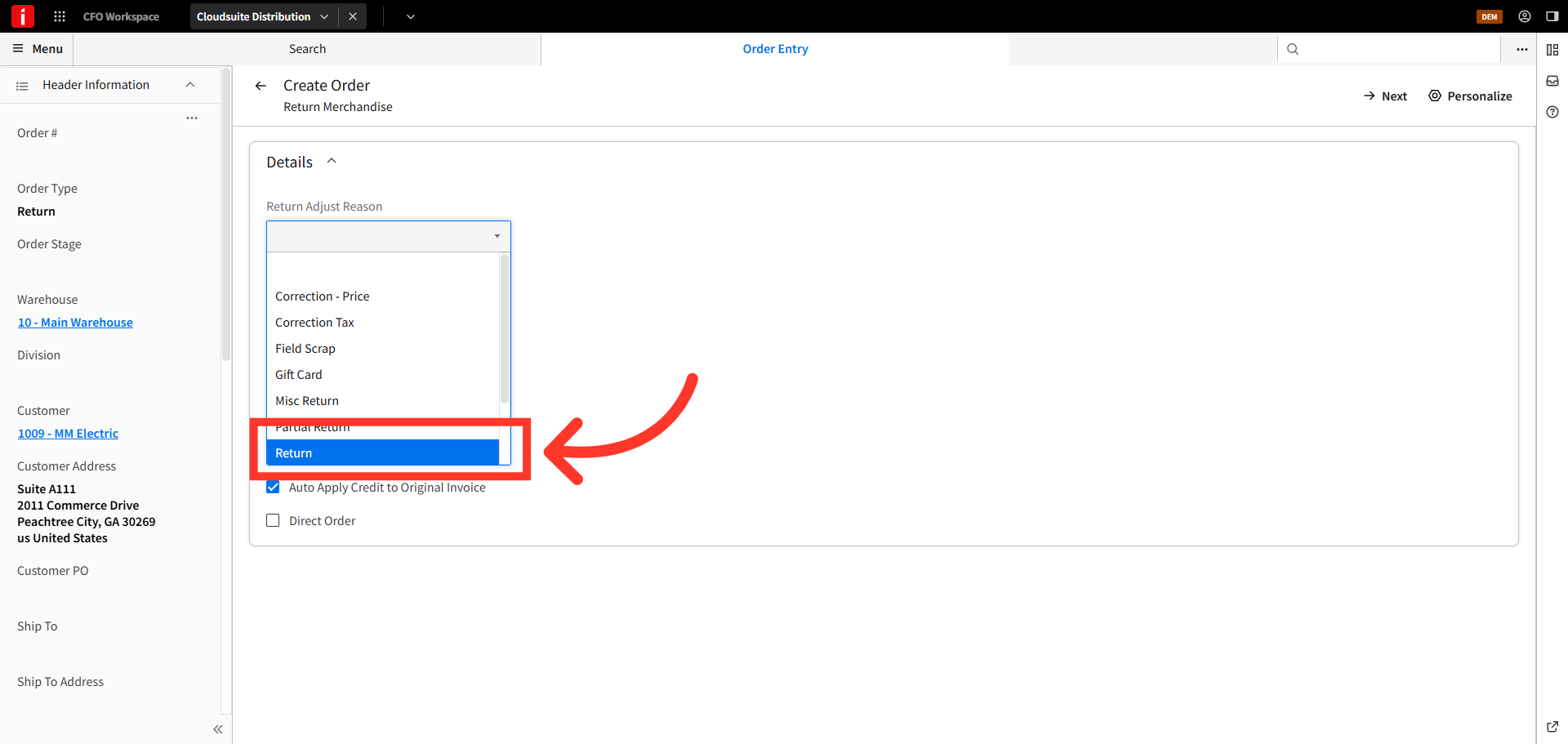
Disable the option to automatically apply credit to the original invoice by unchecking the box.

Then, click "Next".

Click "Yes" to confirm the details entered for the return order and proceed.

Proceed with the normal flow for processing a return in CSD, and add the products being returned from the available inventory list.

Click "Add" to include the selected product in the return order.

In the "Return Details" screen you can add a line level reason code or reference an invoice. In this example, we are going to proceed without populating the additional options, and click "Submit".

Once the products have been added, click the "Collect Payment" tab.

In the "Payment Type" field, choose the "Store Credit" option to apply the refund as credit to the customer's account.
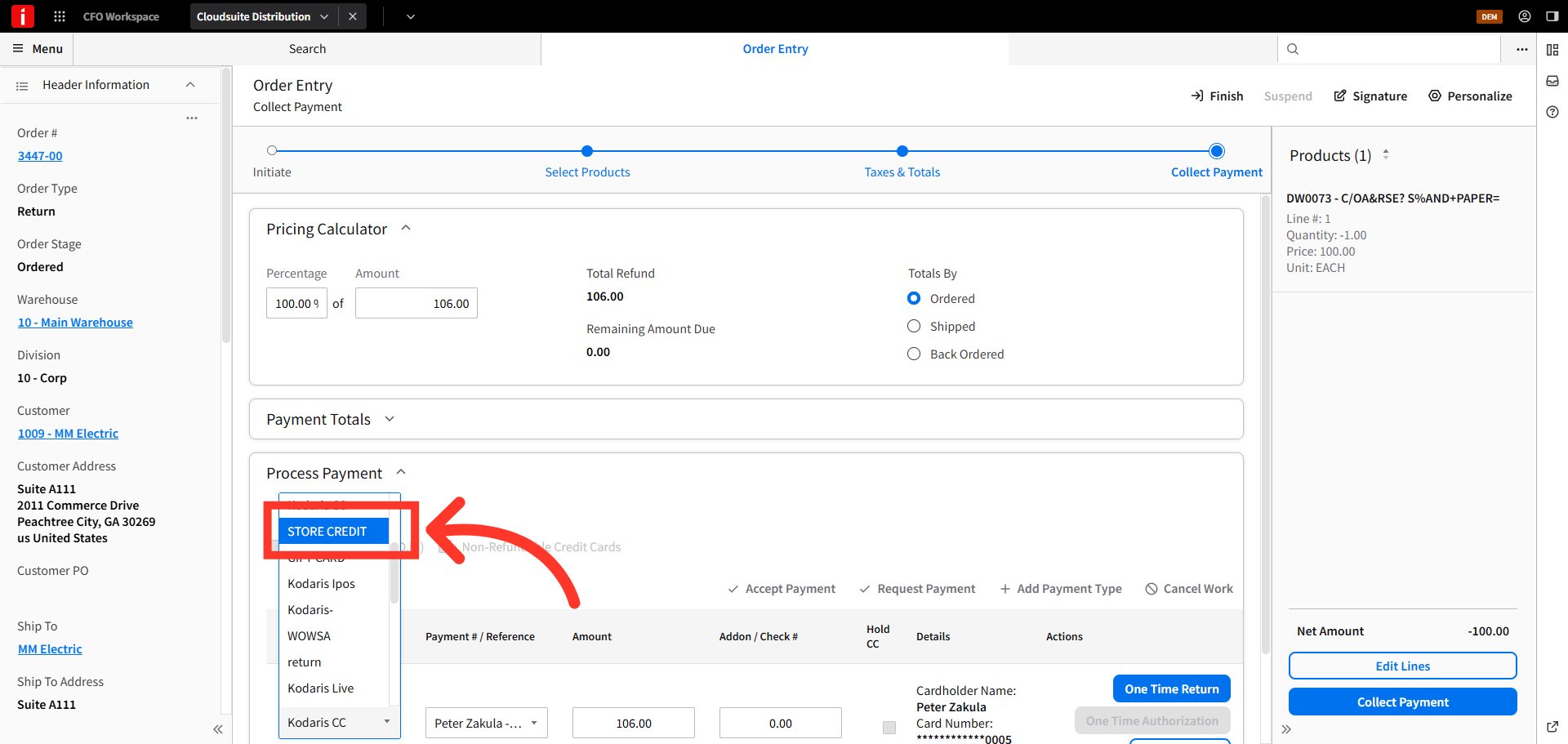
Now, click "One Time Return" to proceed.

Next, Click "OK".

Then, click the "Customer Account" button to associate the credit with the customer account.

Next, click "Process Payment" to process the credit and apply the amount to the customer's balance.

The successful store credit details are provided. You have the option to print a receipt for the customer. In this example, we will click "Finish" to close the screen and complete the transaction.

The store credit has been approved and the customers account balance has been updated.

Click "Finish" to complete the return order.
