 Product Documentation
Product Documentation
Product Documentation
In order to export products from a product list, navigate to "Customers" section in the Operations Portal.
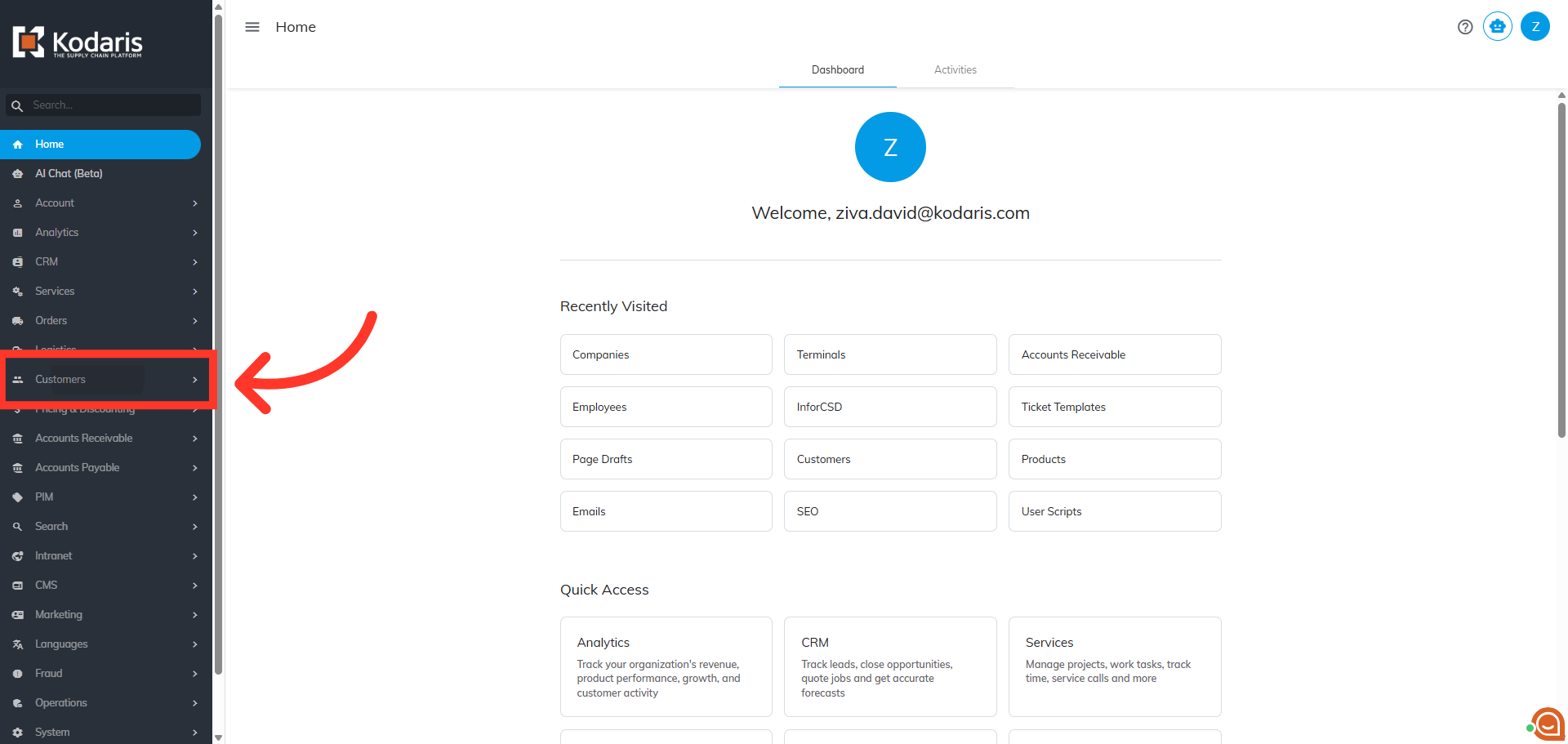
Then, click "Companies". In order to access "Companies" you will need to be set up either as an "administrator" or a "superuser", or have the appropriate roles: "companyView" and "companyEdit", or "crmCompanyView" and "crmCompanyEdit". Just a reminder, "crmCompanyView" and "crmCompanyEdit" access only allows employees to view companies that are assigned to them.

To quickly locate the company you wish to view, use the "Search" box and search for the company name.

Then, click on the more details icon.

Click the "More" button to access additional tabs.

Click "Product Lists" to display the lists associated with the company.

Next, click on the more details icon on the list you wish to view.

Click the "Show/Hide Columns" icon to display additional header options to add to the export spreadsheet.

Select the "Product List ID". This column identifies the list the products are assigned to and is needed when importing your spreadsheet after you have made changes.

Next, click "File".
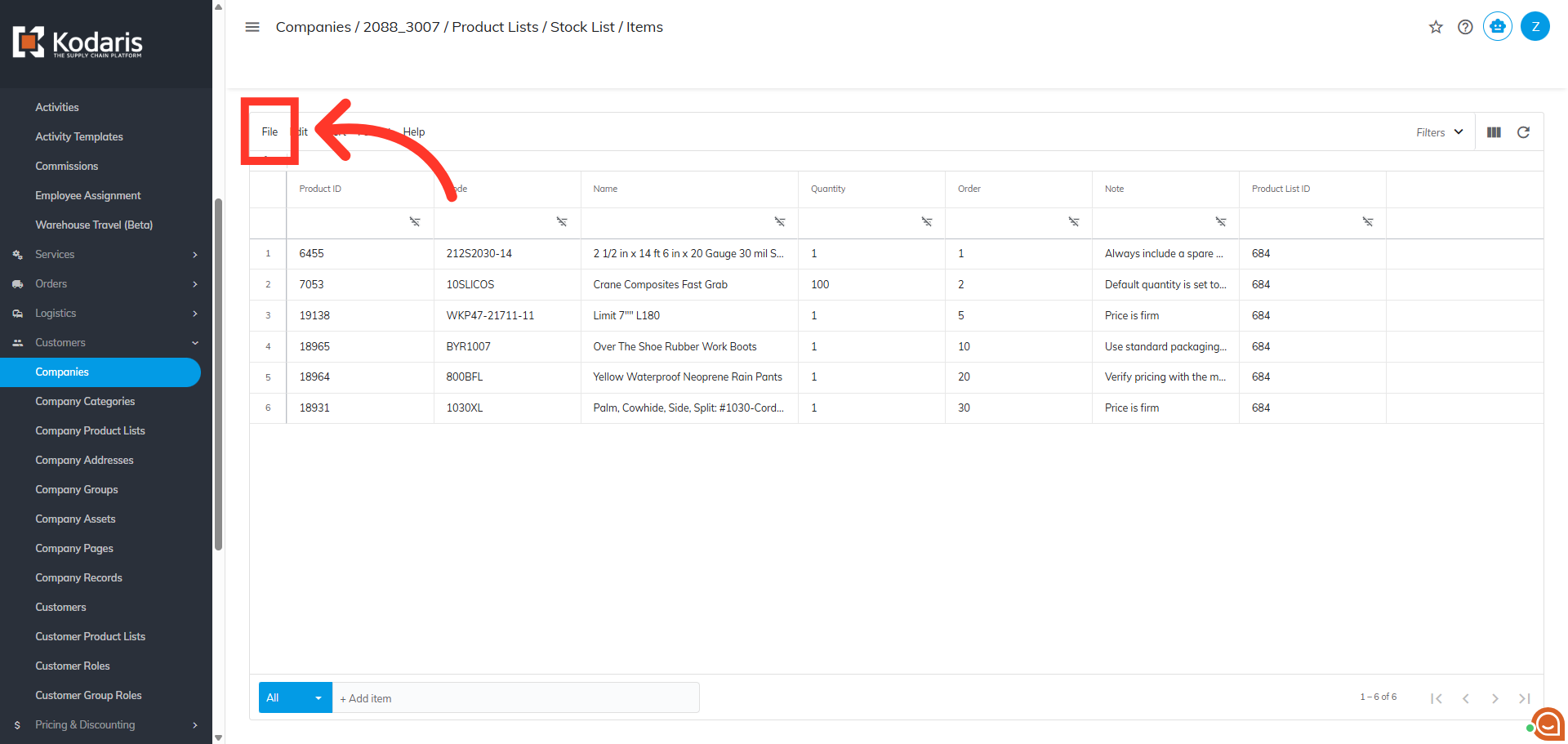
Then, selec the "Export" option to initiate the process of saving your product list externally.

Rename the file name, if needed.

Finally, click "Save."

Once your file has been saved, you can open to view the products in the lists and make changes.
