Product Documentation
Product Documentation
Product Documentation
To download payment records from the operations portal, navigate to the "Accounts Receivable" section.
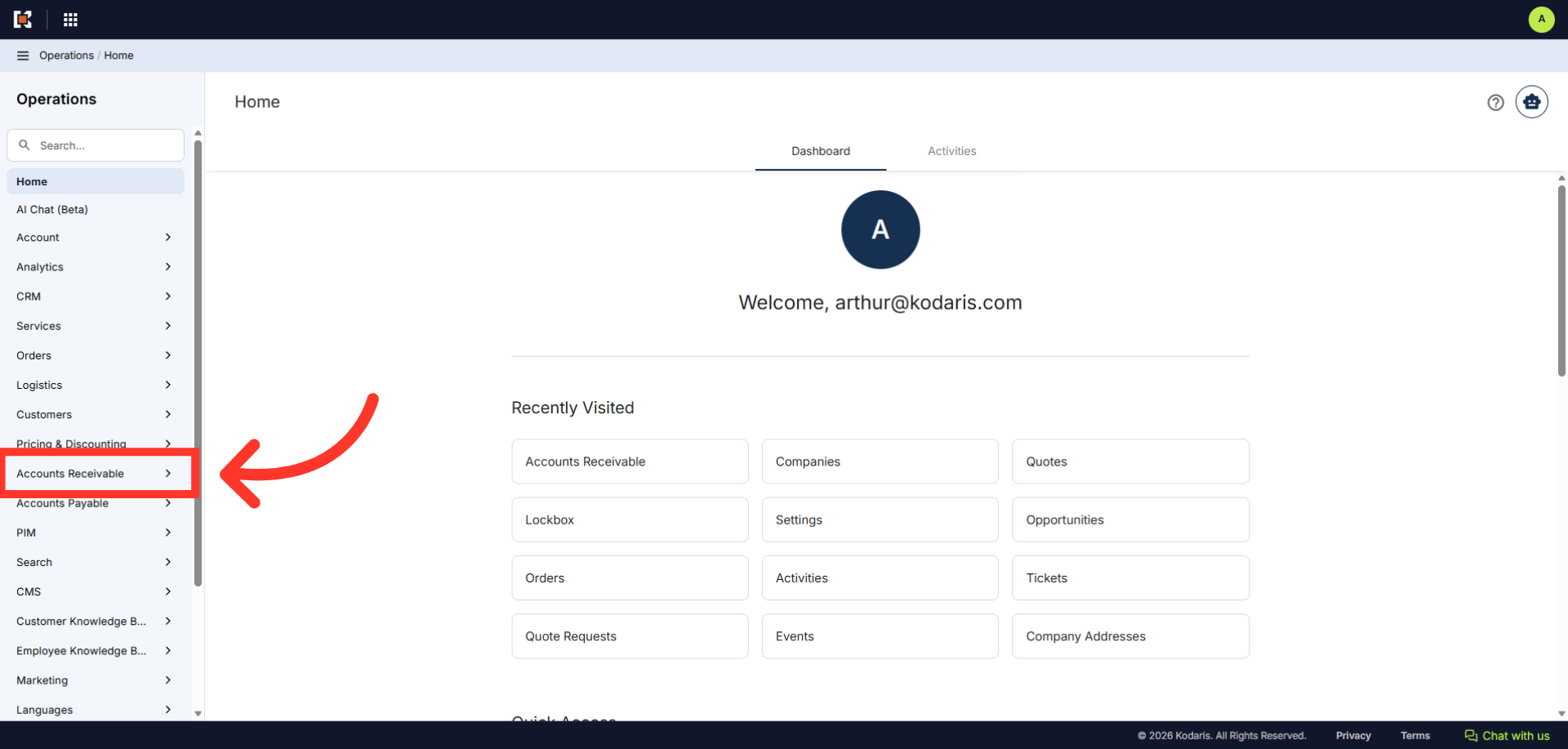
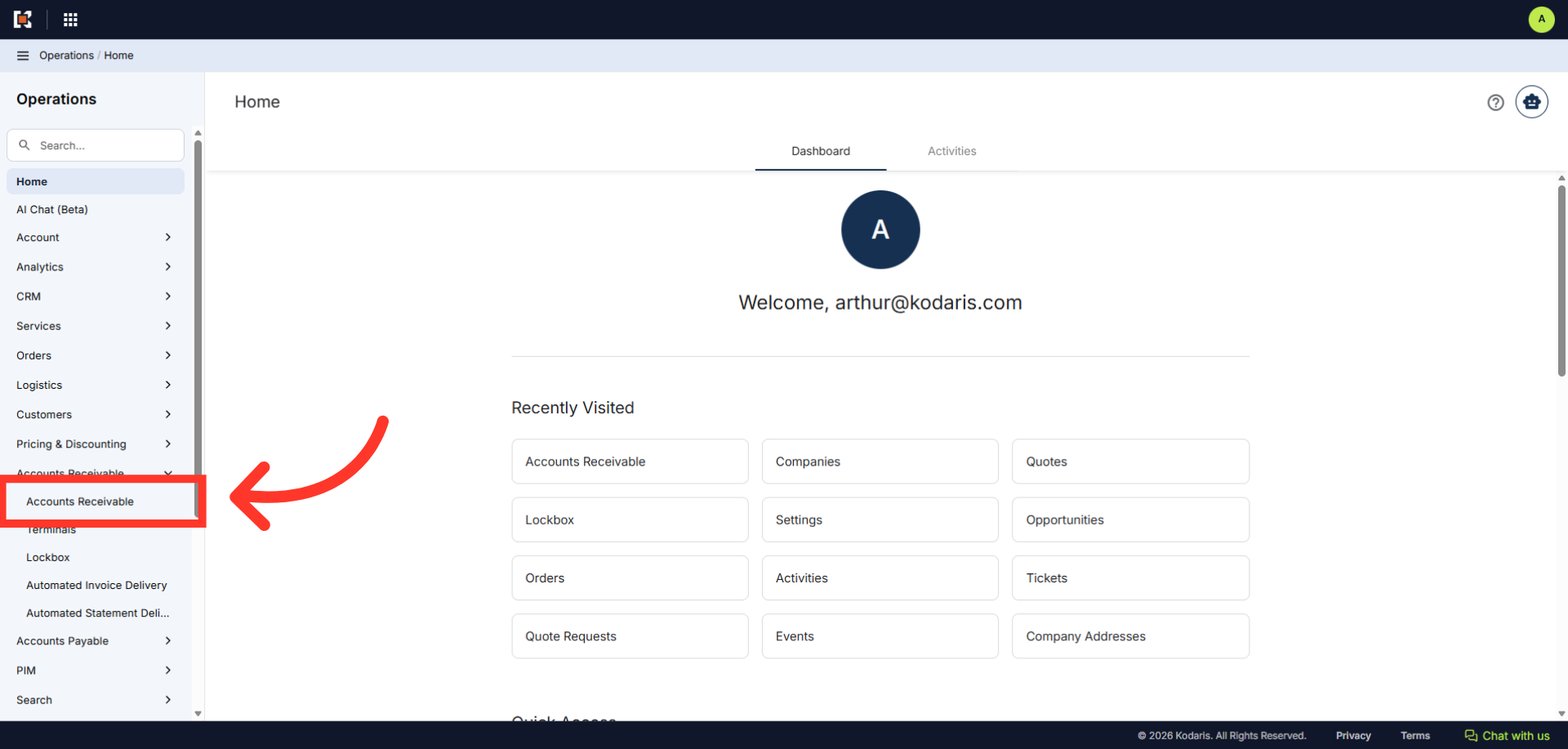
Then, click on "Accounts Receivable". In order to access and update "Accounts Receivable" you will need to be set up either as an "administrator" or a "superuser", or "accountant", or have the following role: "paymentEdit".
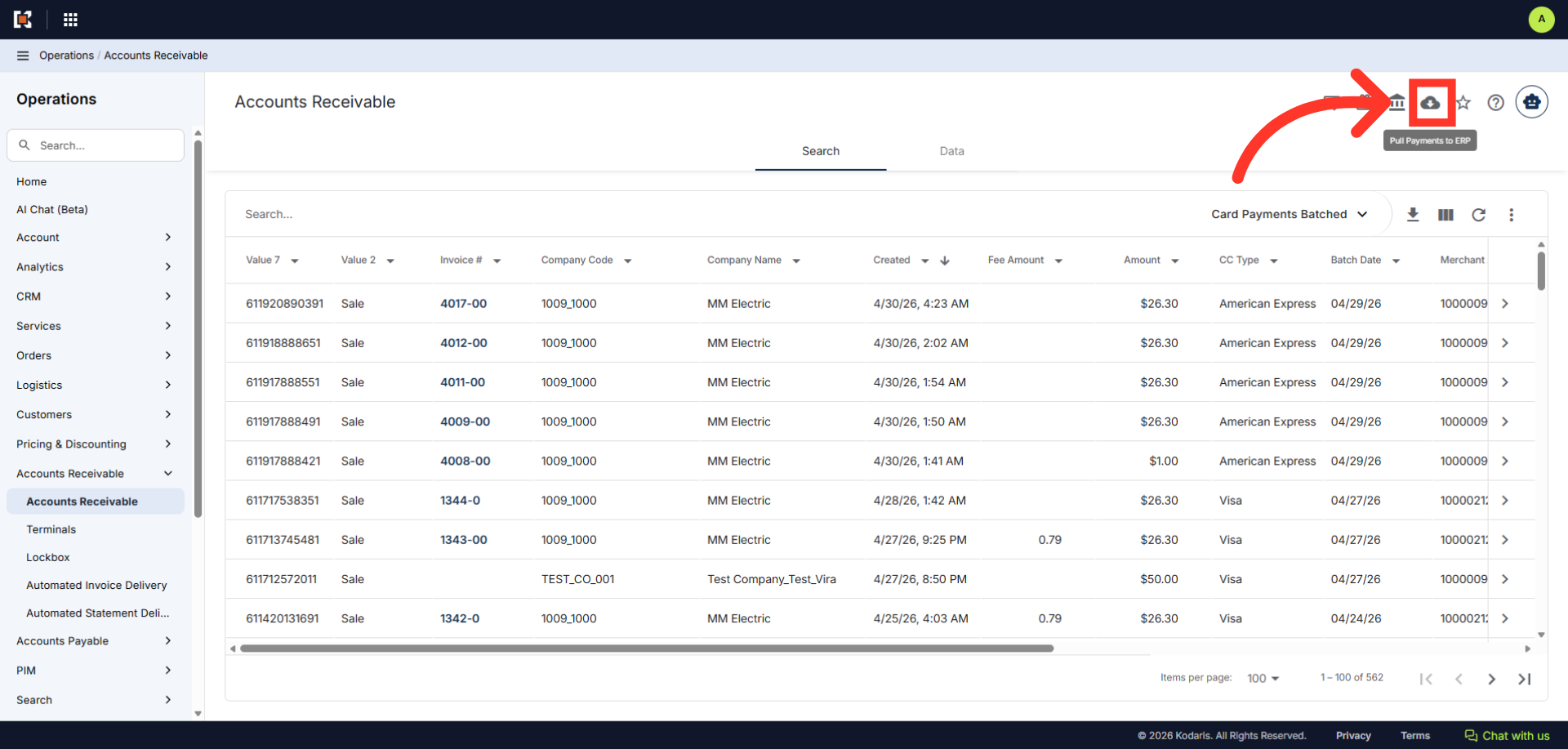
Next, click on the "Pull Payments to ERP" icon.
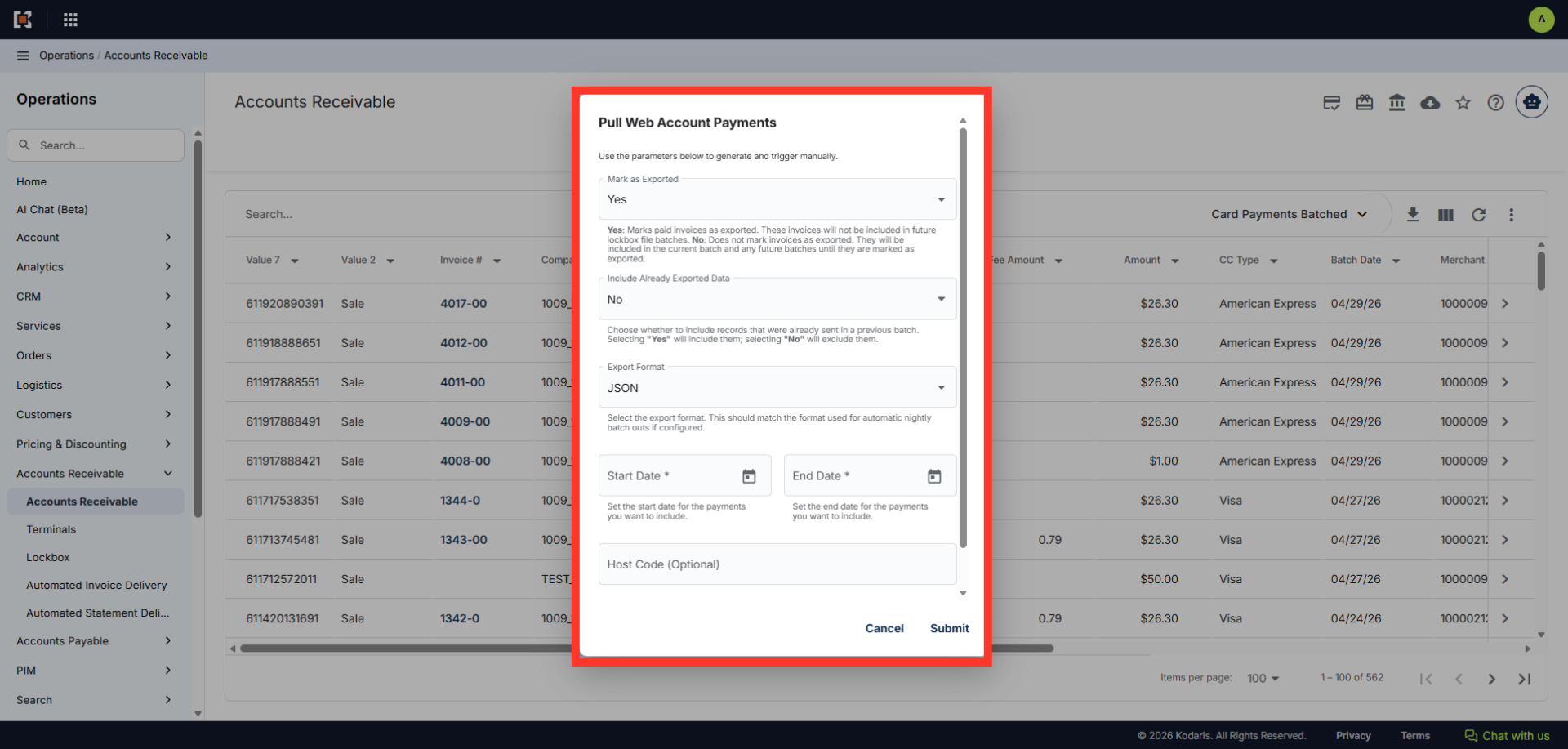
The "Pull Web Account Payments" dialog box will appear.
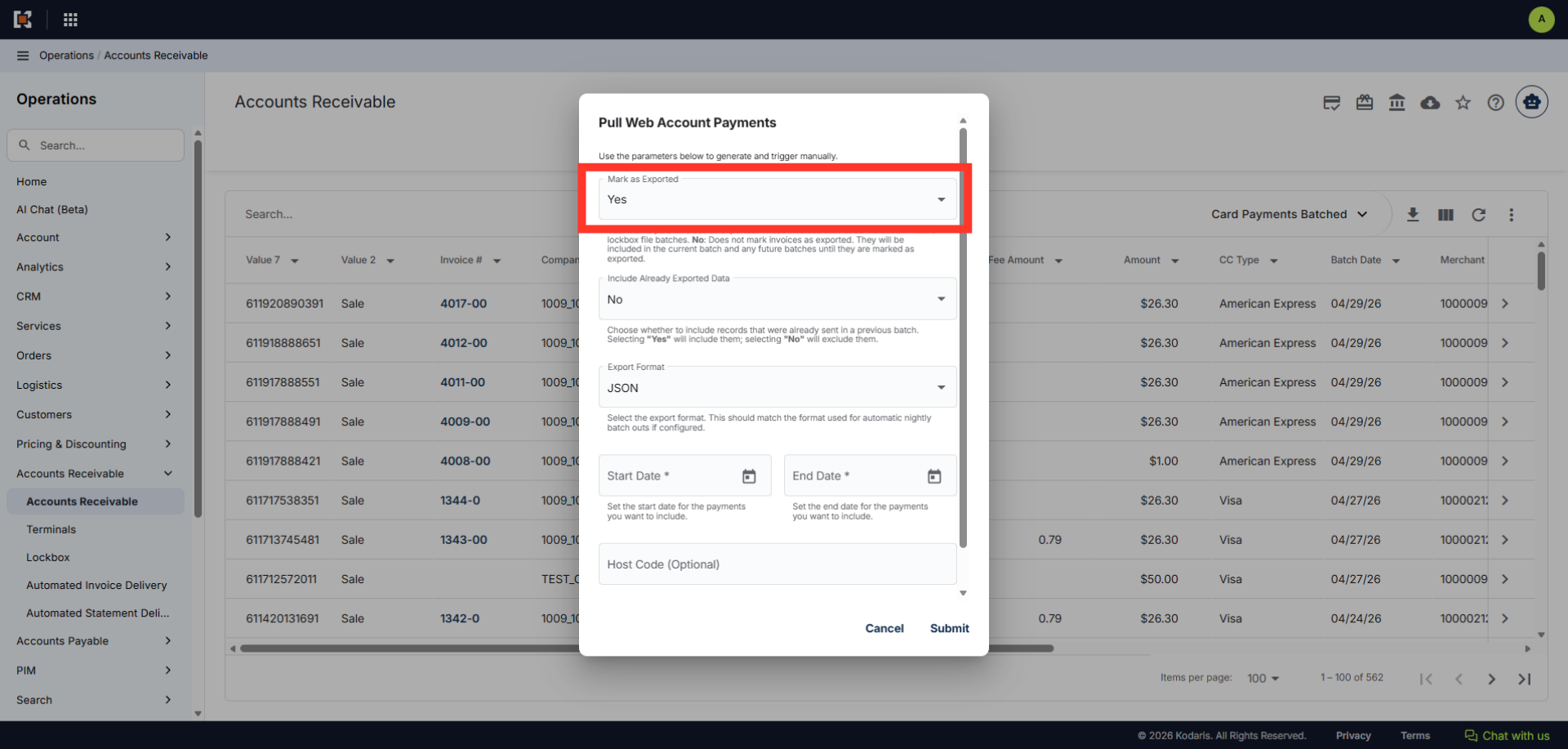
You can mark the payment records as exported or not. The default value is "Yes".
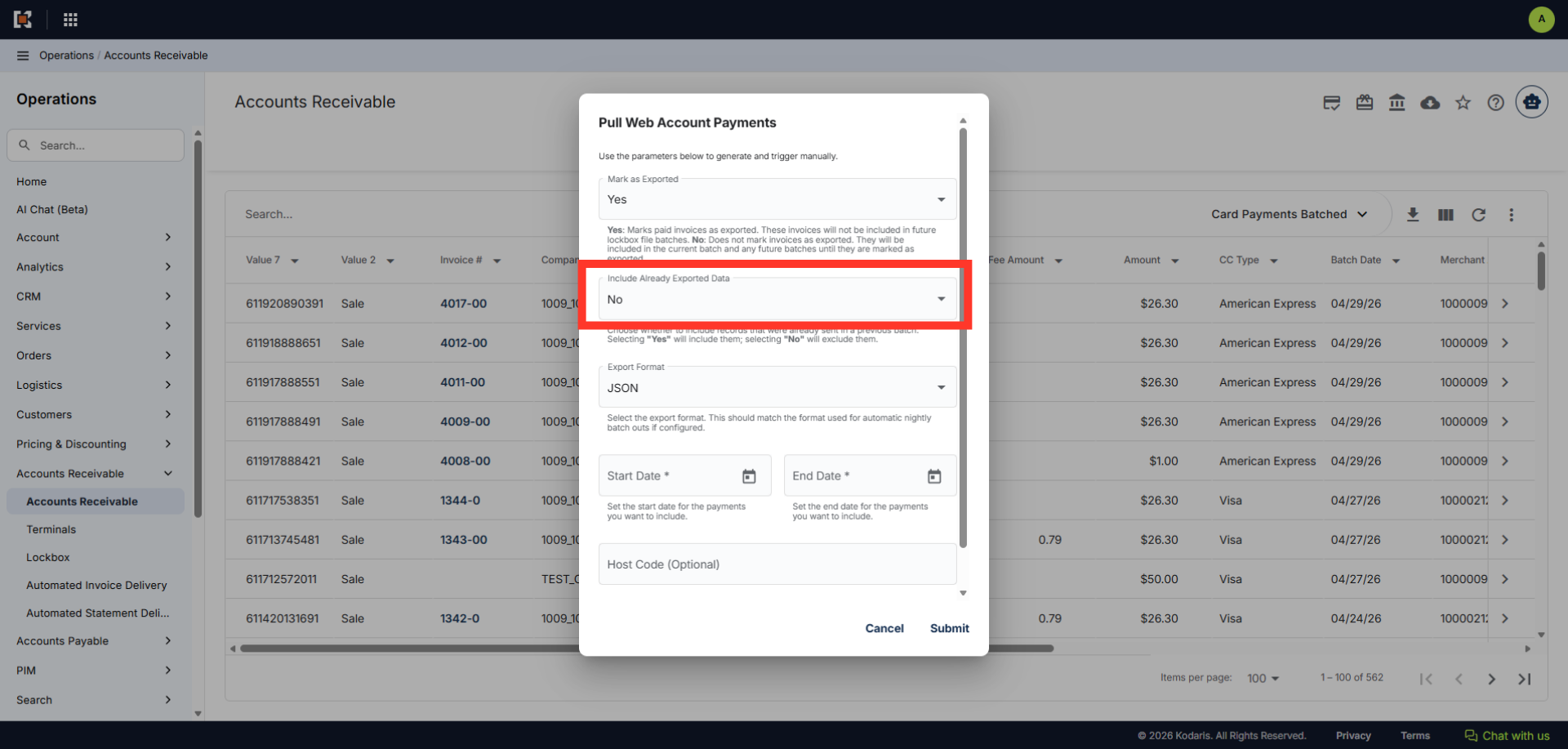
You can select if you want already exported data to be included or not.
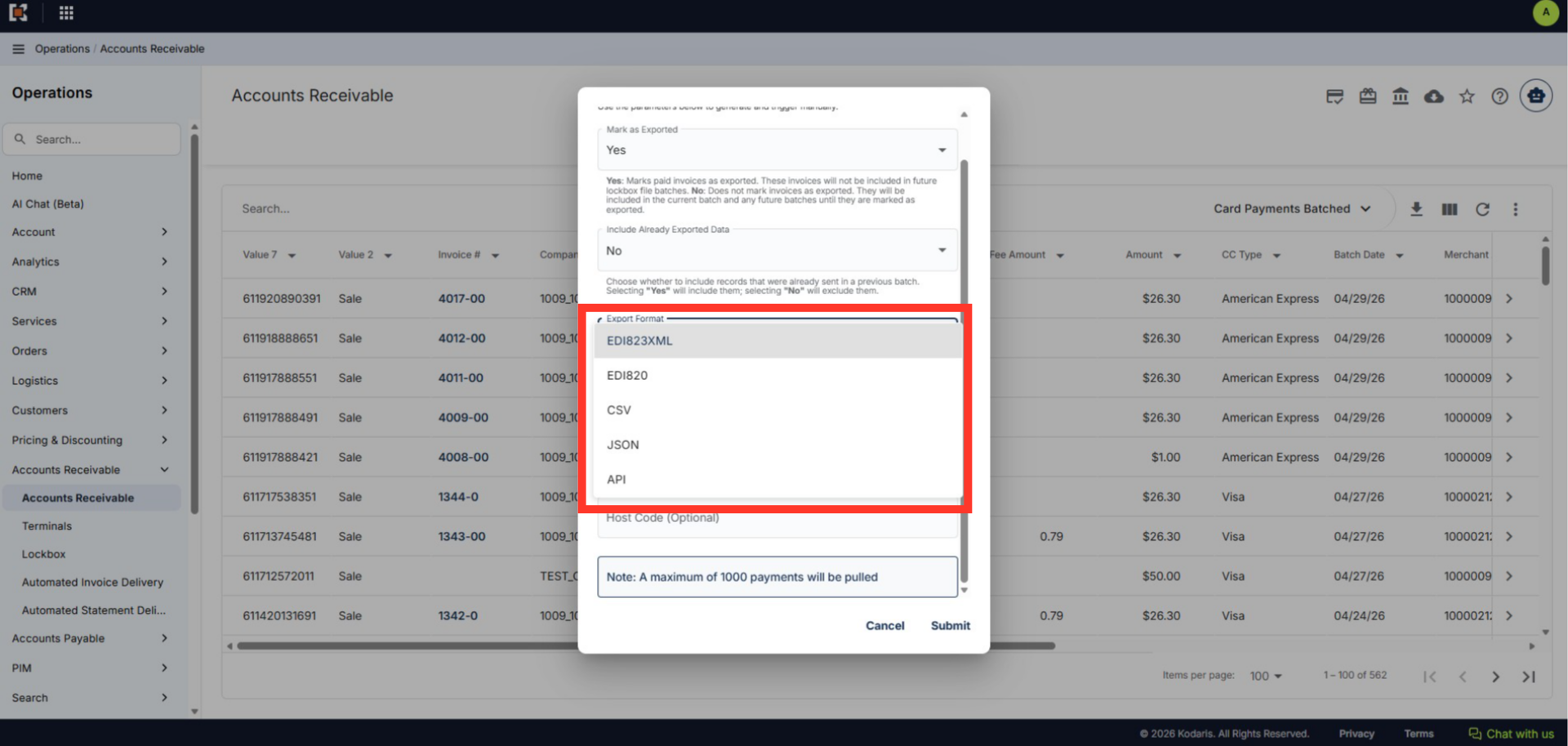
Next, you will be able to choose the file format you would like to download the payment records as. You can select CSV, JSON or API format. Standard EDI files are also supported such as EDI823XML and EDI820.
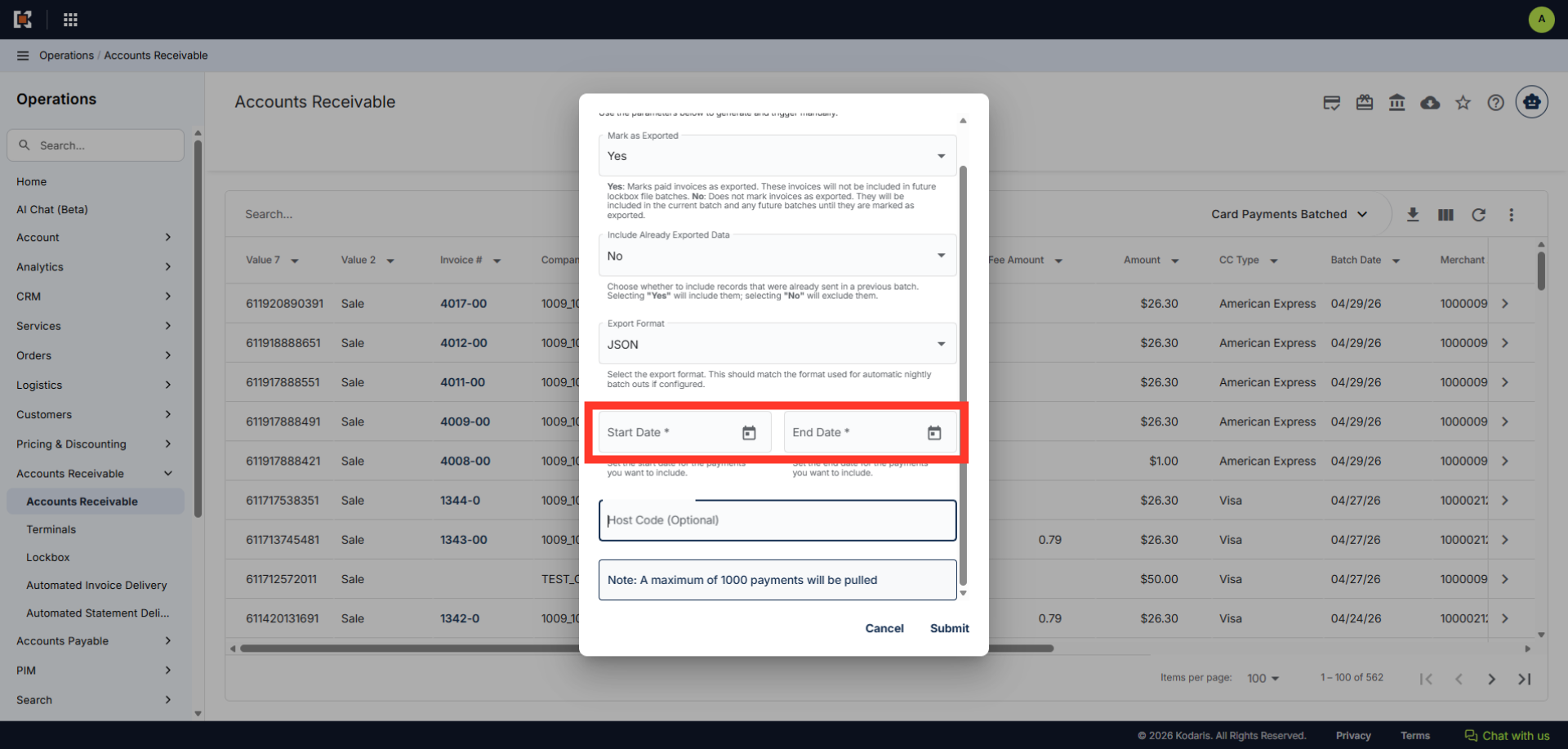
Next, you can select the date range you'll be pulling the payment records from.
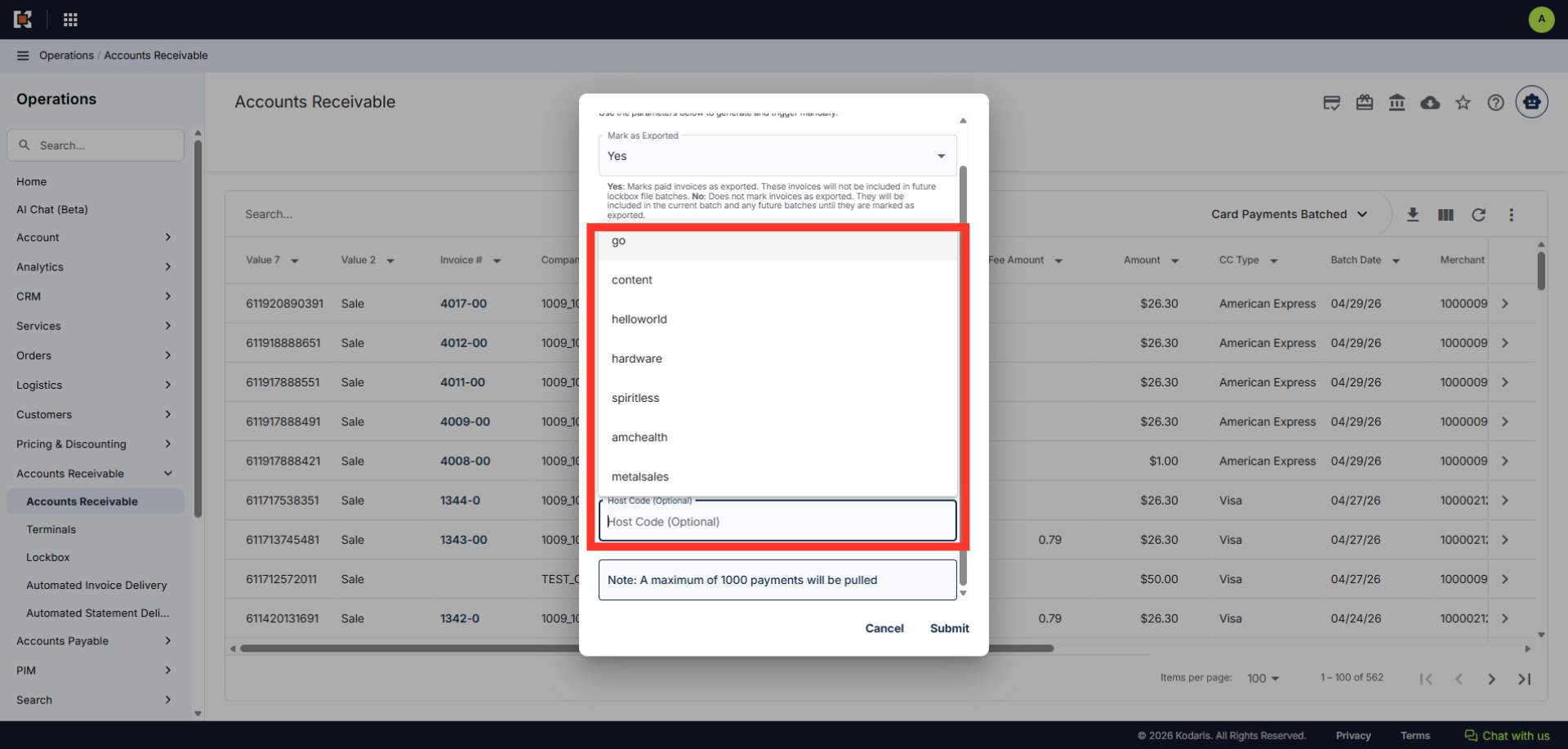
Then, enter and select the host code of the site. In this example, we will use "metalsales".
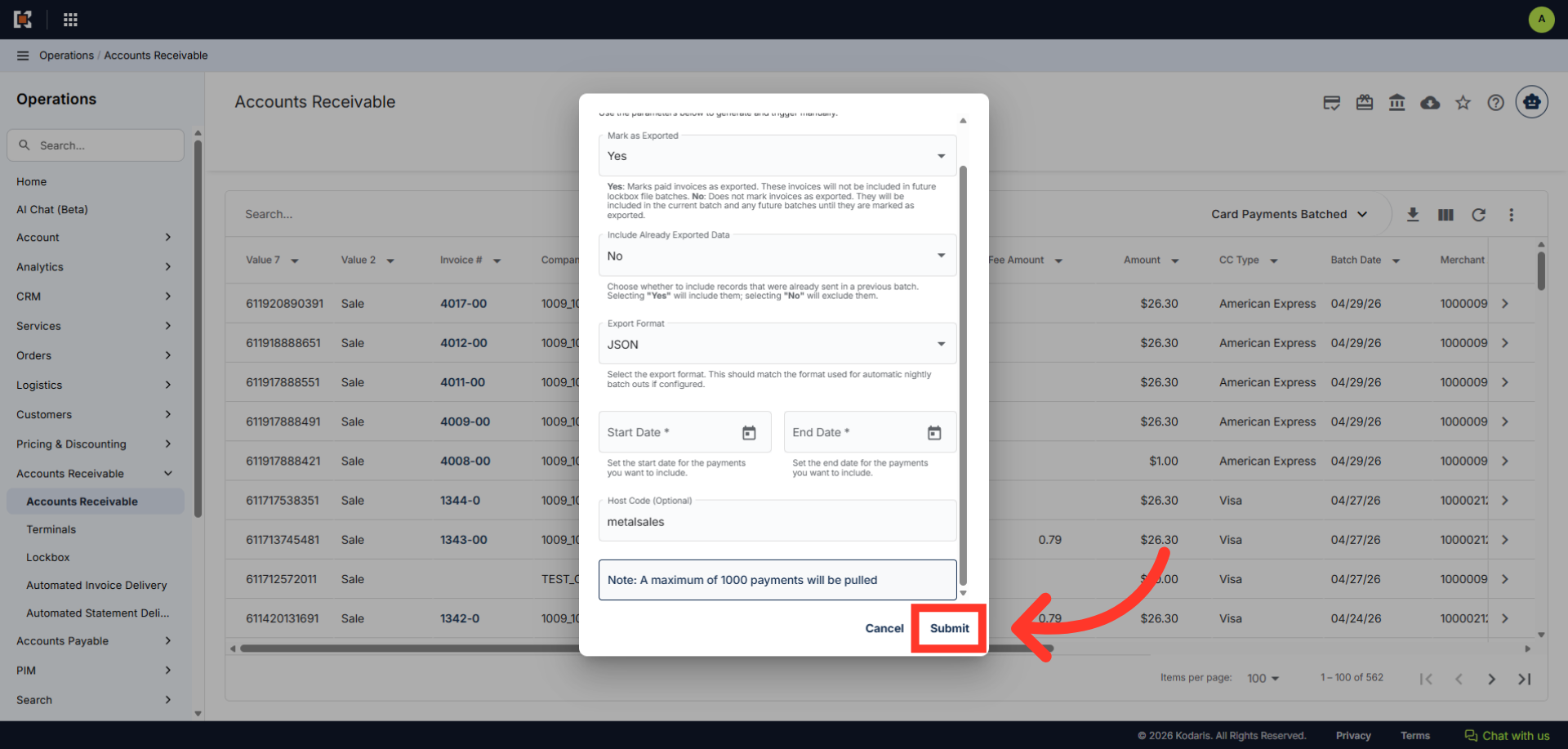
Once everything is all set, you can click the "Submit" button to generate your file. File output is dependent on your export format. Note: A maximum of 1000 payments will be pulled.
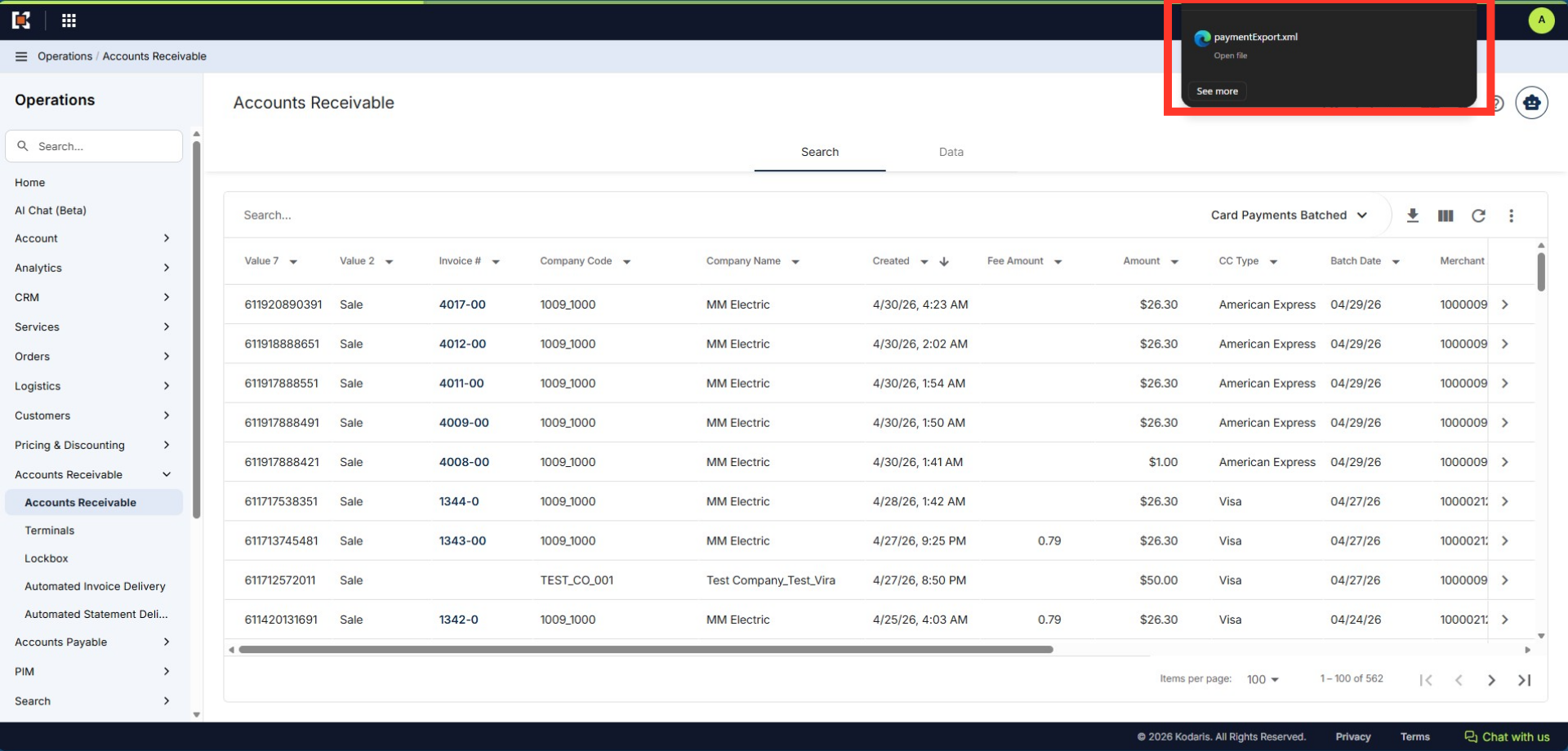
Payment records for the host selected have been downloaded.