Product Documentation
Product Documentation
Product Documentation
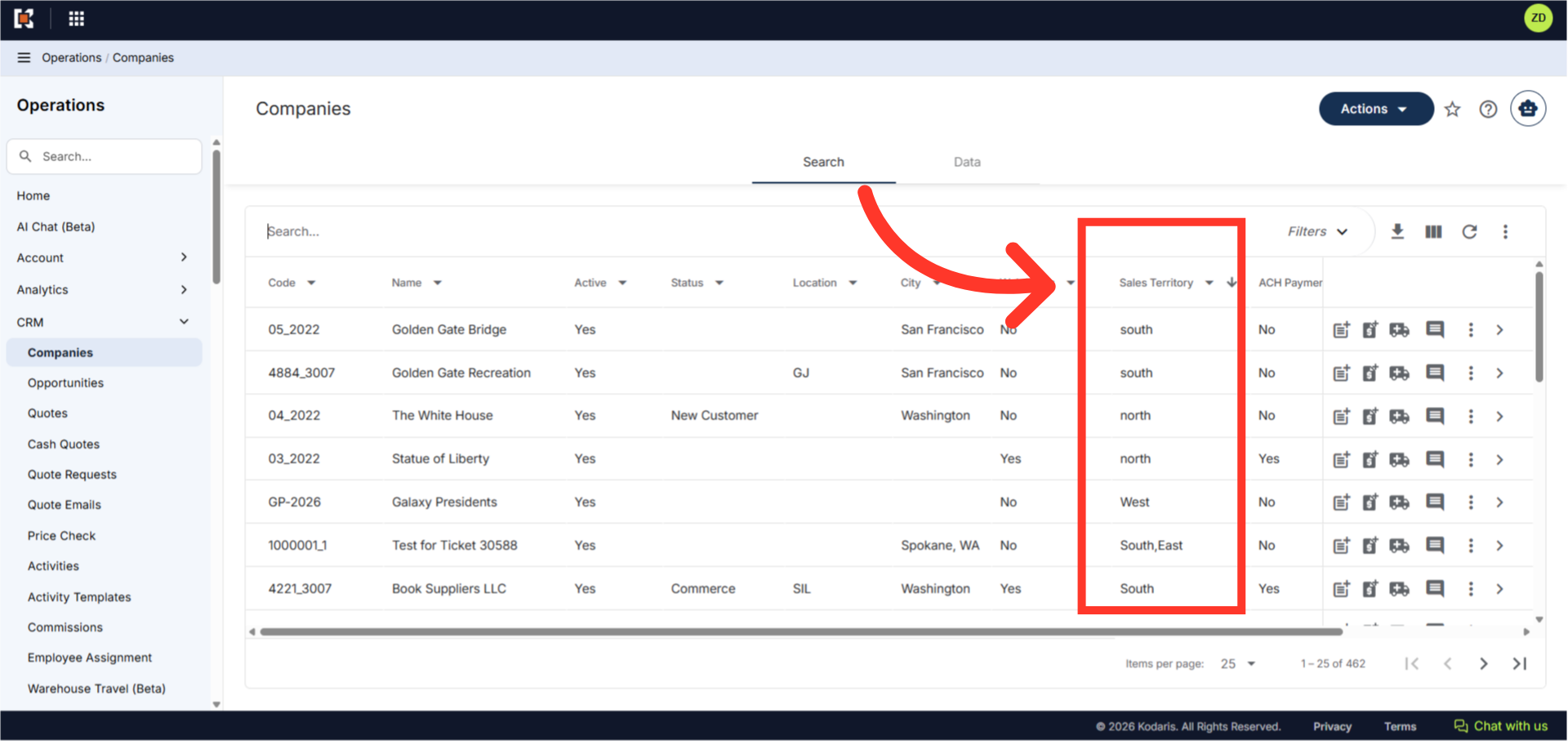
When an employee is assigned a sales territory and has the CRM permissions that limits them to assigned companies, they'll see only the companies associated with that sales territory on the companies screen in the Operations Portal. In this example, we can see the sales territory codes, North, South, East, and West are a few codes assigned to the companies.
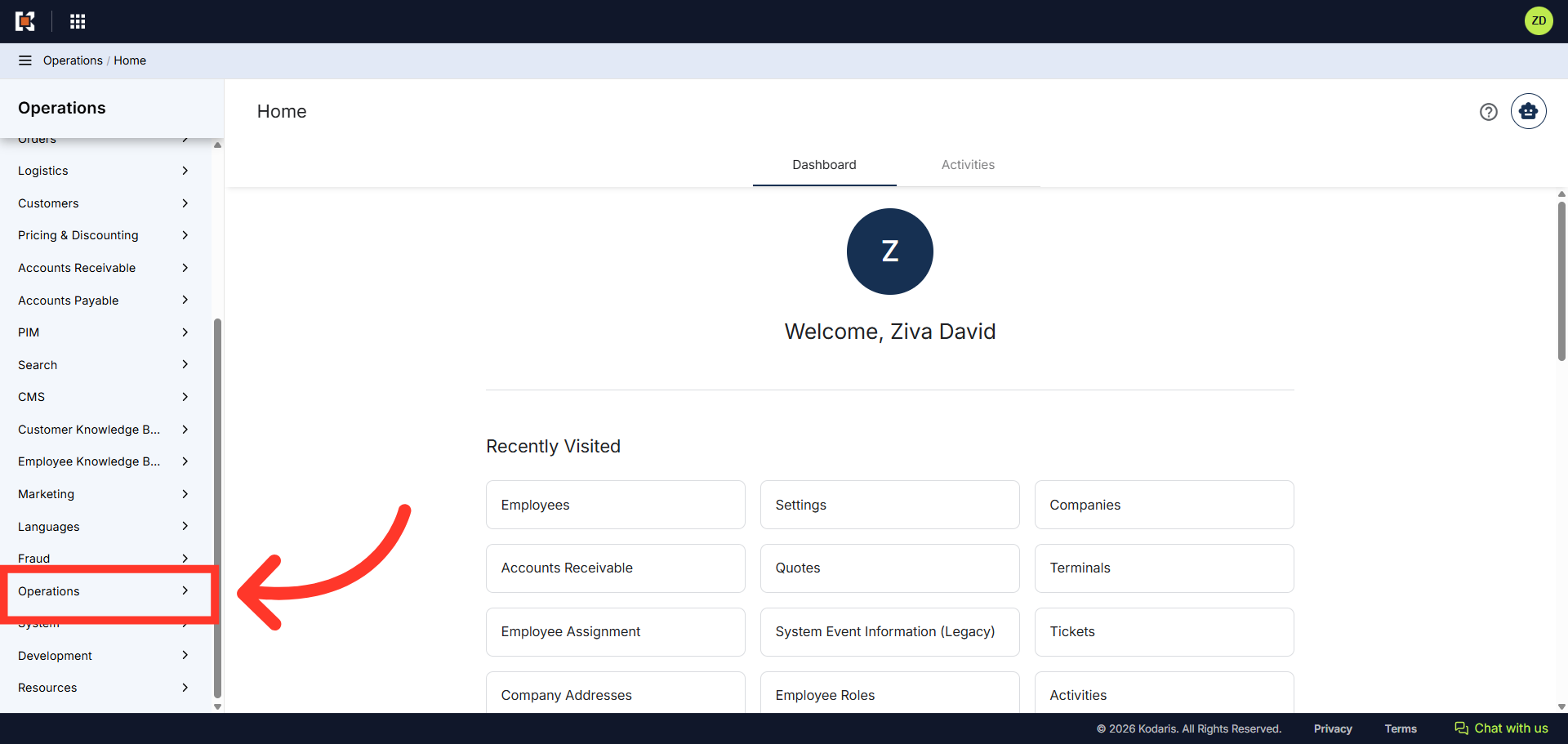
To assign a sales territory to your employees, first, navigate to the "Operations" sections in the Operation Portal.
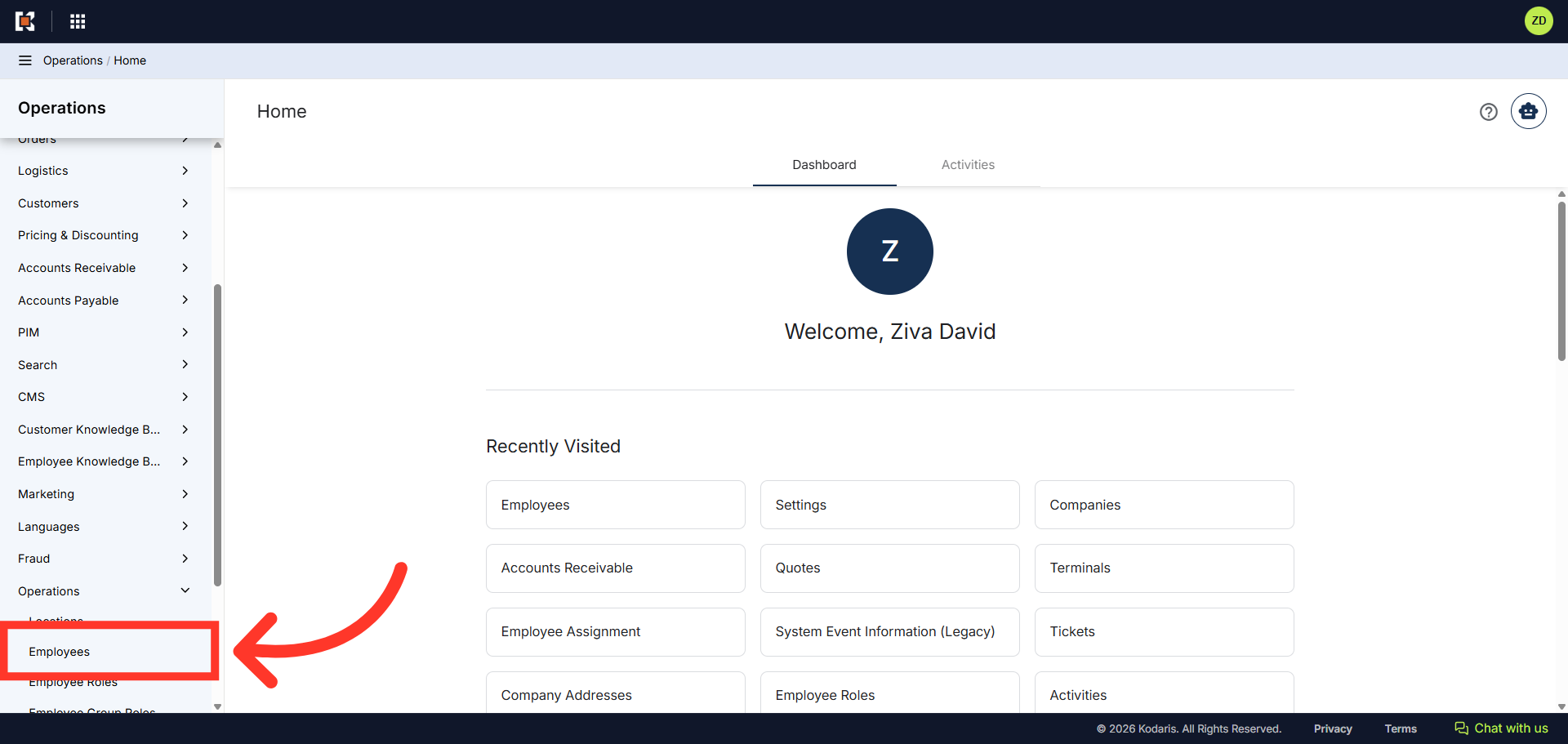
Then, click "Employees". In order to access and update "Employees" you will need to be set up as a "superuser" or have the role of: "administratorEdit".
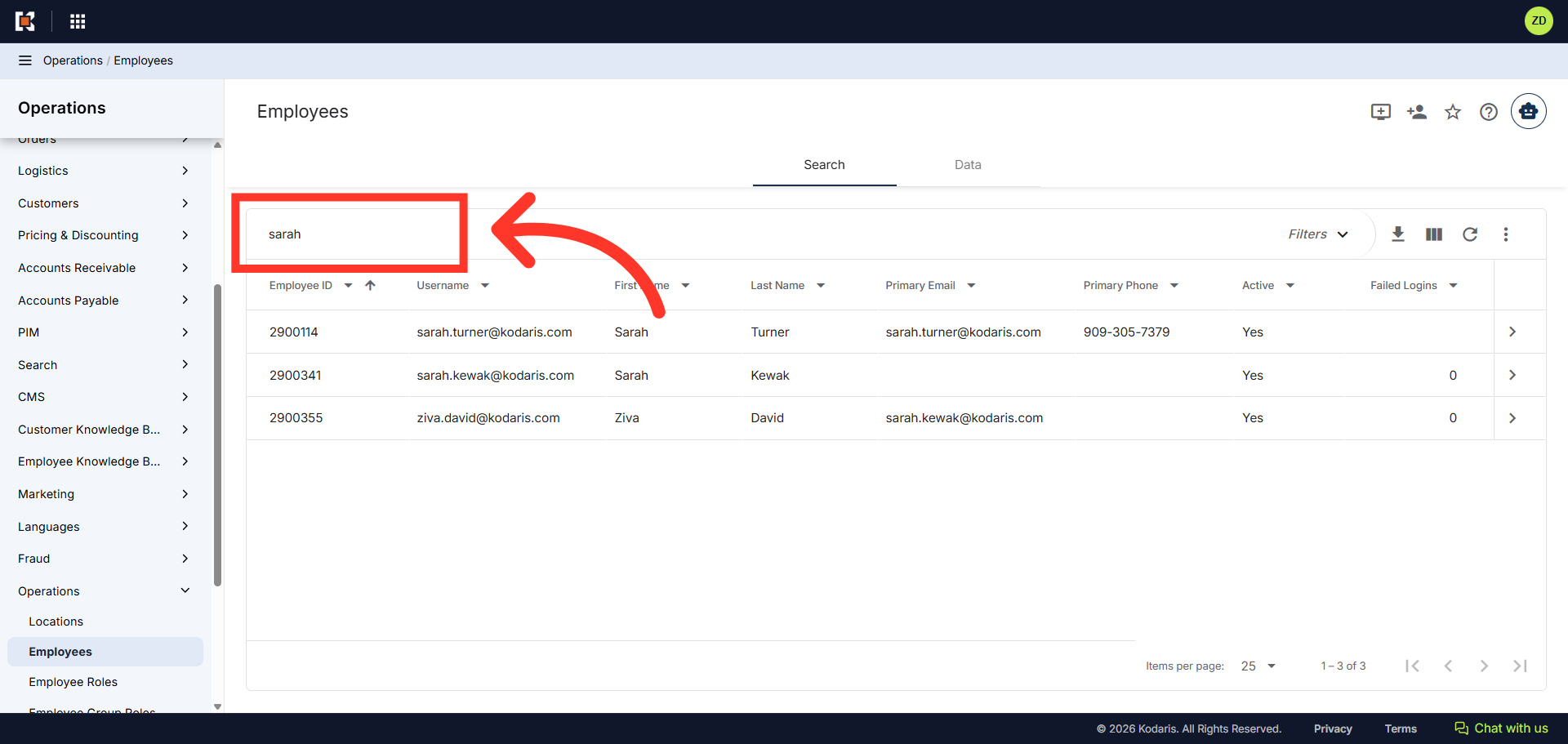
Search for the employee you wish to assign a sales territory code to.
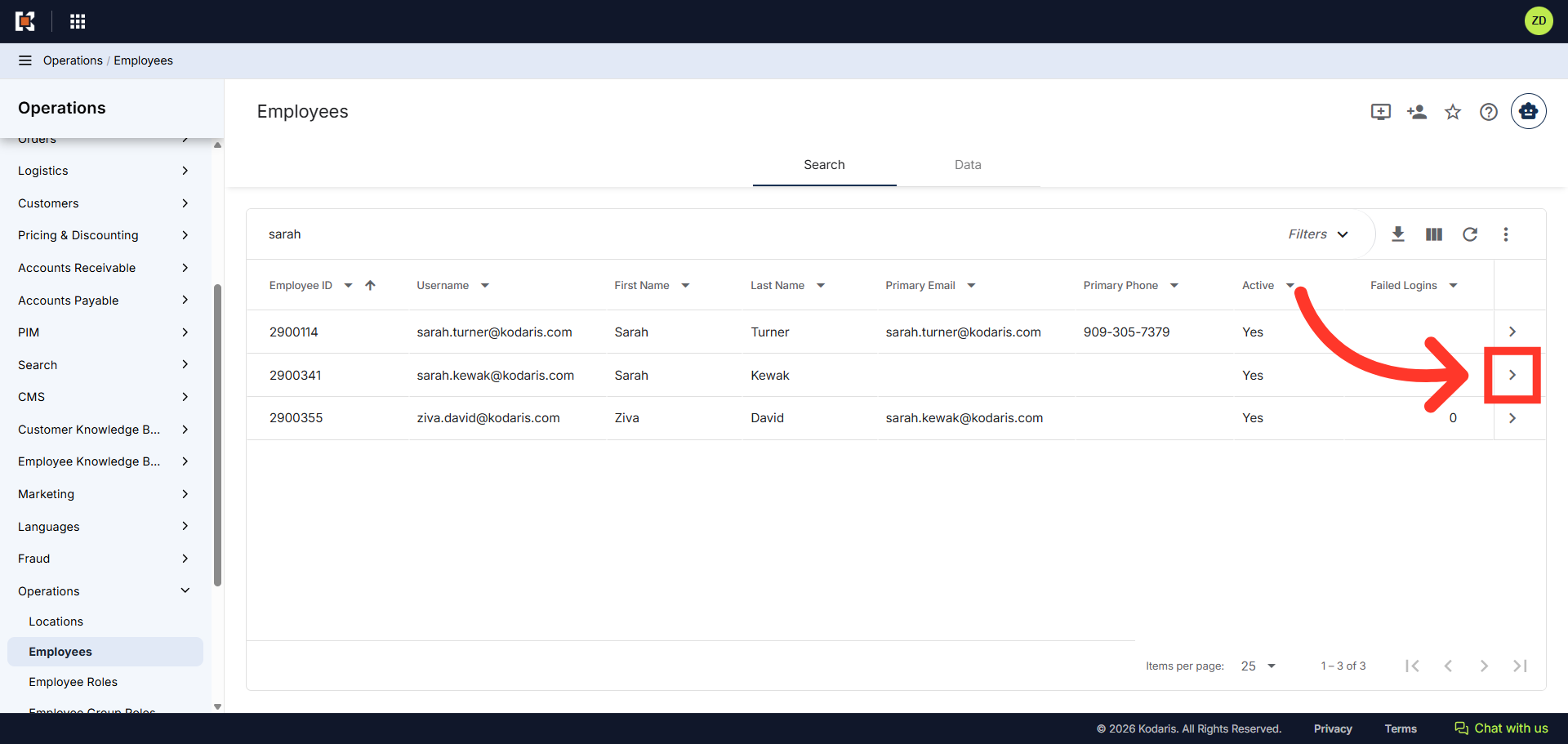
Click the more details icon to view the employee details.
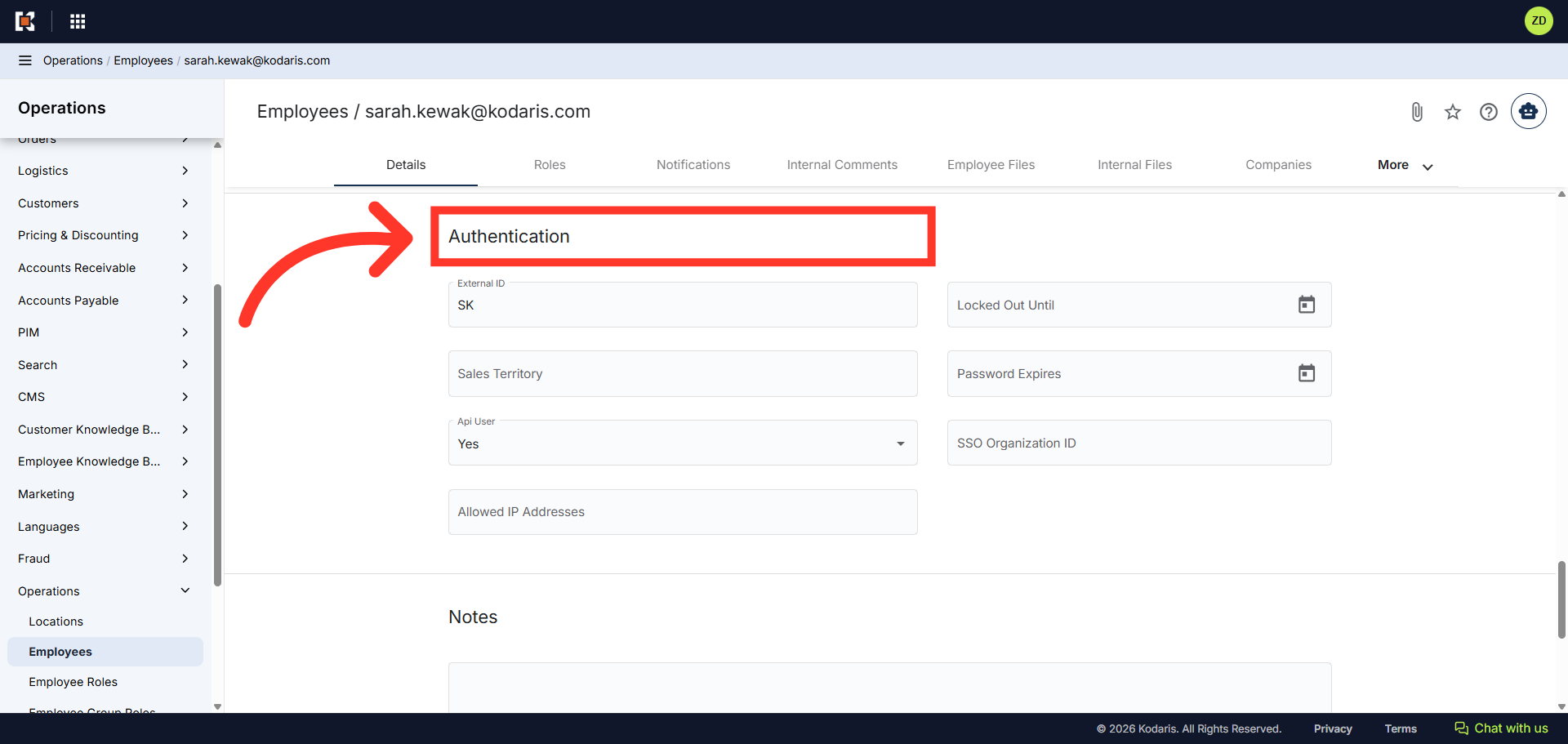
Next, scroll to the "Authentication" section to manage the "Sales Territory" field.
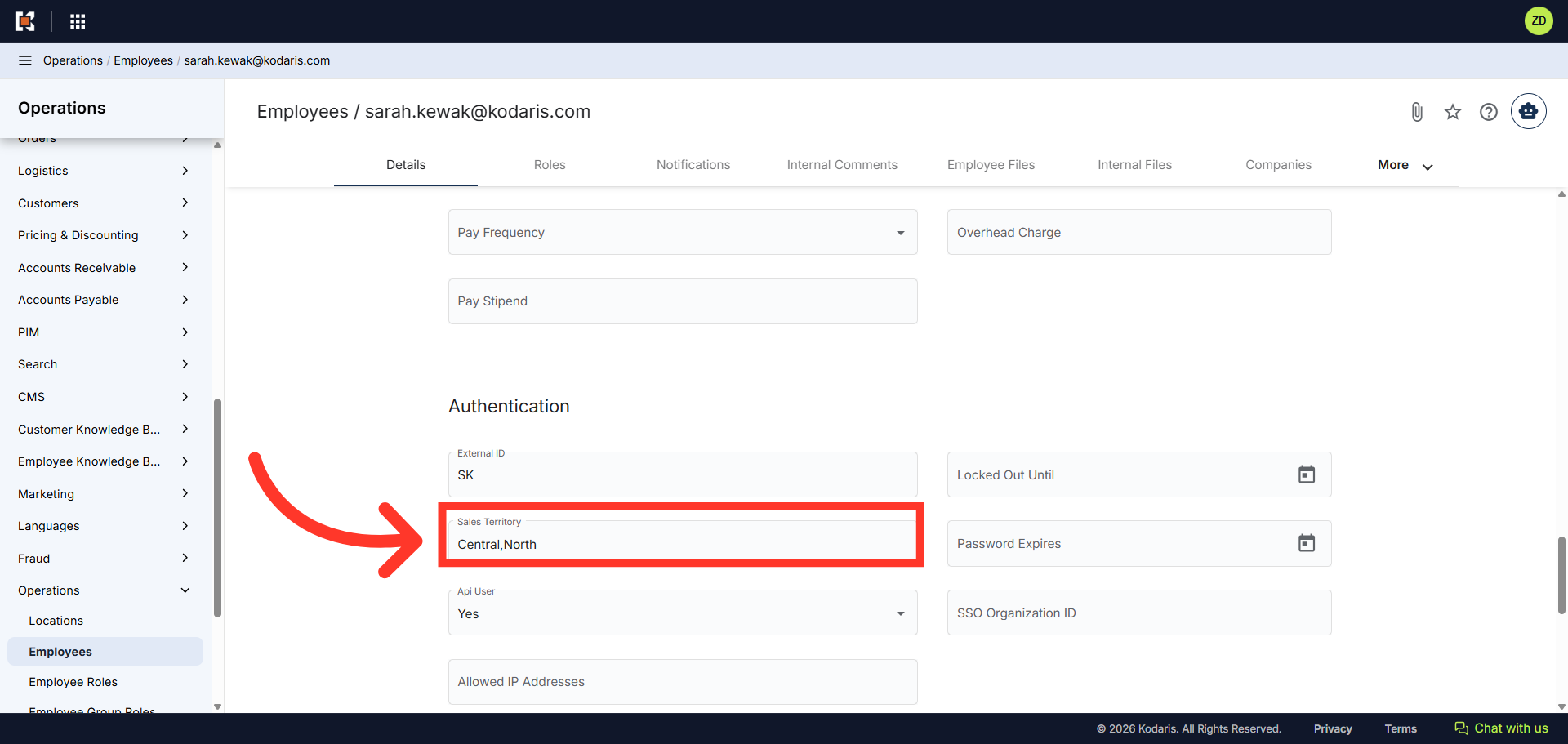
Click in the "Sales Territory" field and enter the appropriate sales territory code. You can add multiple codes separated by a comma. In this example, we will enter "Central,North". Your entry will automatically save.
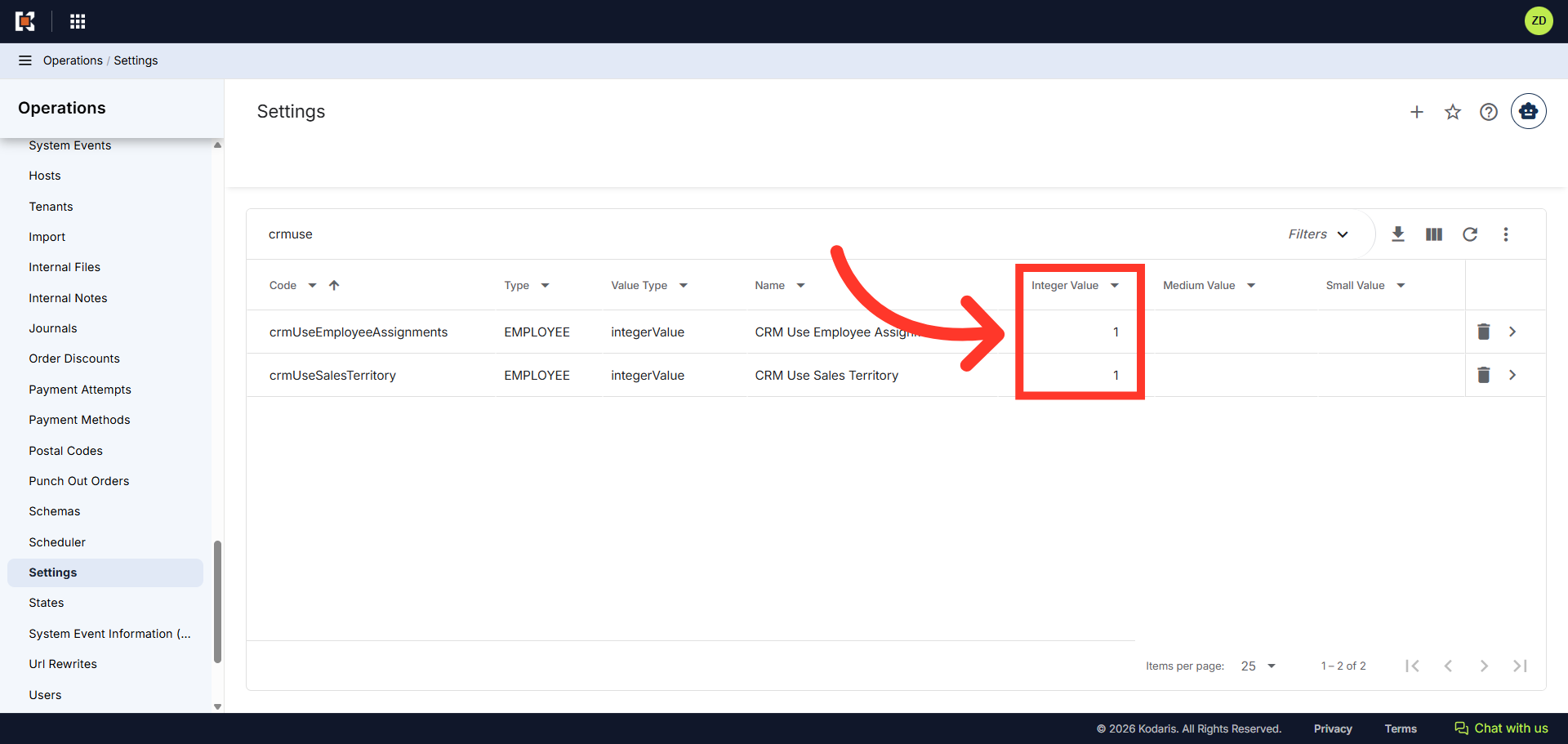
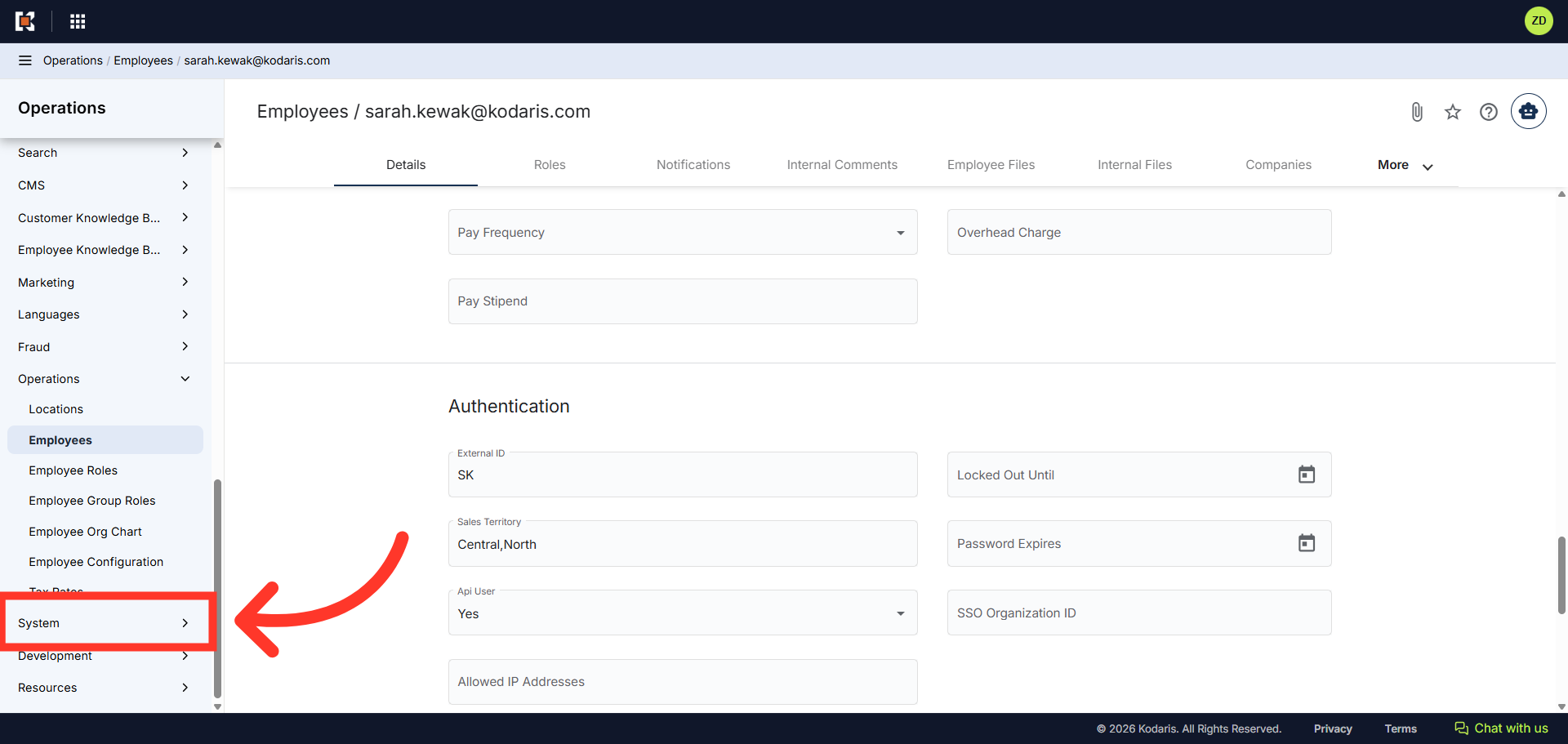
Also, you need to ensure the settings "crmUsrEmployee Assignments" and "crmUseSalesTerritory" are enabled, so employees are only permitted to see the companies assigned to their respective sales territory. Navigate to the "Systems" section.
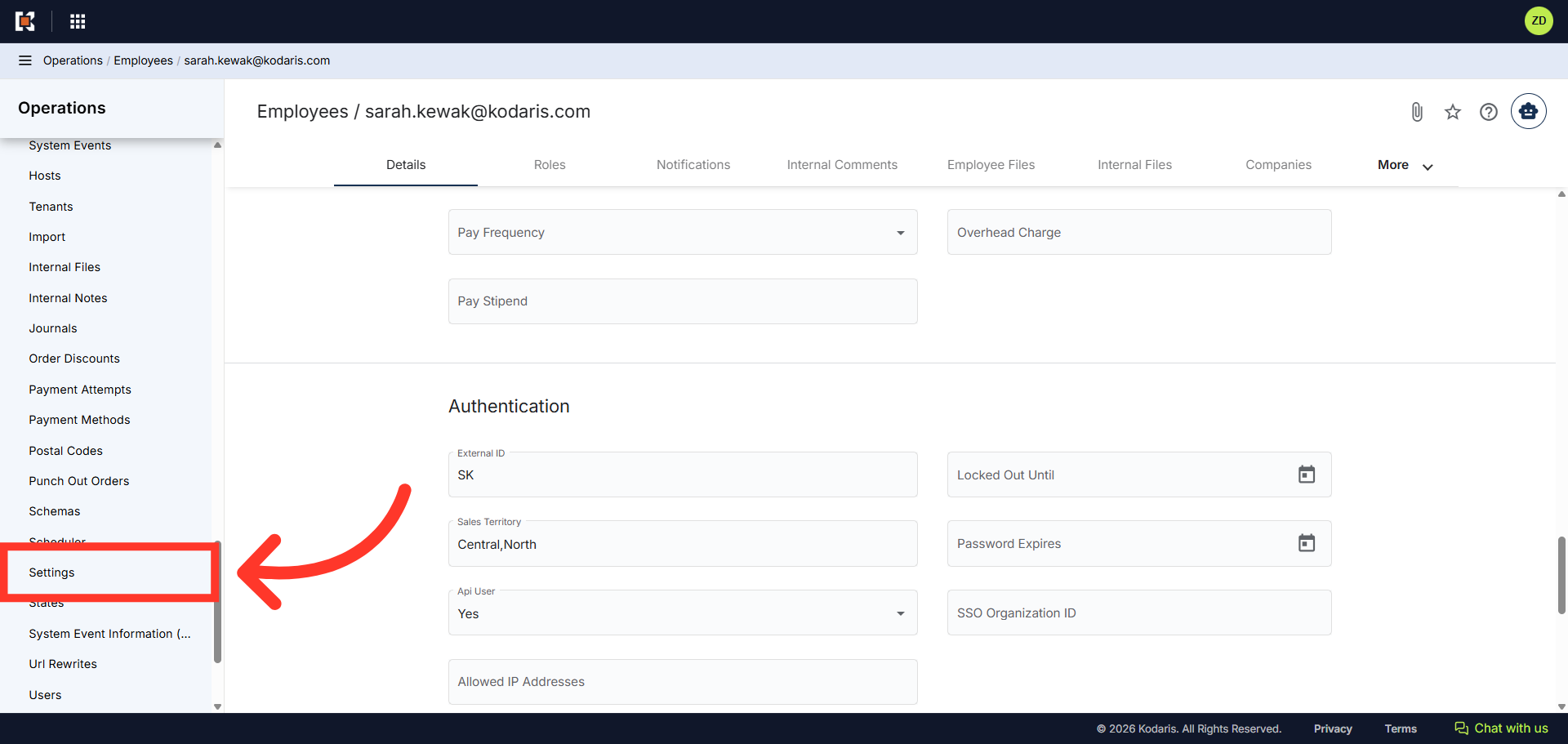
Then, click Settings". In order to access and edit settings, you will need to be set up either as an "administrator" or a "superuser", or have the following role: "settingEdit".
In the search field, search for the settings by typing "crmuse". As you type the term, "crmUseEmployee Assignments" and "crmUseSalesTerritory", will auto-populate.
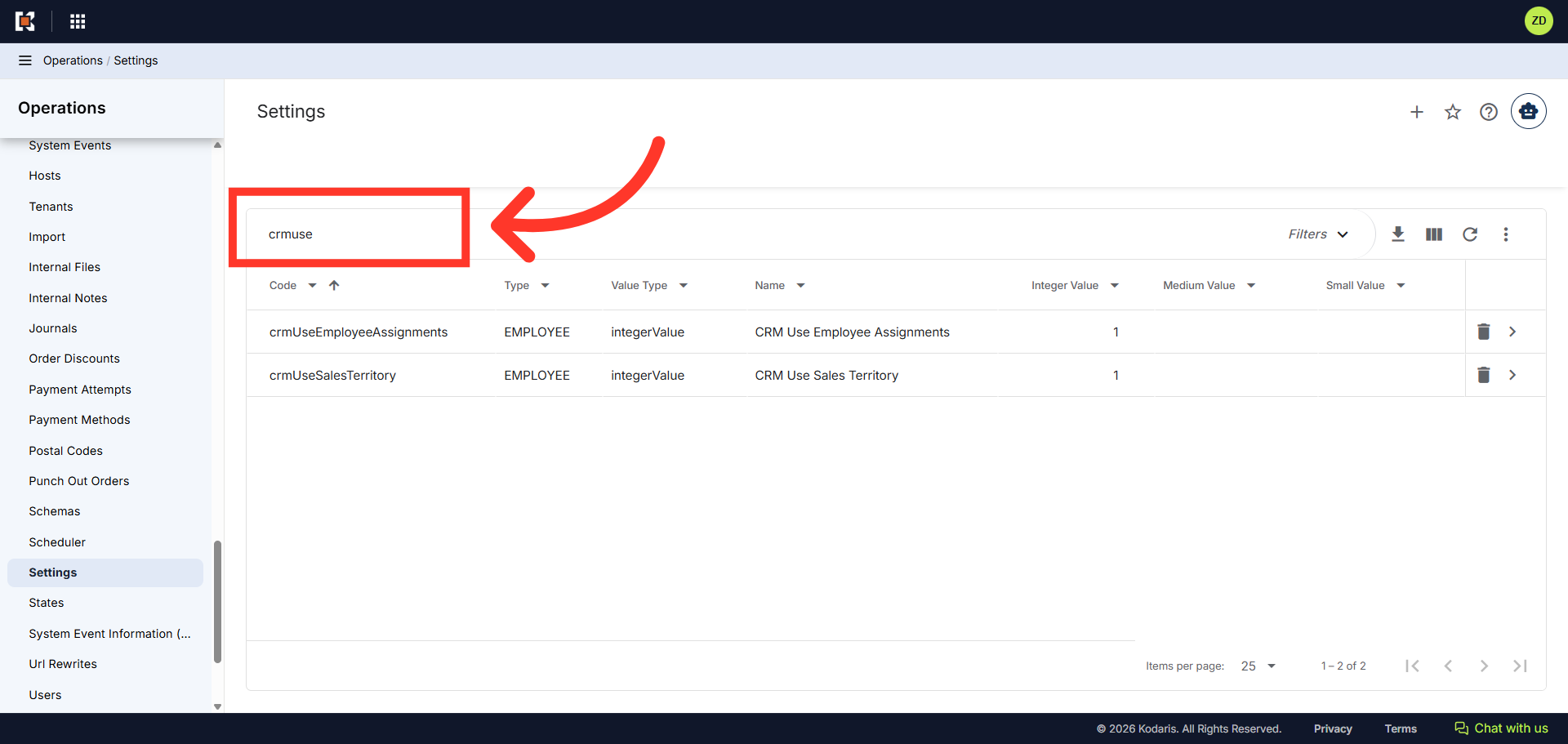
In the "Integer Value" field of both settings, verify a "1" is populated. This means the setting is enabled. If a "0" is displayed, click on the more details icon and change the value to "1" to enable.