 Product Documentation
Product Documentation
Product Documentation
You can assign CMS "Pages" to users by navigating to the "CMS" section in the operations portal.

Then, go to "Pages". In order to access "Pages" the user will need to be set up either as an "administrator" or "superuser", or have the role of "contentEdit".

Type a keyword in the "Search..." field to locate the specific page required for assigning.

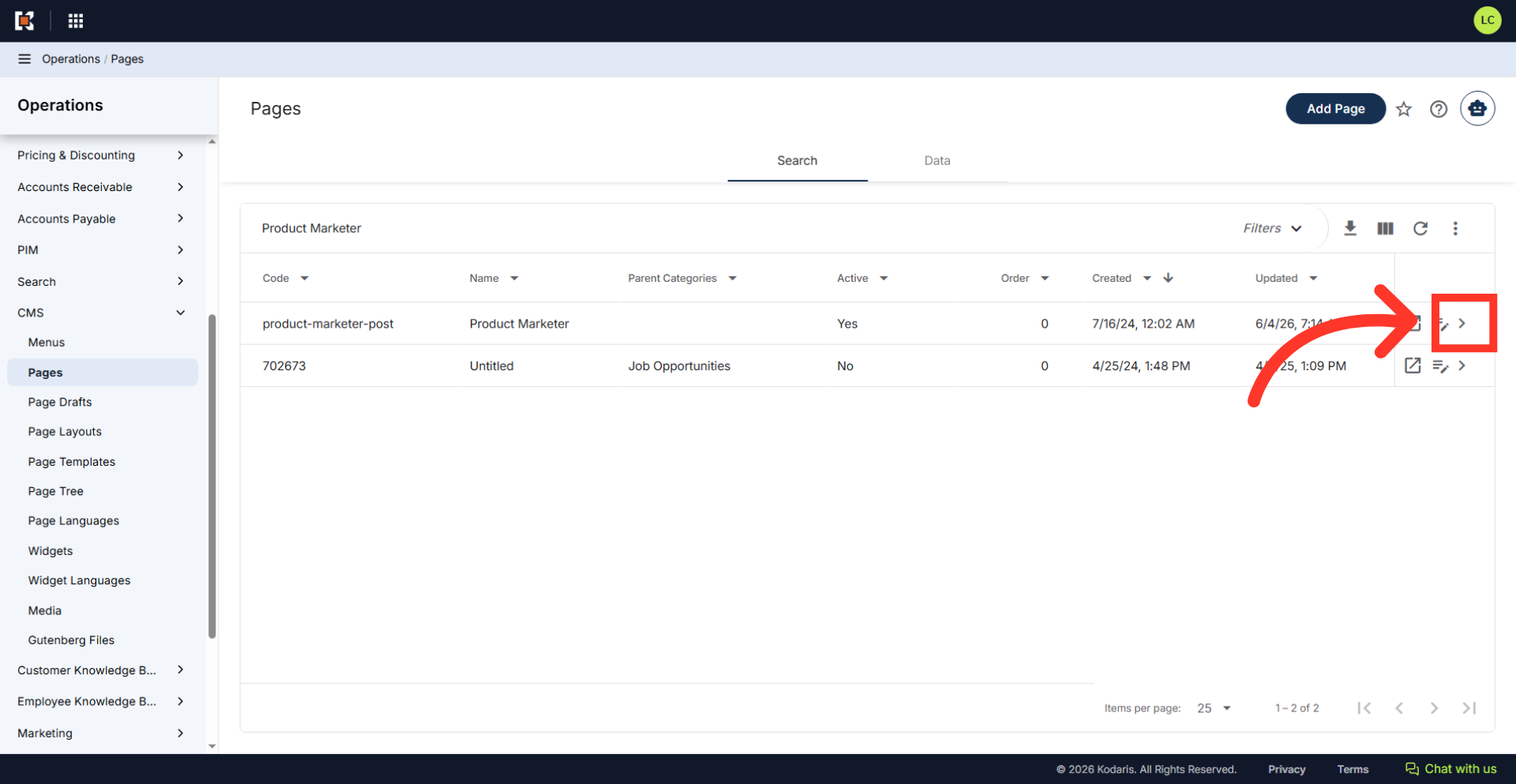
Click on the more details icon to view the complete page details screen.
If you would like to add an "Assignment Type" to the assignee, scroll down the page to locate the "Assignees" section. Then, click the "Assignment Type" dropdown.

Select an "Assignment Type" from the system populated dropdown menu of job roles to specify the assignee's responsibility for the page.

Then, click the "Add assignee" field and type to search for the employee that should be assigned to the page. Select the team member from the list.

Once assigned, you can view the assigned team member in this section. Additional team members can also be added or removed.
